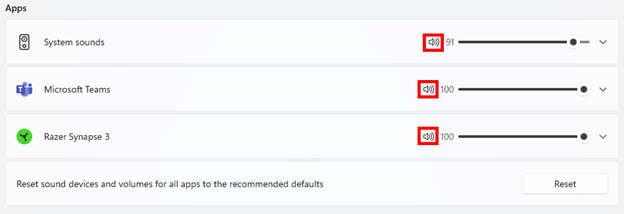
There are several ways to adjust the volume in the Razer Blade. You may use the function keys, the speaker icon, and the volume mixer.
Select preferred method
Using the Function (fn) keys
-
Press fn + F1 to mute.
-
Press fn + F2 to decrease the volume.
-
Press fn + F3 to increase the volume.
Using the speaker icon (Windows 10)
-
Click the speaker icon.
-
Move the slider to adjust the volume (from left to right, the volume level 0 to 100).

-
To mute the audio, click the speaker icon beside the slider.
Using the volume mixer (Windows 10)
-
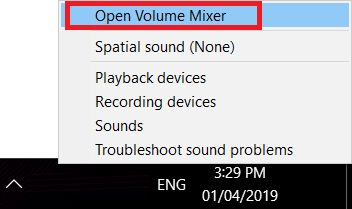
On the system tray, right-click the speaker icon and select “Open Volume Mixer”.
-
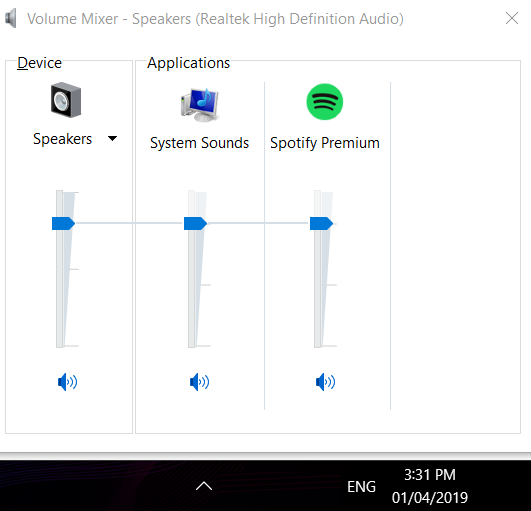
Move the slider to adjust the volume (from bottom to top, the volume level is 0 to 100).
-
You can also individually adjust the volume of each application by adjusting the volume level under each application.
-
To mute, click on the speaker icon at the bottom of the slider.
-
You can also individually mute each application by clicking the speaker icon under each application.
Using the speaker icon (Windows 11)
-
Click the speaker icon.
-
Move the slider to adjust the volume (from left to right, the volume level 0 to 100).

-
To mute the audio, click the speaker icon beside the slider.
Using the volume mixer (Windows 11)
-
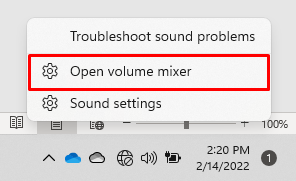
Right-click the speaker icon on your speaker tray then click “Open volume mixer”.
-
Move the slider to adjust the volume (from bottom to top, the volume level is 0 to 100).

-
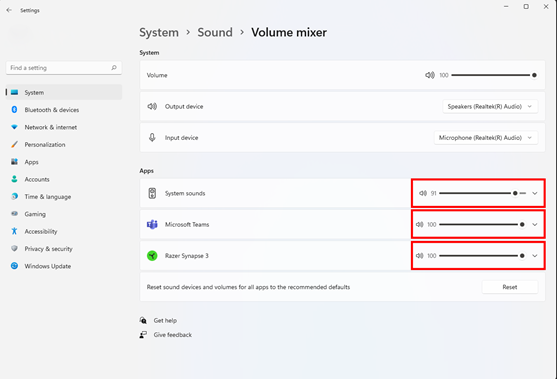
You can also individually adjust the volume of each application by adjusting the volume level under each application.
-
To mute one or more applications, click on the speaker icon at the leftmost portion of the sliders.