This article explains how to configure and troubleshoot the built-in keyboard or touchpad on your Razer Blade. Follow the steps to resolve freezing, lag, unresponsiveness, driver issues, and other common input-related problems.
Select the device you want to troubleshoot
Razer Blade built-in keyboard
-
Restart the device and check if the issue persists.
-
Scan your device for viruses and spyware which can affect its performance.
-
Update your device driver. Go to "Device Manager".

-
Expand "Keyboards".

-
Right-click on "Razer Blade" and select "Update driver".

-
Complete the update and verify if the issue has been fixed. If the issue persists, re-install the device driver.
-
Right-click on "Razer Blade" and select "Uninstall device". Complete uninstalling the device.

-
On the "Device Manager", click on "Scan for hardware changes". Your Blade should then detect and install the driver for your keyboard.

-
If the steps above did not resolve your issue and you have determined that the issue is with the Razer Blade, attempt to perform a system recovery or factory reset.
Razer Blade touchpad
Troubleshoot freezing or lag touchpad
Note: Be sure to install all the latest Microsoft® Windows System and Security Updates.
-
Restart the device and check if the issue persists.
-
Scan your device for viruses and spyware which can affect its performance.
-
Verify if your touchpad is disabled. Right-click the "Windows" icon on your Desktop and navigate to Settings > Devices > Touchpad.

-
Under "Touchpad", toggle the switch on to enable the touchpad.

Update touchpad driver
Note: Ensure you have installed all the latest Microsoft® Windows Operating Systems and Security Updates.
-
Clean your touchpad using a soft dry cloth (preferably microfiber).
-
Ensure that your hands are clean and dry when using the device.
-
Update your device driver by right-clicking “Start”, select “Device Manager“.

-
Expand “Human Interface Devices”.
-
Right-click “HID-compliant touch pad” and select “Update driver”.

-
Complete the update and verify if the issue has been fixed. If the issue is still being experienced, reinstall the device driver.
-
Right-click “HID-compliant touch pad” and select “Uninstall device“.
-
Complete uninstalling the device.

-
On “Device Manager“, select “Action“ on the top menu and click “Scan for hardware changes“. Your Blade should detect and install the driver for the “HID-compliant touch pad“.

-
If the steps above did not resolve your issue and you have determined that the issue is with the Razer Blade, perform a system recovery or factory reset.
Configure "Precision Touchpad"
The Razer Blade does come pre-installed with the Precision Touchpad out of the box. Combined with the Razer Blade’s top-of-the-line hardware, the Windows Precision Touchpad driver allows for a smooth and accurate experience. Touchpad’s sensitivity, functions, and advanced gestures can be customized through Windows settings.
You can view the video below for instructions or review a copy of the video transcript.
- Access the Precision Touchpad settings by going to Settings > Devices > Touchpad.
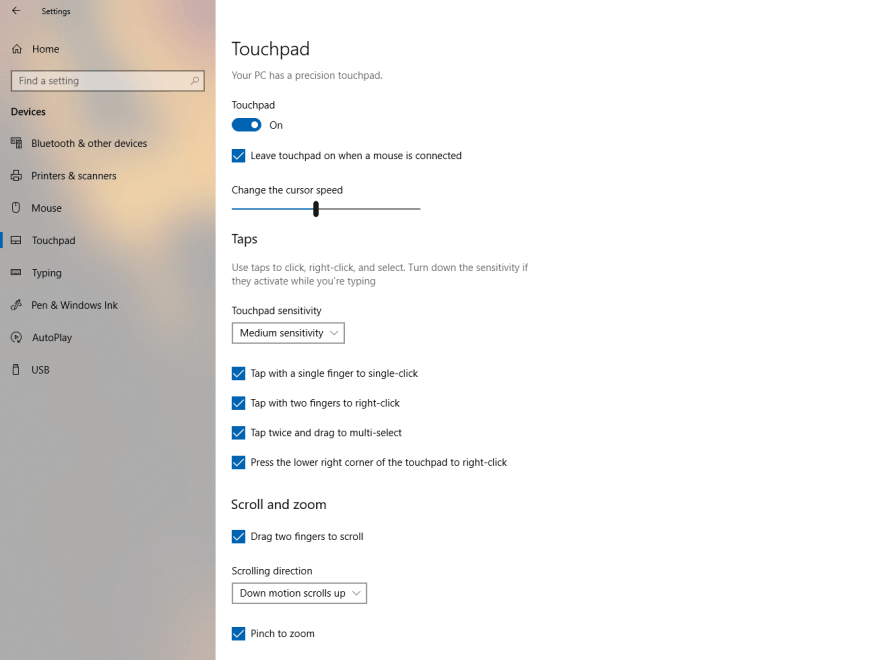
- Enable or disable certain preset functions for the touchpad such as “Tap twice to right-click” or “Press the lower right corner of the touchpad to right-click” or both.
Customizing the three-finger and four-finger gestures
The Razer Blade’s touchpad can handle three-finger and four-finger gestures. Windows’ precision touchpad allows users to customize the three-finger and four-finger gestures with preset functions. These preset functions can be accessed via drop-down menus and are grouped as “Swipes” or “Taps”.
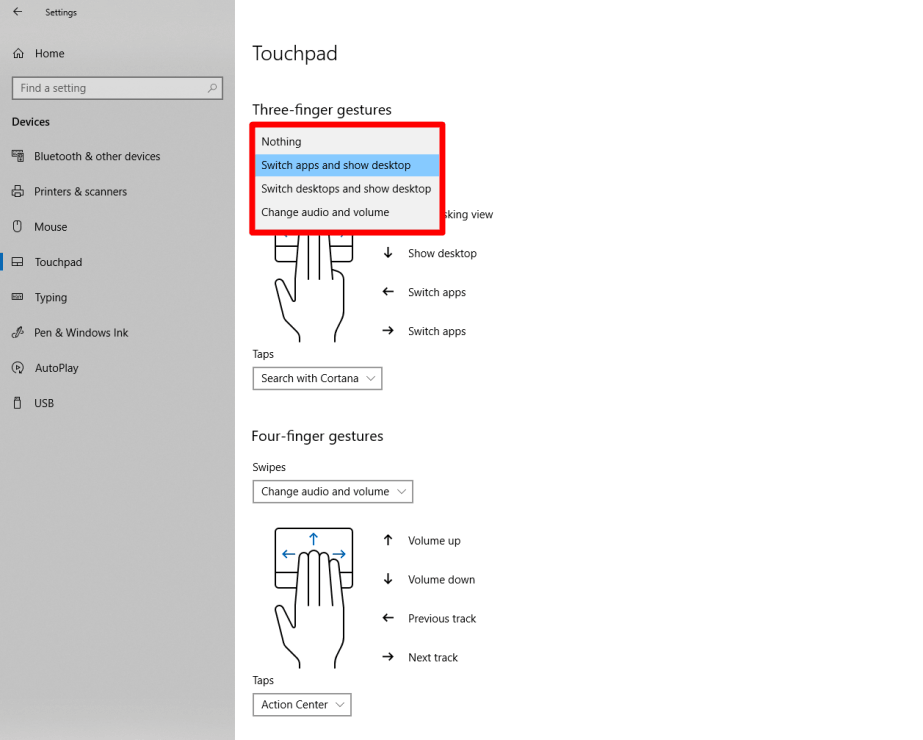
Note: Options for swipes include "Switch Apps and Show desktop", "Switch desktops and show desktop", "Change audio and volume", and "Nothing."
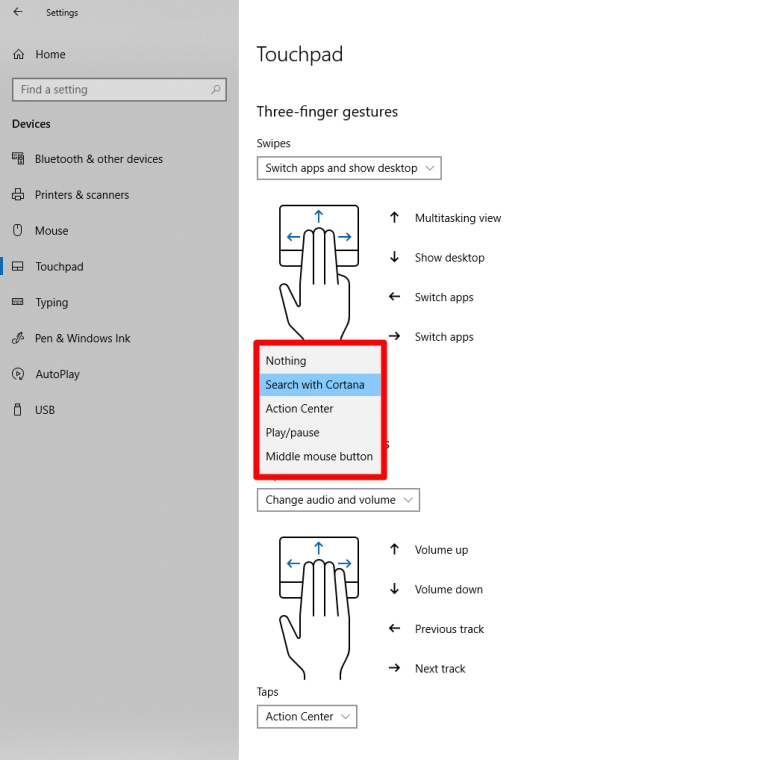
Note: Options for Taps include "Search with Cortana", "Action Center", "Play/pause", and "Middle mouse" button.
Configuring advanced gestures
For the advanced settings, Windows allows users to combine individual actions.

To record a keyboard shortcut to either your three-finger or four-finger tap.
-
Click on the drop-down menu for Taps and select “Custom shortcut.”
-
Click "Start recording" and perform the keystroke.
-
Hold the "ESC" key on your keyboard to stop recording and save your gesture.
To go back to the default controls:
-
Go back to Settings > Devices > Touchpad.
-
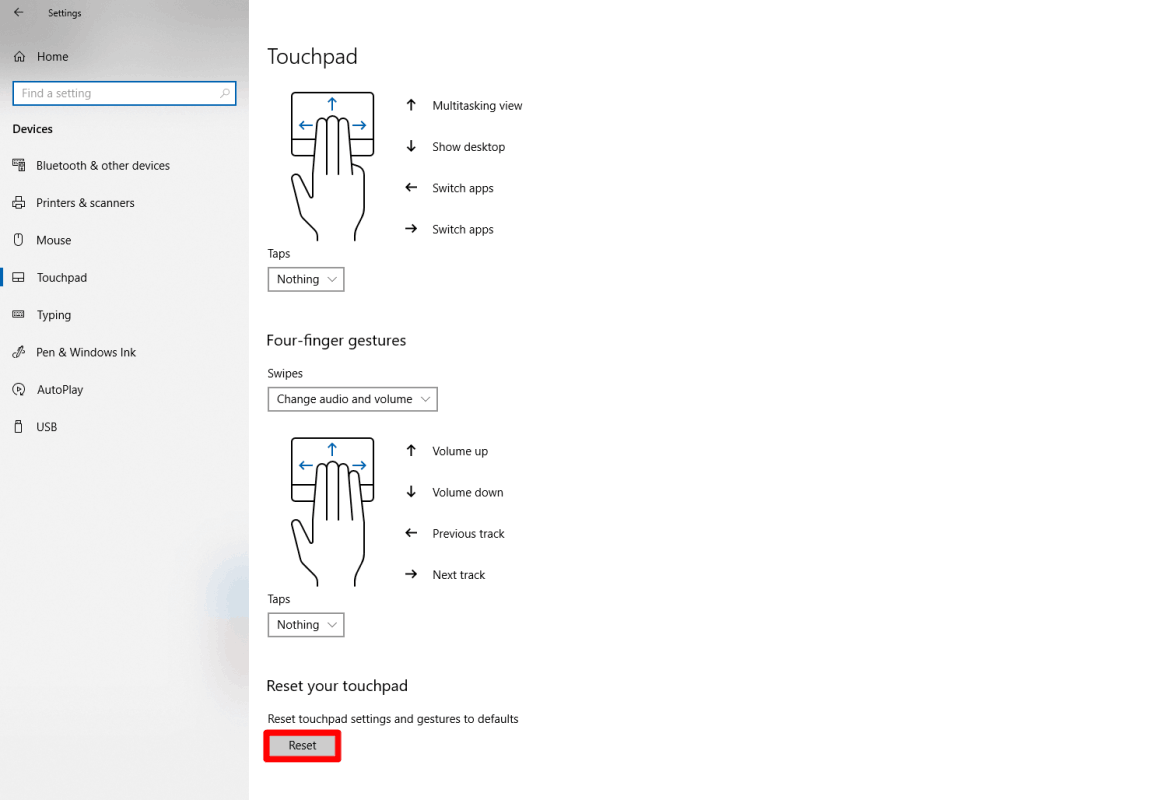
Click “Reset” at the bottom of the page.