
Quality of Service, also known as QoS, is a technology used efficiently in managing data flow to minimize packet loss over the network, thus, reducing lag and intermittent connection. QoS works by setting up priorities for the data traffic of specific applications, online games, LAN ports, or even MAC addresses of specific devices on the network.
QoS is a helpful feature found in the Razer Sila router that allows you to set prioritization for your connected devices. This would mean that the device you specify will be prioritized to send and receive data traffic over the network compared to other devices, resulting in a faster, uninterrupted, and more stable connection.
This article will guide you on how to change the priority of a connected device in the QoS settings on the Razer Sila. In this example, a desktop will be given the highest priority.
Step-by-step process:
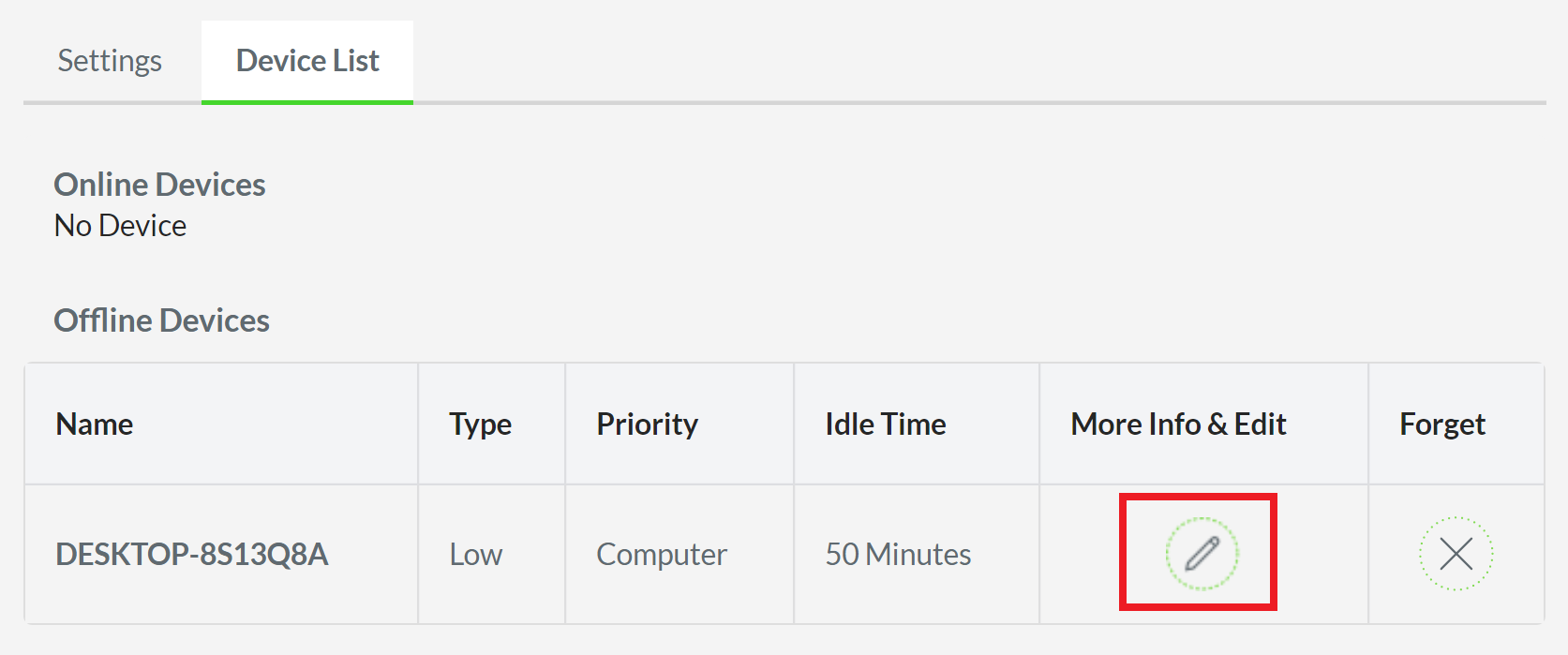
The table that lists down all connected devices will then be displayed. In this example, only one device is connected.
-
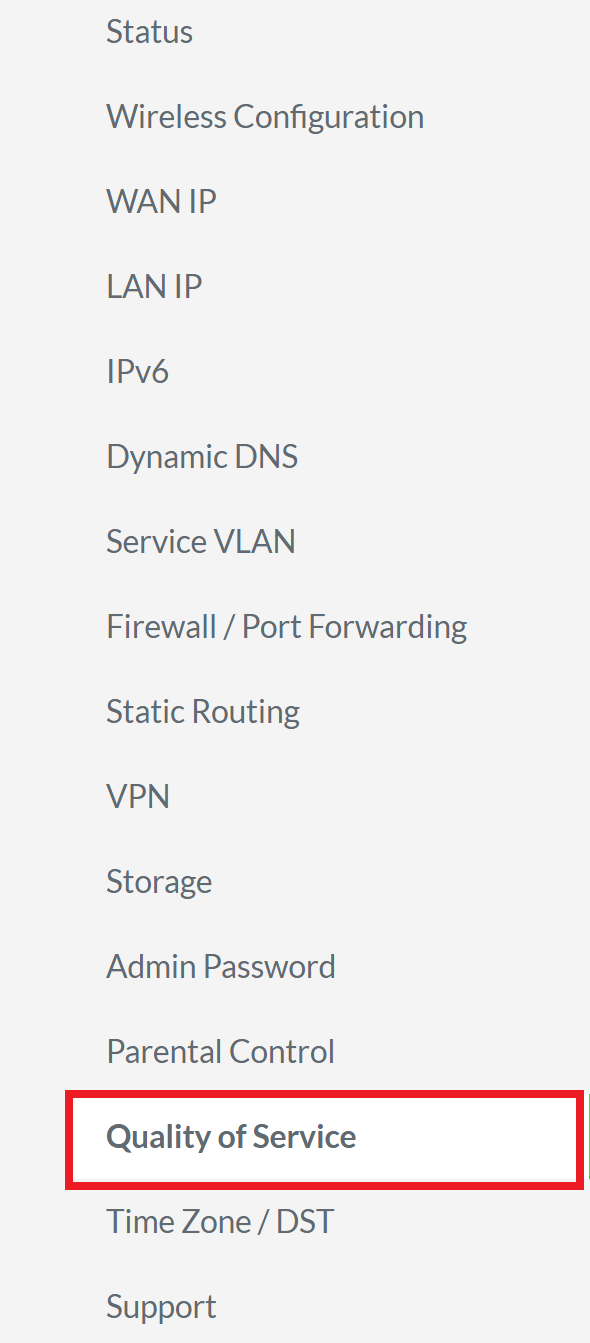
Access the web UI of the Razer Sila and click “Quality of Service” from the left navigation panel.
-
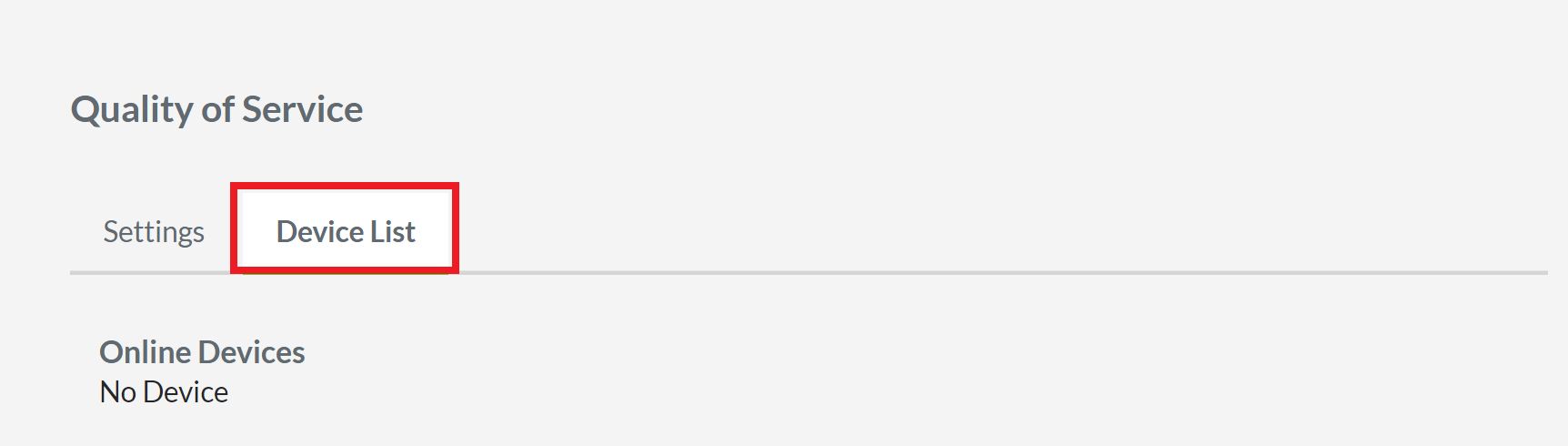
Click “Device List” to display the list of connected devices.
-
Click the edit icon in the “More Info & Edit” column.
-
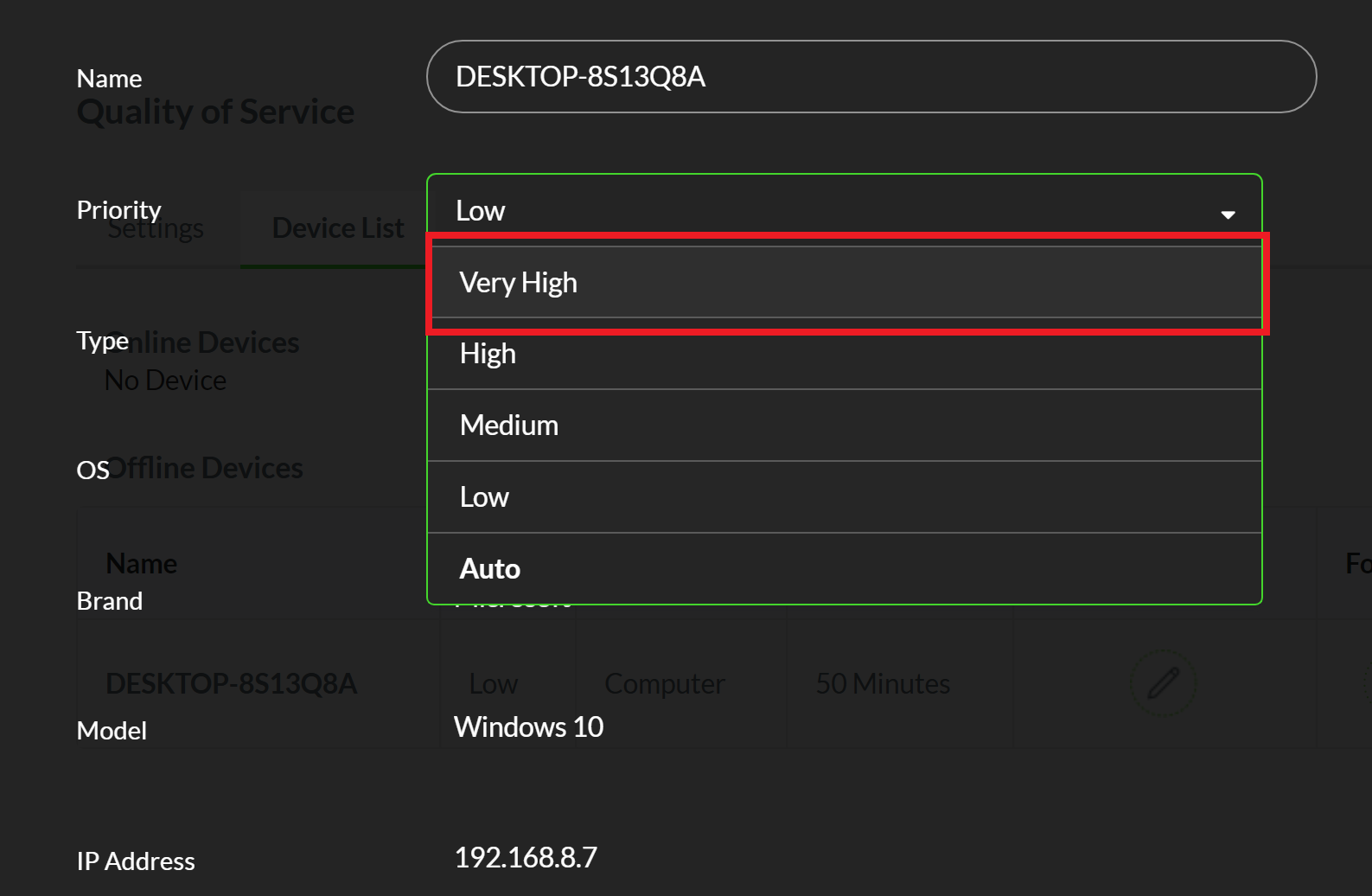
Click the Priority drop-down arrow and choose “Very High”.
-
Click “Apply”.
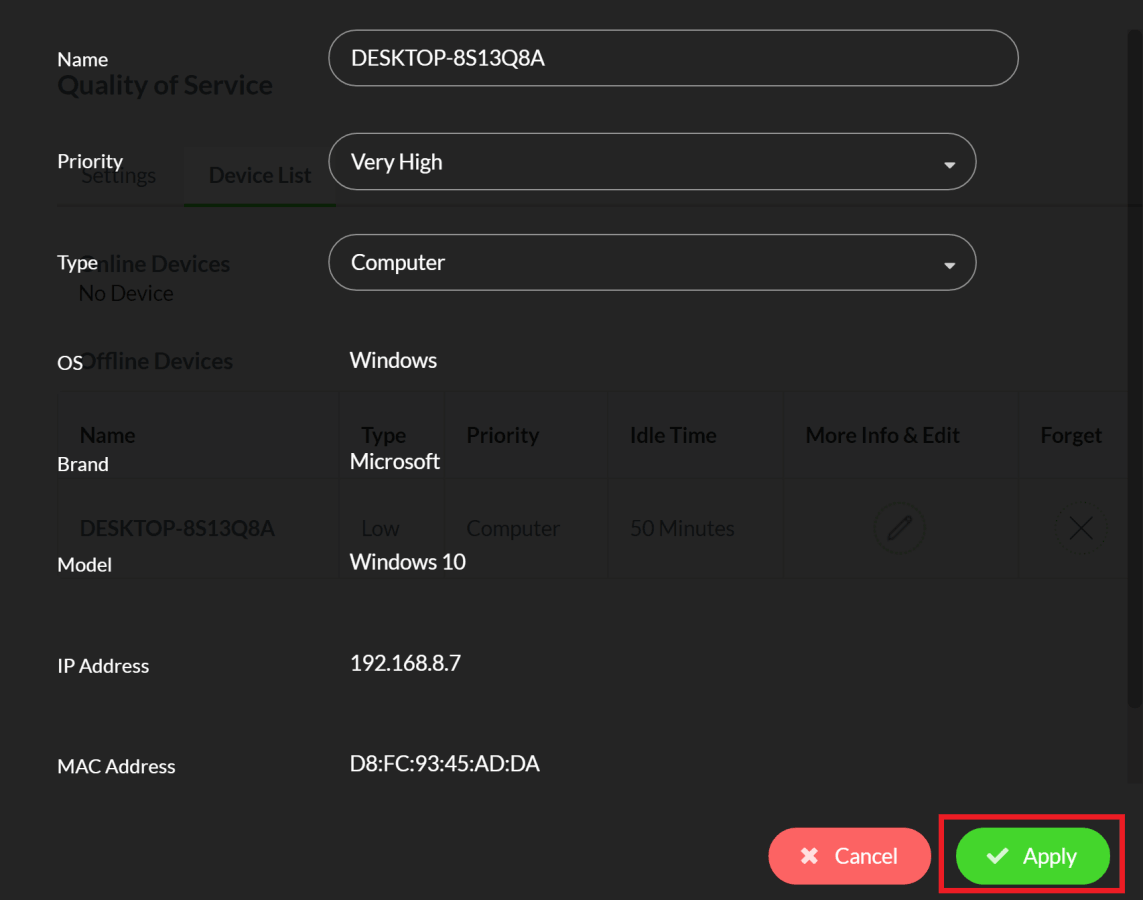
The device is now the top priority for sending and receiving data over the network.

