
Select applicable action
Isolate the Razer Core to device connection to resolve USB port issues.
Verify if the problem exists on one or all the USB ports
-
Unplug all devices that are connected to the USB ports except one.
-
Unplug the remaining device from the USB port and transfer it to another USB port.
-
Make sure that you allow enough time for the device to be recognized by the system before unplugging it from one port.
-
Check if the problem exists on the port where you transferred the device.
-
Do the same on the remaining USB ports.
-
Use the working USB port to update the driver of the ports that are not working.
Verify if the problem exists on one or all connected devices
-
Unplug the USB device that you have connected to each of the USB ports on the Razer Core.
-
Get another USB device and plug it to each of the USB ports.
-
Make sure that you allow enough time for the device to be recognized by the system.
-
Use the working USB port to update the driver of the devices that are not working.
Power Cycle
Perform a power cycle to refresh the setup and allows the devices to detect the connection to each other.
-
Disconnect the Razer Core from your Razer Blade by detaching the Thunderbolt 3 cable.

- Turn the power OFF on both the Razer Core and the Razer Blade laptop.
-
Unplug the Razer Core's electrical cord to disconnect the power.

-
Leave both OFF for 30 seconds.
-
Re-plug the electrical cord to the Razer Core to power it ON.

-
Reconnect the Razer Core to the Razer Blade using the Thunderbolt 3 cable.
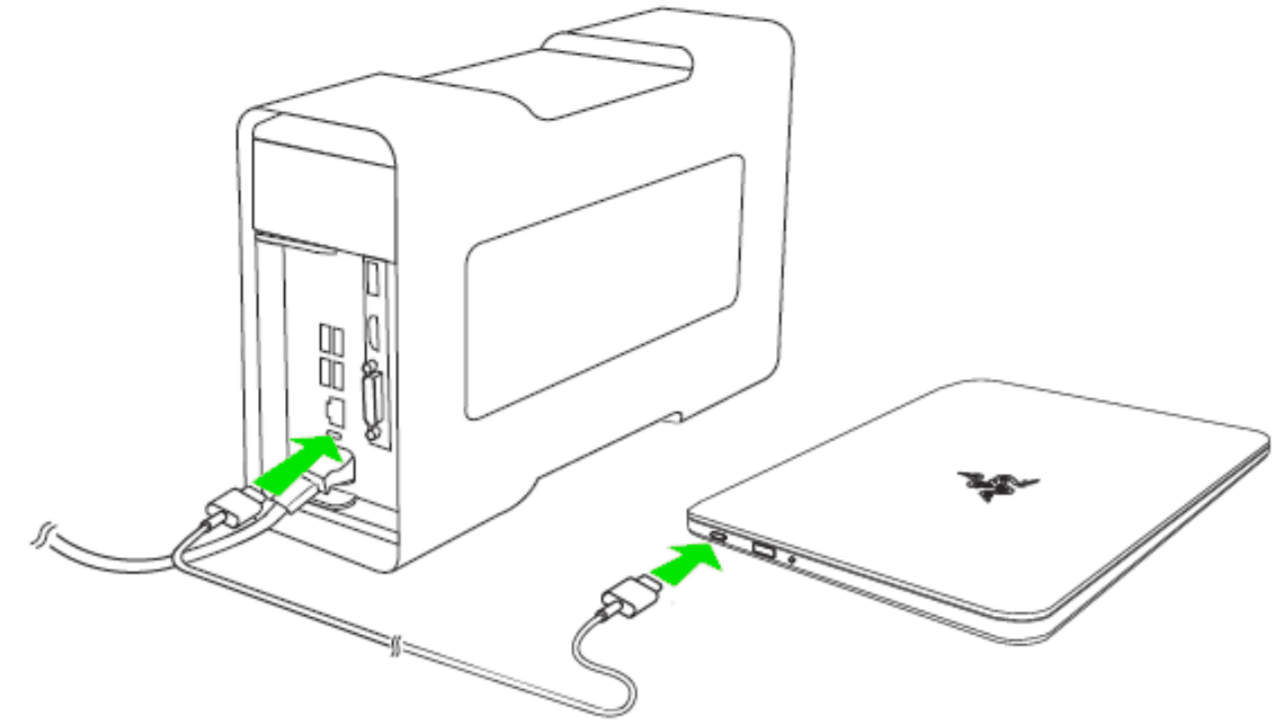
-
Turn the power ON on the Razer Blade laptop.
-
Reconnect all the USB devices to the Razer Core.
-
Wait a few moments for the system to detect them.
-
Test each device.

