
The wireless security settings on your Razer Sila should be properly configured to make sure that no unauthorized wireless devices will be able to connect to your network and take advantage of the wireless internet connection. Since the Razer Sila is a dual-band router, wireless security should be implemented for both bands, the 2.4 GHz and the 5 GHz.
Follow the detailed instructions below to configure the wireless security settings on the Razer Sila.
Important: Use a computer that is hardwired to the Razer Sila. This will allow an uninterrupted connection to the router and continuous access to its web UI during and after the configuration.
-
Access the web UI of the Razer Sila.
-
Click on “Wireless Configuration”.

-
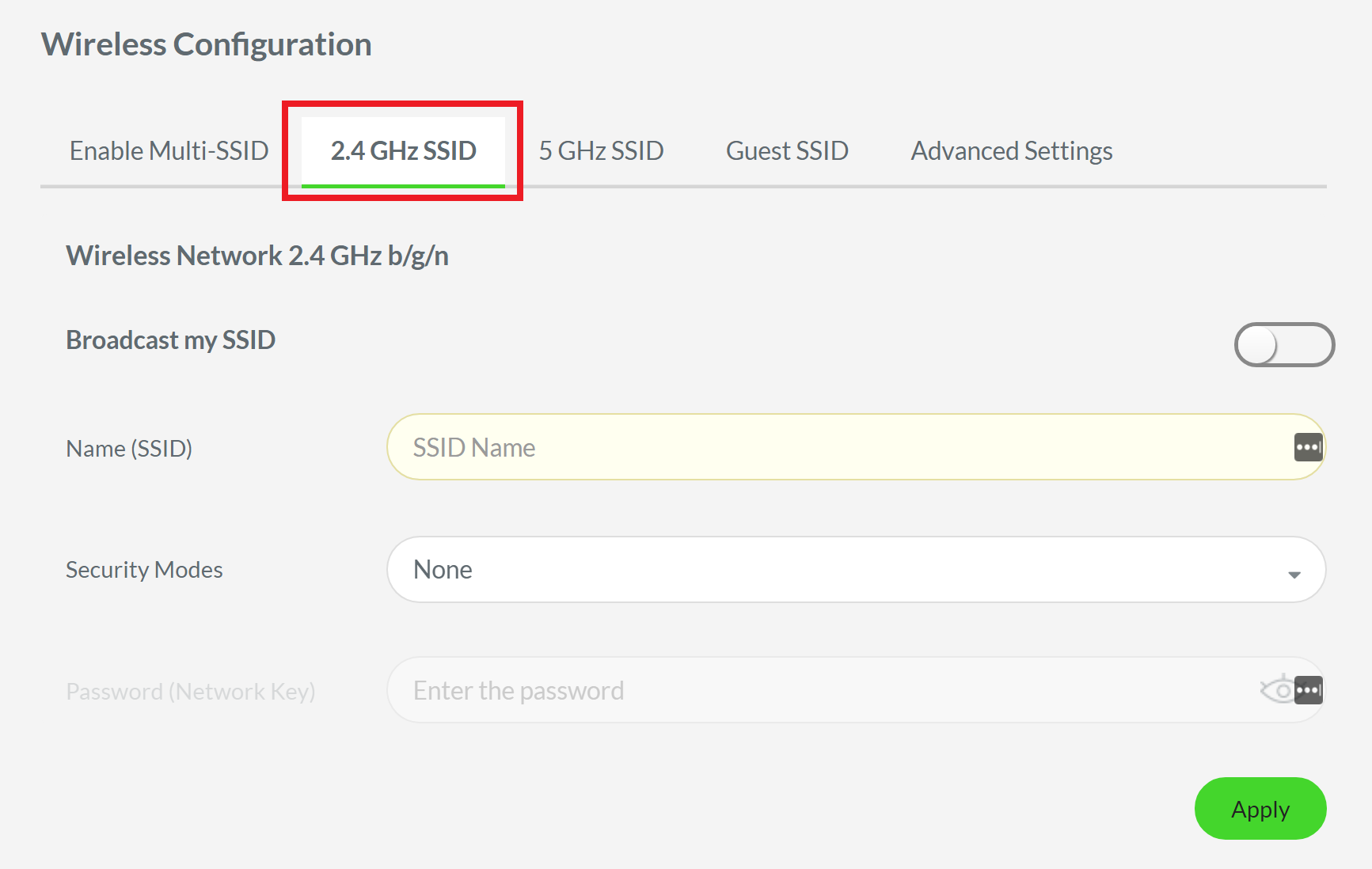
Click “2.4 GHz SSID”.
-
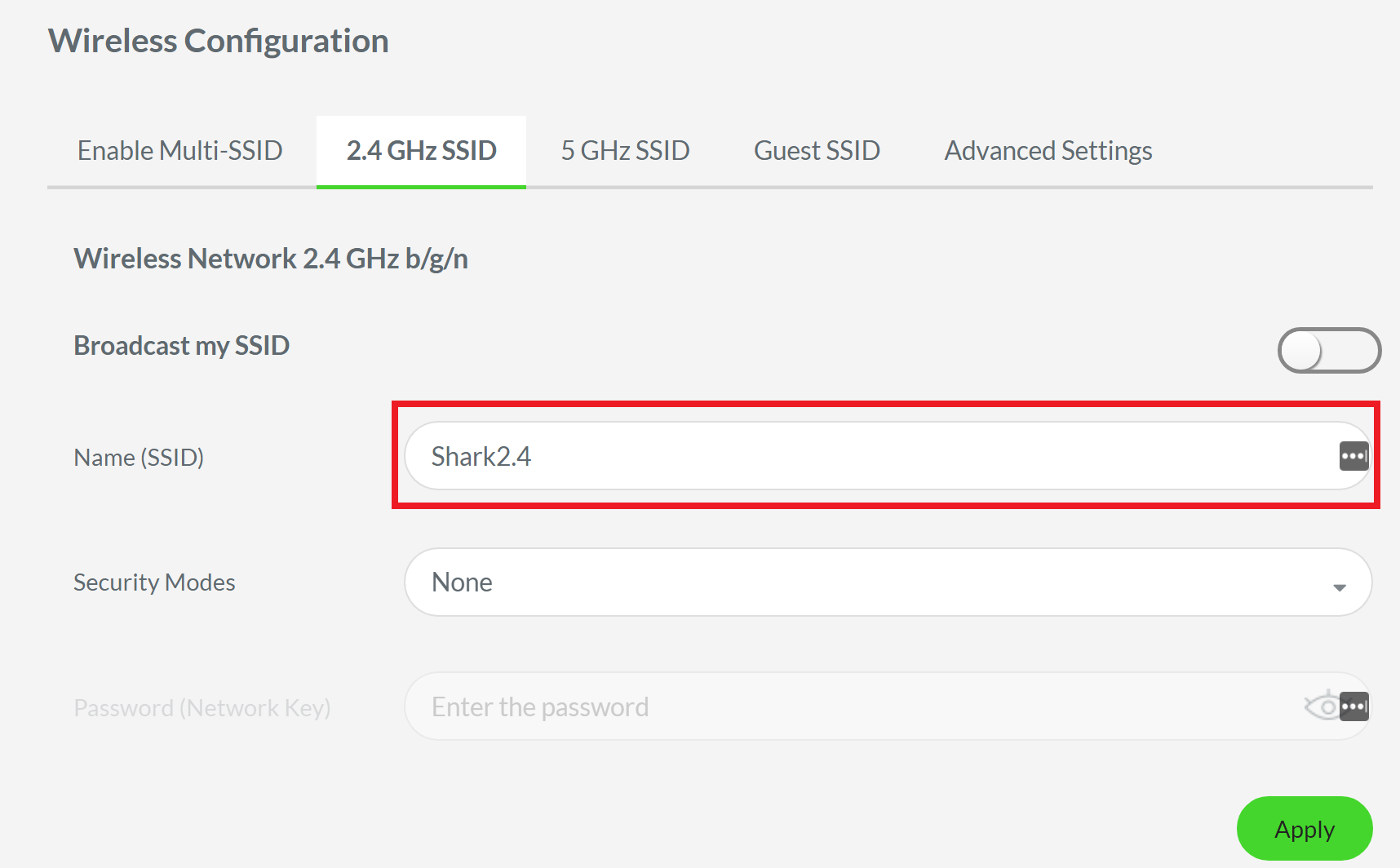
Enter the name that you want for your 2.4 GHz network. This will be the network where all your 2.4 GHz wireless devices will connect to.
-
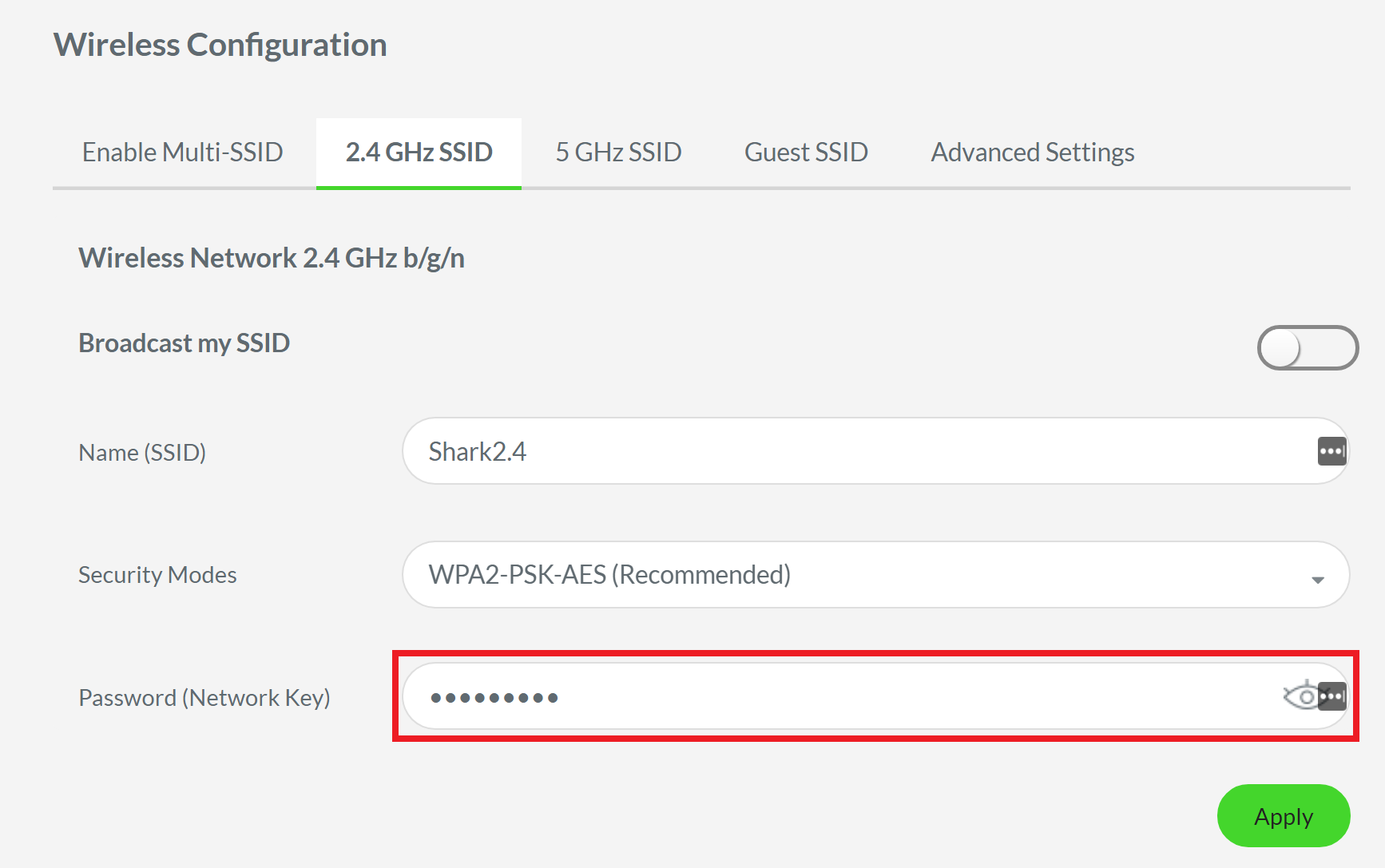
Choose the Security Mode. In this example, WPA2-PSK-AES is chosen. This is the most recommended mode for having the latest encryption standard and the latest encryption protocol combined, resulting in more enhanced security over the wireless network.

-
Enter a password for this wireless network in the Password (Network Key) field. This will be the password that wireless devices need to enter to successfully connect to this wireless network.
-
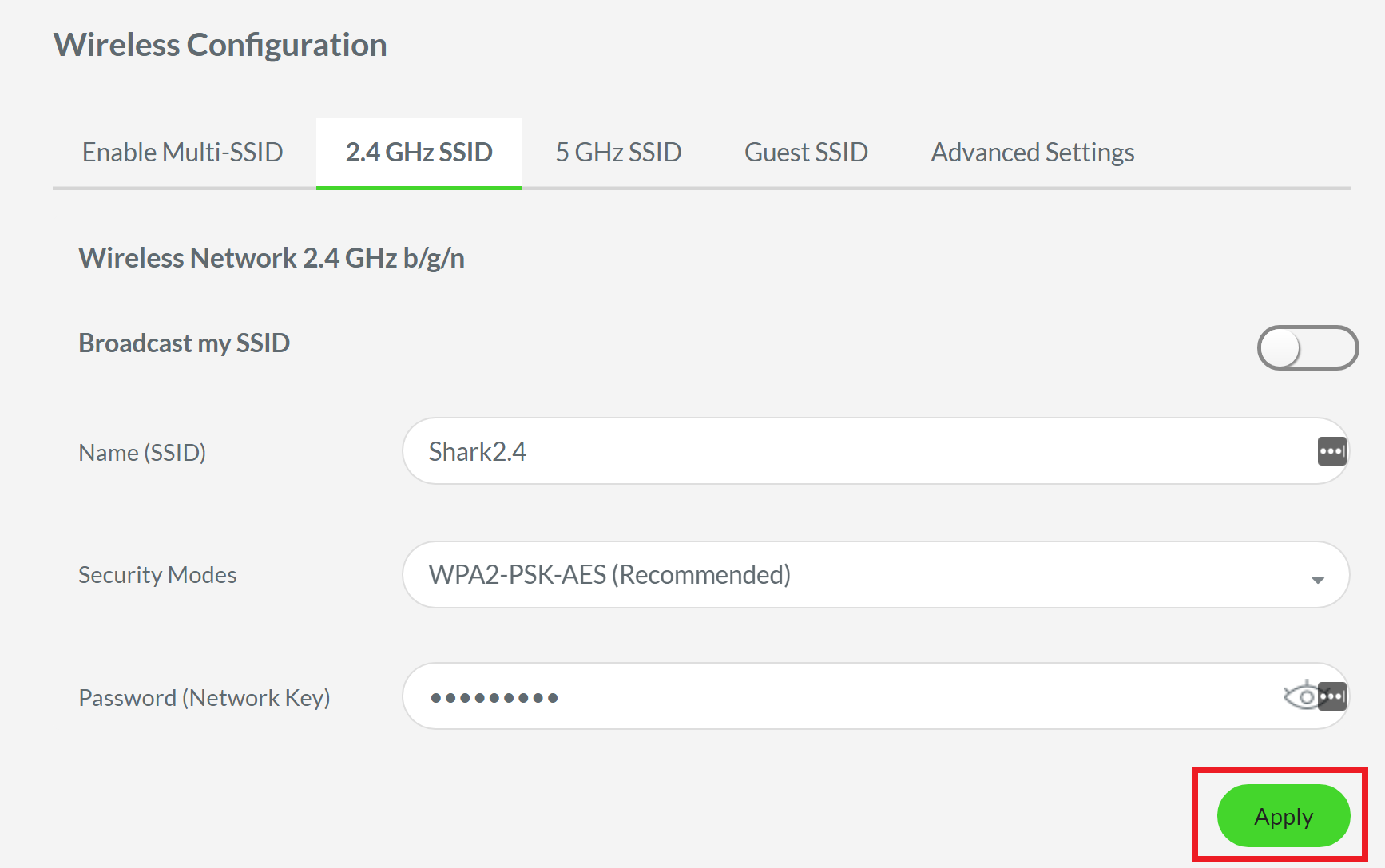
Click “Apply”.
-
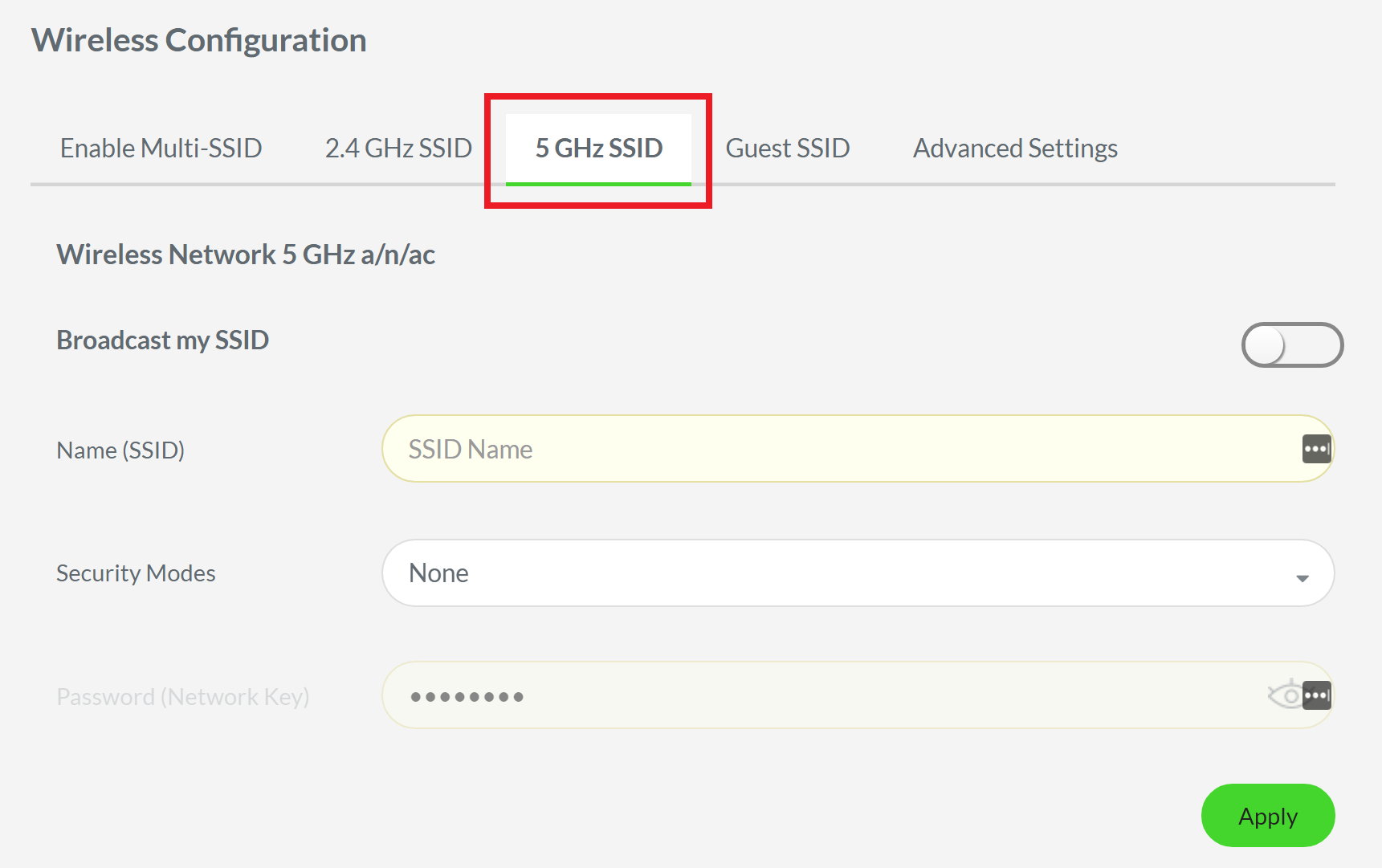
Click on “5 GHz SSID”.
-
Repeat steps 3-6 above to configure the wireless settings for this network.
You should now have successfully configured wireless security on both 2.4 GHz and 5 GHz networks on your Razer Sila.

