
The Administrator password is the password that you need to enter to have access to the web UI of the Razer Sila router and manage its settings. It is important to set up an administrator password to the router so that your network’s configuration and all devices connected to it are protected against unauthorized access.
The Razer Sila’s default administrator password is “password” and can be seen at the bottom sticker of the device itself. You can change or delete the administrator password on the router by accessing its web UI.
Note: For lost passwords, the only way to recover is to reset the Razer Sila to its factory default settings.
This article will guide you on how to set up or change an administrator password on the Razer Sila. Follow the steps below to learn how:
- Access the web UI of the Razer Sila and go to “Admin Password”.

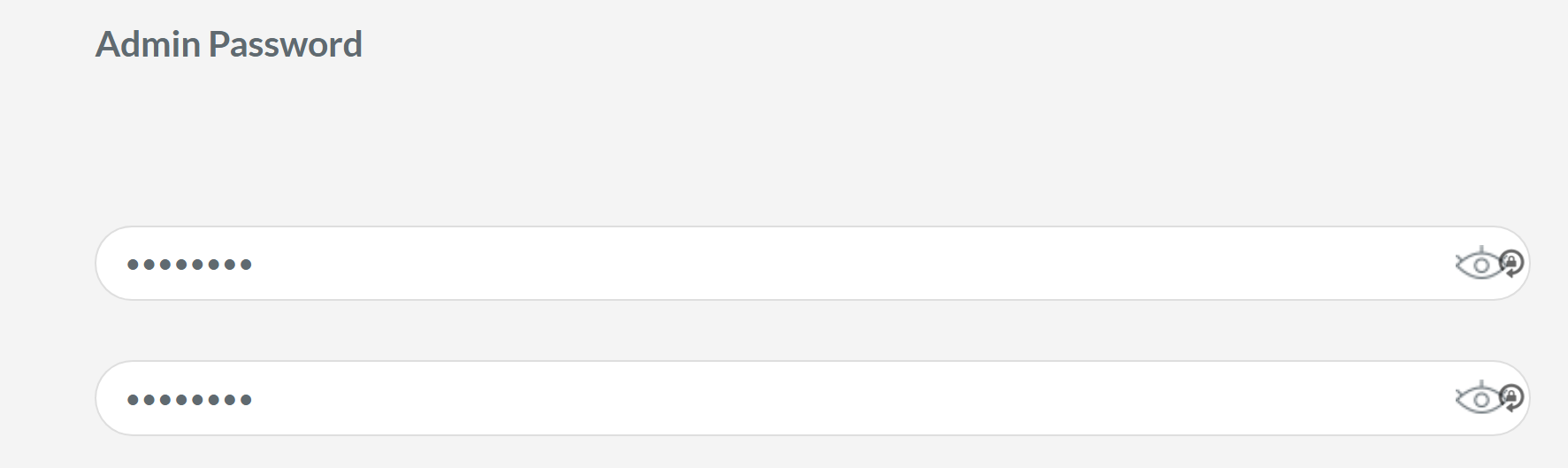
- Enter the password that you want to use to access the web UI of the Razer Sila and confirm it in the fields provided. This password should only be given to those who are authorized to access the router and manage the settings.
- Click “Save New Password”.

You have now set up a new password on the Razer Sila. The next time you access the web UI, it will be requiring you to enter this new password.

