
The Razer Blade may have issues pairing with Bluetooth devices causing an unstable connection.
Follow the detailed instructions below to enable Bluetooth pairing.
Select an action
Use the Windows Troubleshooter
Note: Before you proceed, ensure that your system has all the latest updates installed.
-
Open your Start menu and select “Settings”.
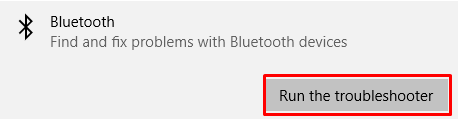
- Go to Update & Security > Troubleshoot > Bluetooth.

- Click “Run the troubleshooter." Test if the issue has been solved.
Use the Device Manager
-
Ensure that Bluetooth is enabled on both your Razer Blade and Bluetooth device.
-
Connect your Bluetooth peripheral to another PC or smartphone and test it. Proceed to the next step if the Bluetooth peripheral connects to the other device.
-
Update your Bluetooth drivers via “Device Manager” and select “Bluetooth”. Right-click the Bluetooth driver and select “Update Driver”.

-
Finish the update process then connect the Bluetooth device to your Razer Blade. Test the devices.
-
If the issue persists, go back to Device Manager then select “Bluetooth”. Right-click the Bluetooth driver and select “Uninstall Driver”.

-
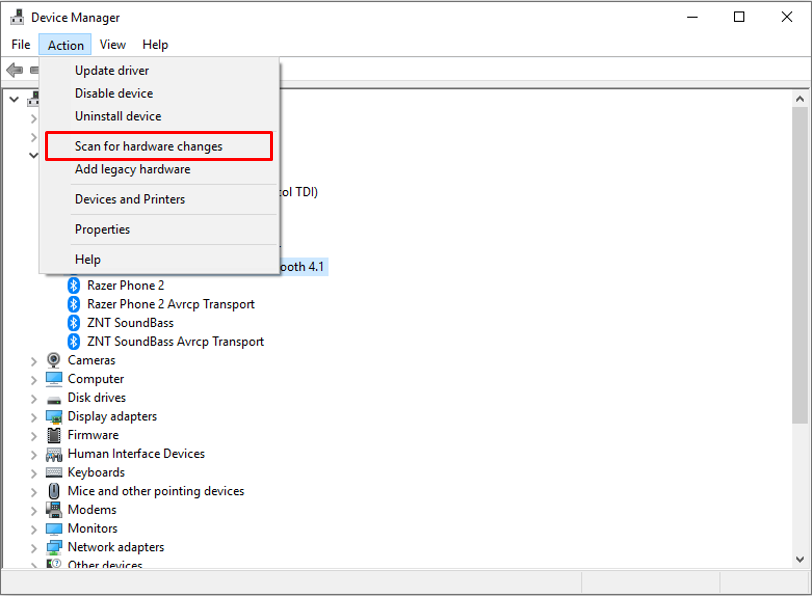
Click on the “Action” tab and select “Scan for Hardware Changes”.
-
Your Razer Blade will search and install any available drivers. Restart your Razer Blade afterward.
-
If the steps above did not resolve your issue and you have determined that the issue is with the Razer Blade, attempt to perform a system recovery or factory reset.

