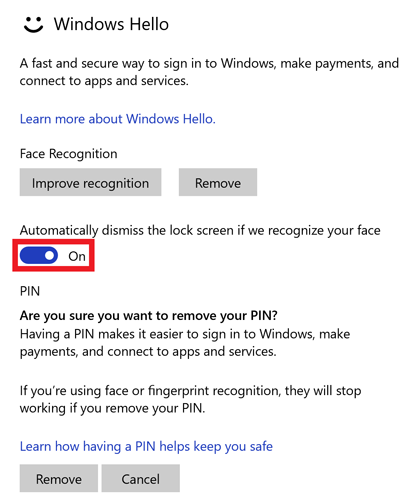
Windows Hello is a personal and optional way to sign in to your Windows 10 devices, apps, online services, and networks using your face, iris, or fingerprint. It offers security without having to type in a password.
Below are the steps to setup and use Windows Hello:
-
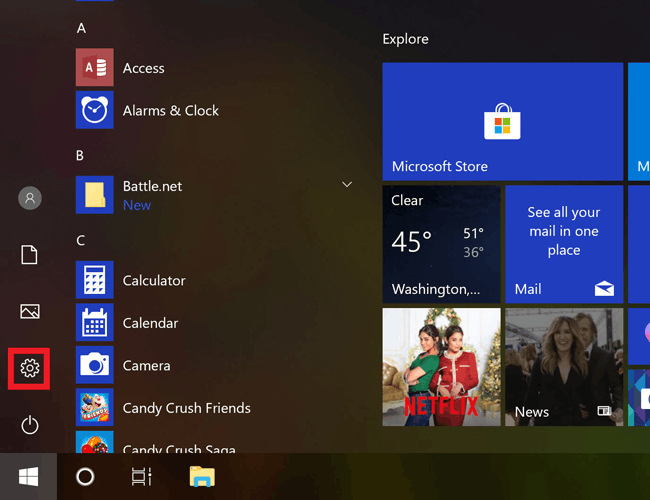
Click on the Windows logo at the lower-left corner of the screen.

-
Click on the "Settings" icon.
-
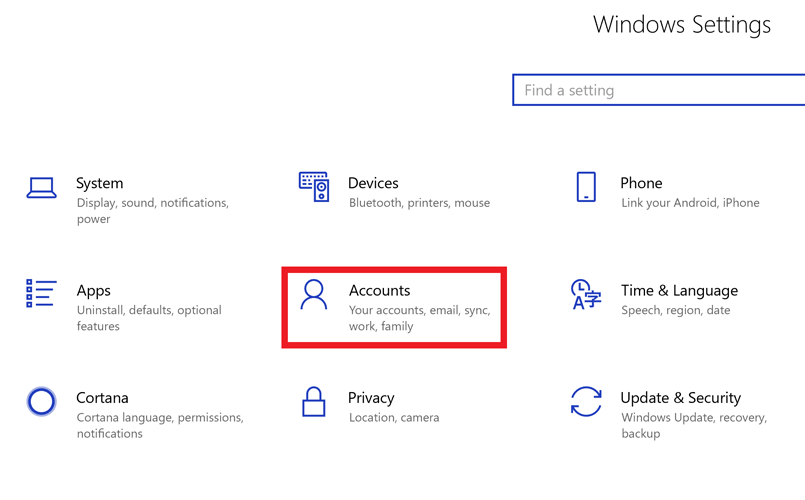
Click "Accounts".
-
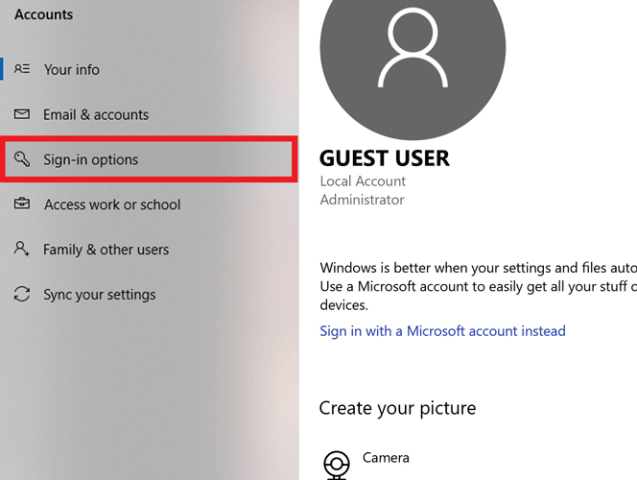
Open "Sign-in options".
-
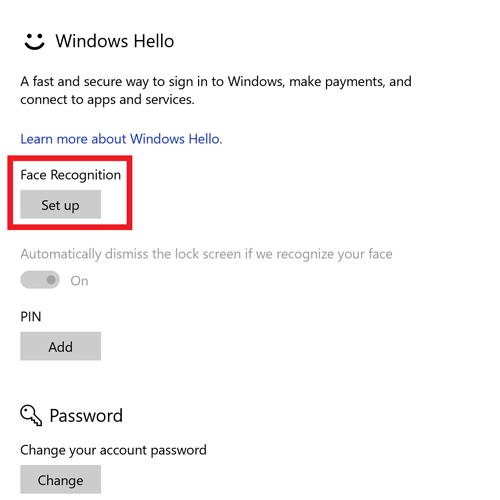
Click on "Set up".
-
Click on "Get Started".

-
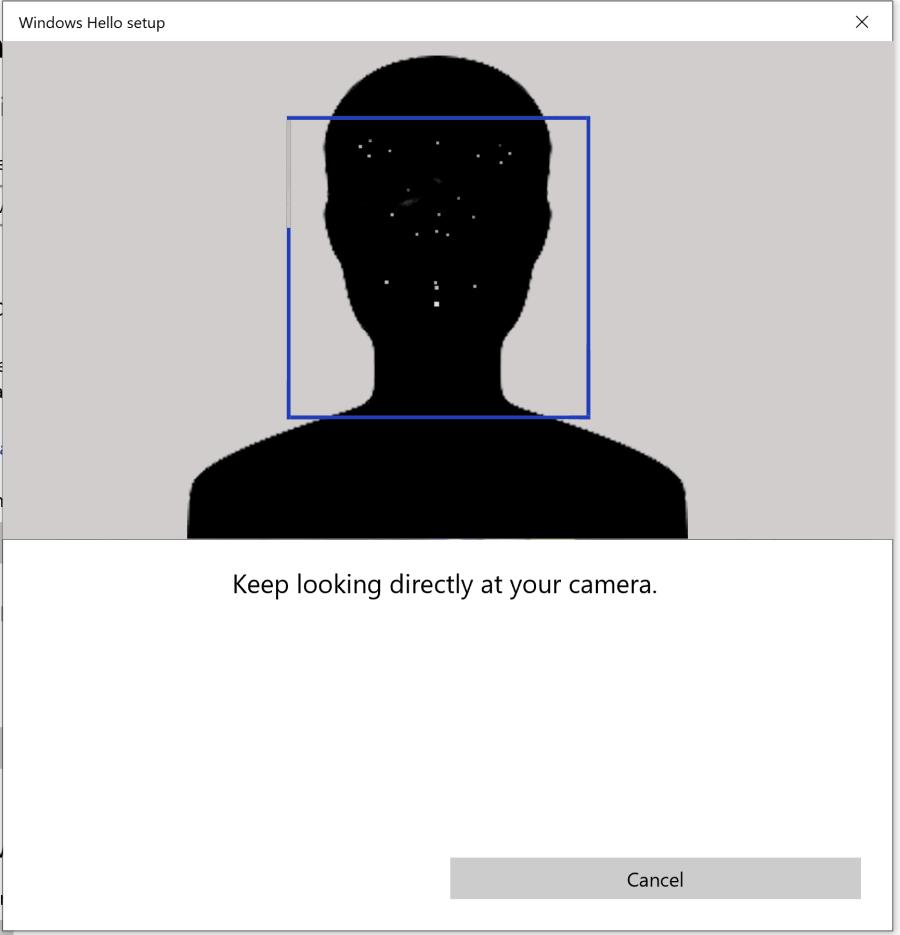
Let the camera or sensor scan your face and wait for it to finish. The box will become blue once the scan is complete.
-
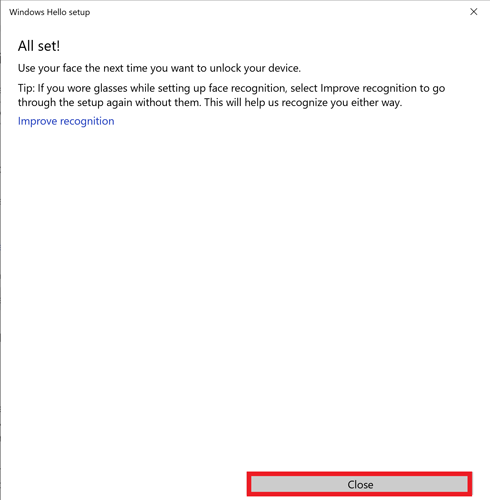
Click "Close" once done.
-
Select other options like automatically dismissing the lock screen once Windows recognizes you.