Using Ambient Awareness effect in Razer Synapse causes Chroma lighting to turn off

| Answer ID: 1952
This article provides instructions on how to resolve issues when using the Ambient Awareness effect in Synapse.

Step-by-step process

  1. Right-click on your desktop and select "NVIDIA Control Panel".
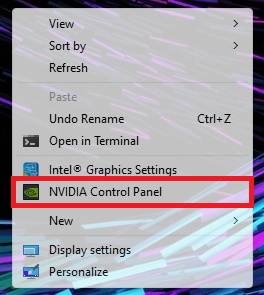
    NVIDIA Control Panel via Desktop

  2. Select "Manage 3D settings" > "Global Settings".

  3. Choose "Auto-select" or "Integrated graphics" from the dropdown list under "Preferred graphics processor".
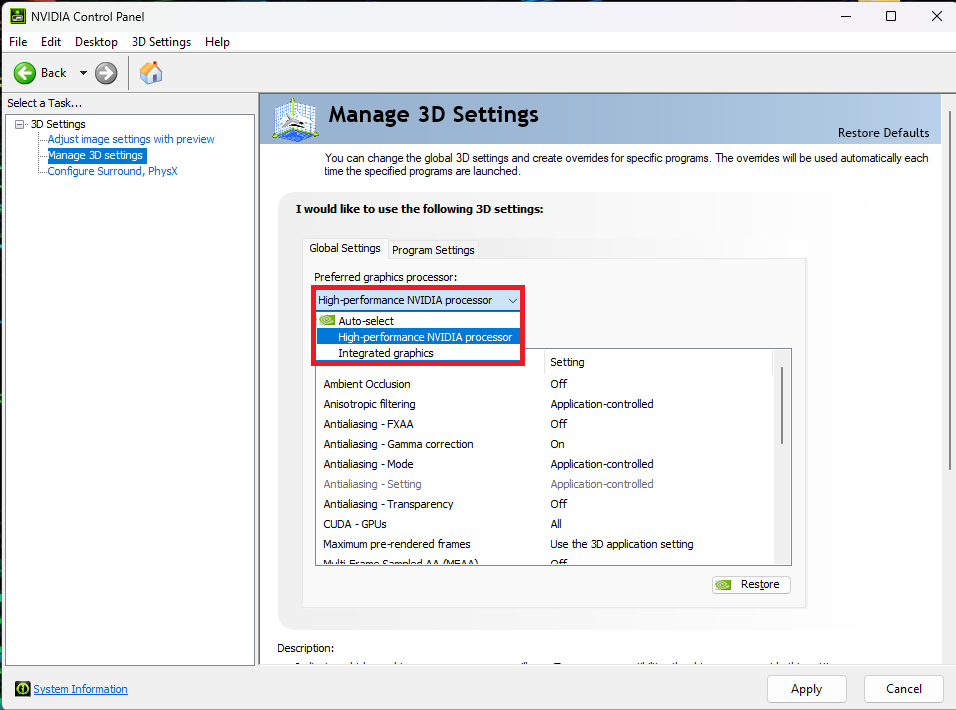
    Manage 3D Settings page

  4. Restart Razer Synapse.

Is this answer helpful?