
Slowdowns in the Razer Phone can be caused by anything from incompatible apps to bugs left in outdated software. These issues are usually the same culprits behind crashing or freezing apps. To isolate the issue and perform the appropriate solution, do the following:
Step-by-step process:
-
Boot the Razer Phone to safe mode. Observe the device for up to 24 hours to see if the issue persists. If the phone works normally under safe mode, the issue is due to a third-party application. Consider uninstalling the app that you last downloaded before the issue appeared.
To boot to Safe Mode, do the following:
For Android Version 8 (Oreo):
-
Press and hold the Razer Phone button.
-
On your screen, touch and hold “Power off”.

-
Tap “OK” when asked if you want to reboot into Safe Mode.

-
The words “Safe mode” will be clearly labeled at the bottom of the screen.

-
- If you are still experiencing a slowdown, check if you are running the latest software for the device. Ensure that your device is always up-to-date by performing a software update.
Note: Steps vary depending on your device’s operating system.
For Android Version 8 (Oreo)
-
Go to Settings > System.

-
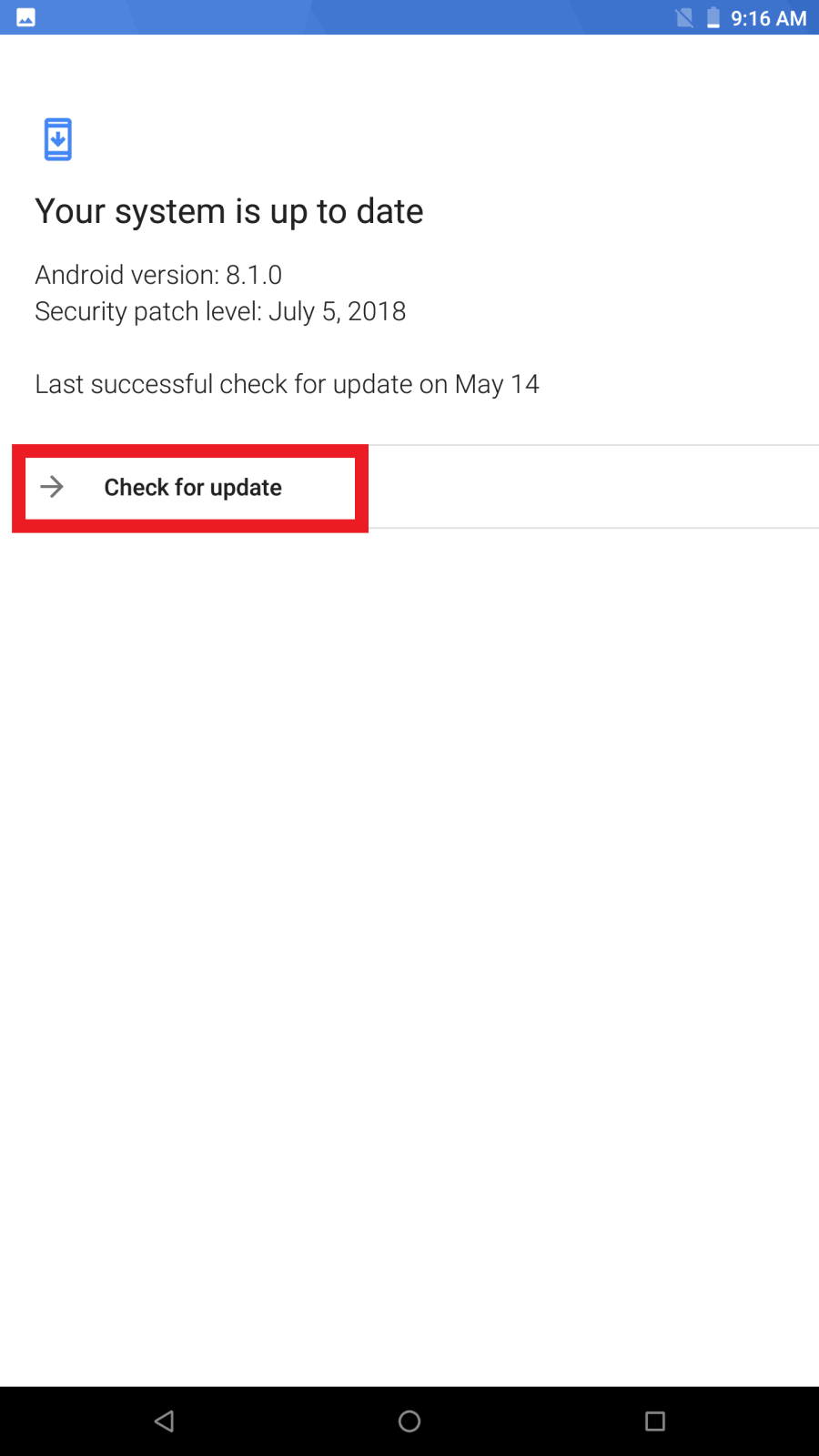
Go to “System update”.

-
Tap “Check for update”.
-
Tap “Update Now” if an update is available.
-
-
If the issue persists, consider doing a factory data reset. To do that, follow the steps below:
-
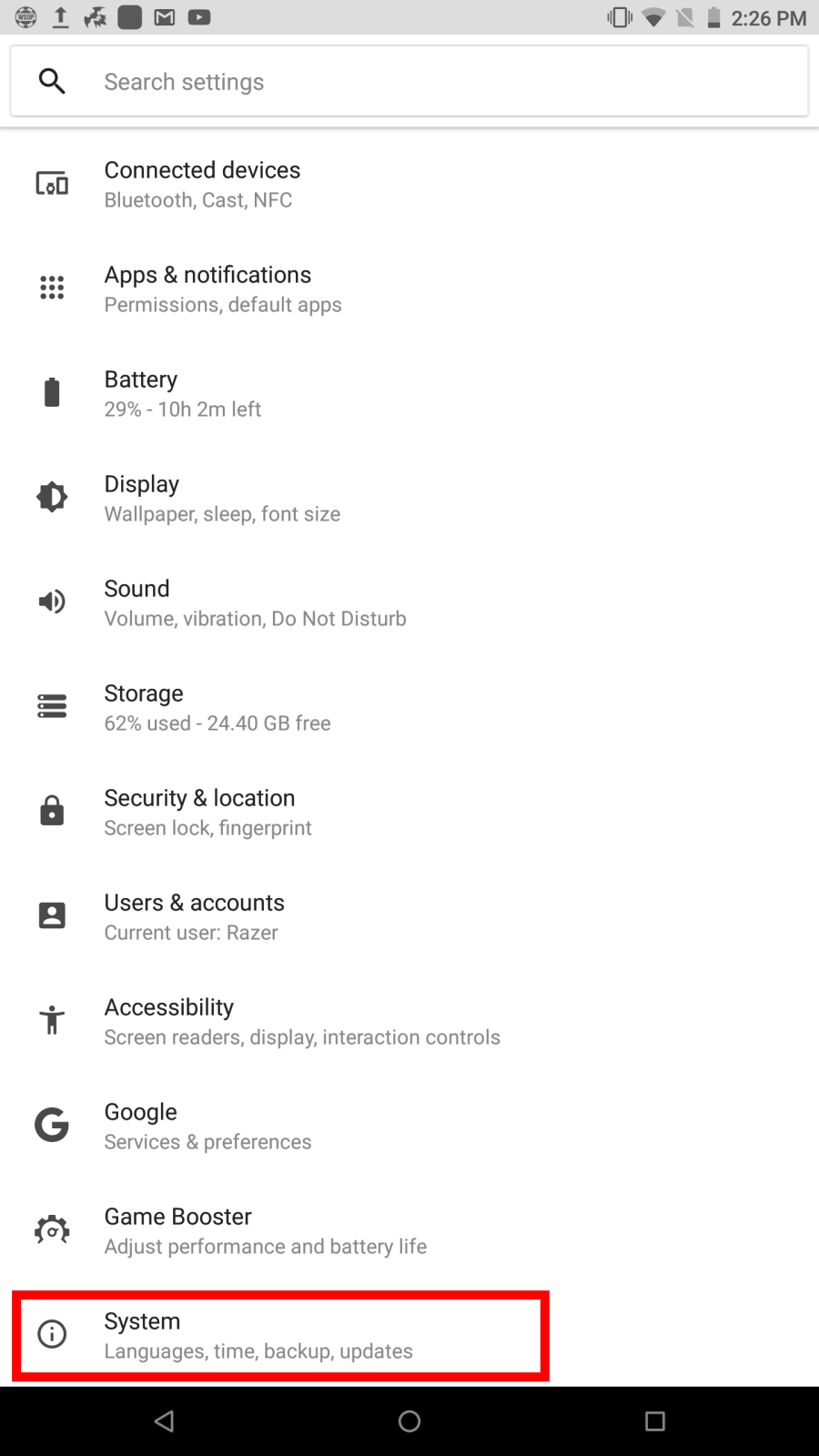
Before resetting your phone, back up your data to Google Drive first. Go to Settings > System.
-
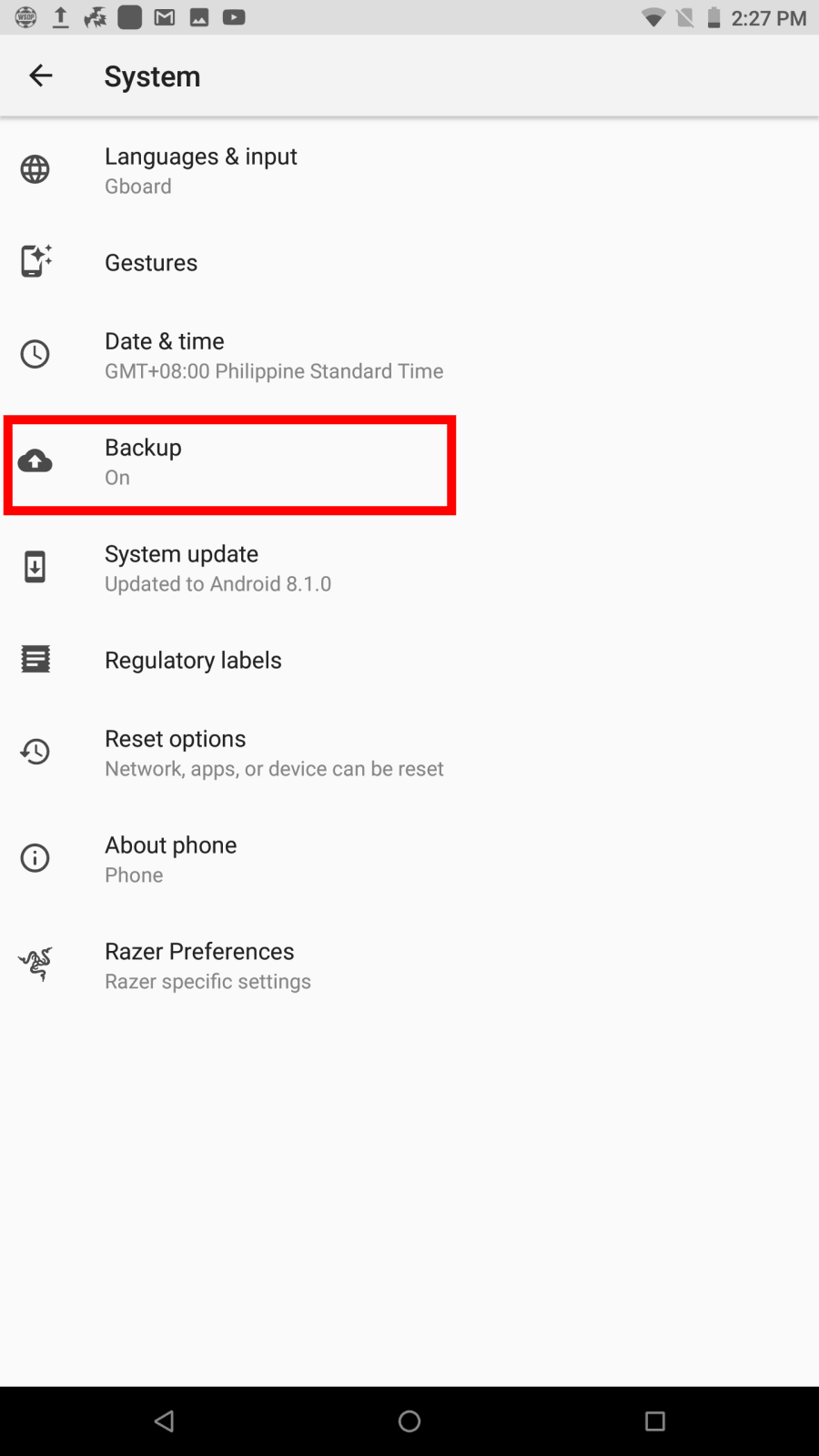
Tap on “Backup”.
-
Toggle the “Backup up to Google Drive” option on.

-
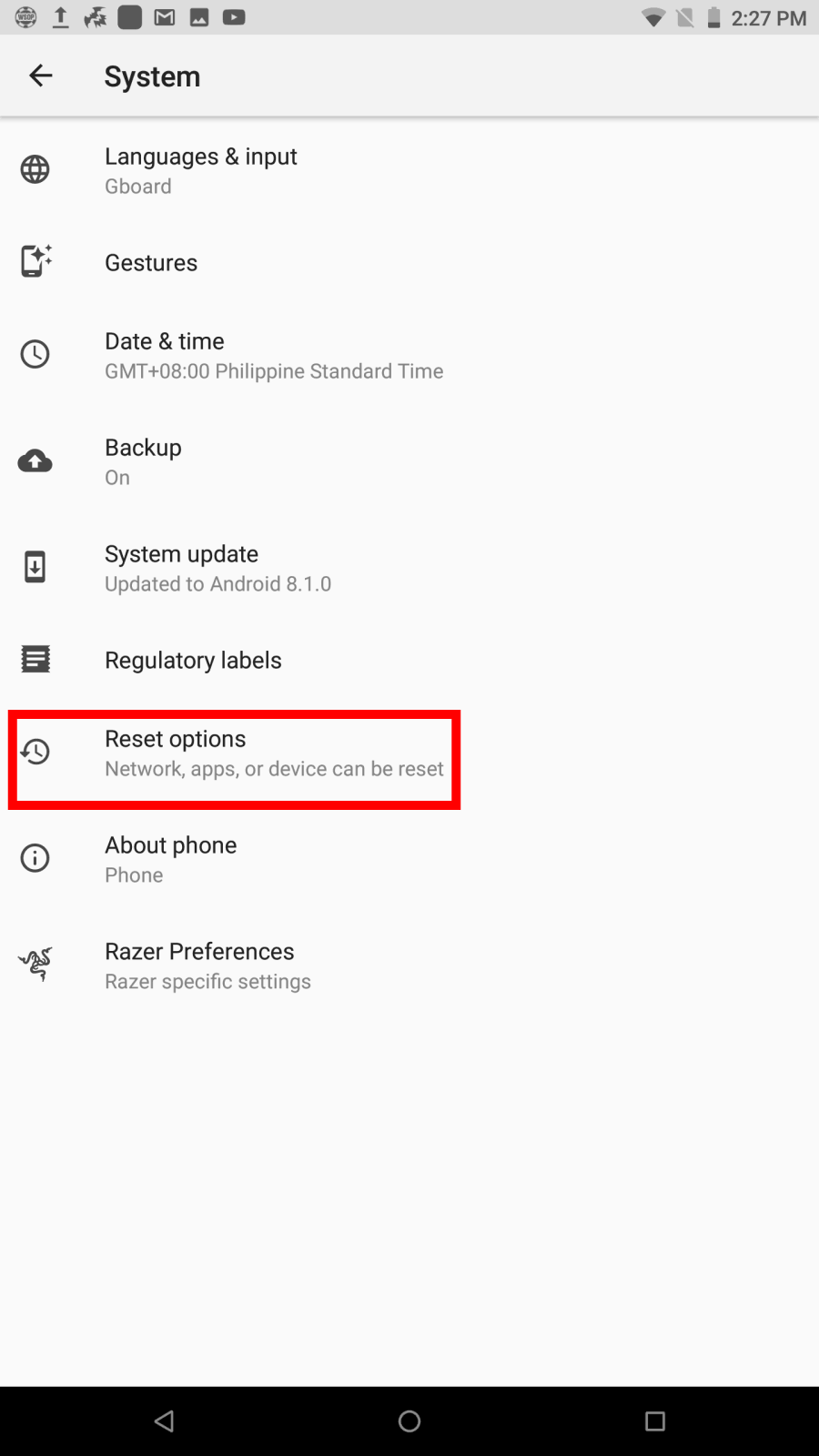
To reset your phone, go back to Settings > System. Tap on “Reset Options”.
-
Tap on “Erase all data (factory reset)”.

-
On the next window, tap “RESET PHONE”.

-

