
If your Razer Blade is unable to connect to a wireless network, it can disrupt your ability to access the internet and use online features. This issue may be caused by network configuration errors, outdated drivers, or hardware-related problems. Follow the detailed steps below to fix this issue.
Troubleshooting options
Run Network Troubleshooter
Verify if it is a network connection issue. Most of the time, running the Network Troubleshooter addresses wireless network problems.
-
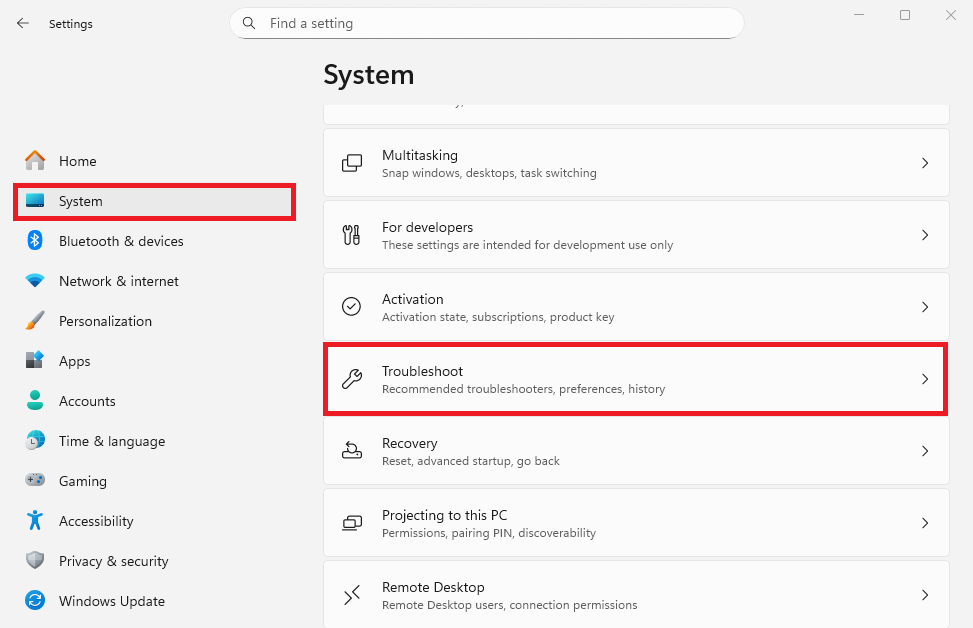
Click the “Start” > "Settings".
-
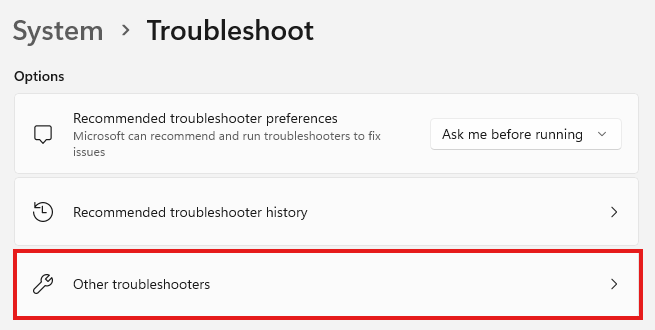
Navigate to Update & Security > Troubleshoot > Additional troubleshooters.
-
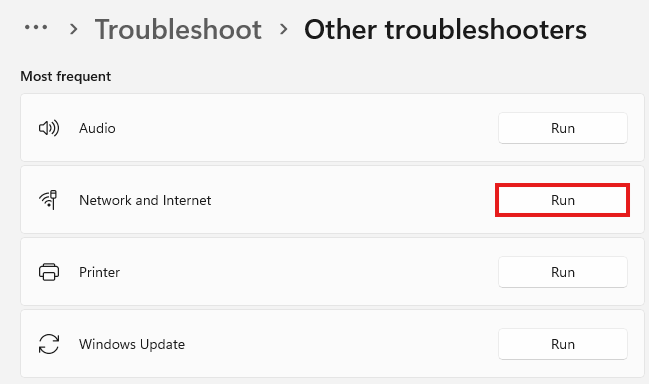
Under “Internet Connections”, click “Run the troubleshooter”.
-
Follow the on-screen instructions to troubleshoot the issue.
Use a different device
If running the Network Troubleshooter does not fix your issue, test a different device (laptop or mobile device) and connect to the same wireless network you are trying to connect to. If the other device is also unable to connect to the network, follow these steps:
-
Restart your wireless router by turning it off.
-
Wait for 10 seconds and then turn it back on.
-
Connect to the wireless network.
-
If both devices still cannot connect to the wireless network, check your wireless router. Upgrade the firmware of your router or contact your Internet Service Provider for further help.
Note: Check if the Wireless MAC filtering of the router or security settings of the router (Firewall) is enabled on the router. Register the MAC address of the Razer Blade to the router page. Contact the router manufacturer for assistance.
Perform wireless connection checklist
If the other device can connect to the wireless network, do the following steps to resolve the issue:
-
Restart the Blade and try to reconnect to the wireless network.
-
Determine the status of your network connection:
- Airplane mode – Turn off airplane mode to connect to a wireless network.
- No Wireless Network Available – Proceed to step 3 if there is no wireless network available.
- Wireless Network is available, but you are not connected to one – Proceed to step 5 if you can’t connect to a wireless network.
- Connected to a wireless network with no internet connection – See My Razer Blade is connected to a network but not to the internet to fix this issue.
-
Ensure that both your wireless adapter and wireless network are enabled. If both are already enabled, move closer until the wireless network is detected.
-
If you still cannot detect your wireless network, restart both your Razer Blade and router.
-
If you can now detect the wireless network:
-
Select the name of your wireless network.
-
Click “Connect”.
-
Enter the correct security key or passphrase. The default security key or passphrase is usually located at a sticker at the bottom or back of your router.
-
If your router has a WPS button, press the button to connect to your router.
-
Reinstall wireless adapter
If you are still unable to connect to your wireless network, reinstall your wireless adapter.
-
Go to “Device Manager” and expand “Network Adapters”.
-
Select “Killer Wireless 1535 Wireless Network Adapter” or “Intel Wireless AC” and select “Uninstall device”. Proceed with the uninstallation process.
-
Under “Device Manager”, select “Action” from the top menu and click “Scan for hardware changes”.

Note: The Razer Blade will detect your wireless adapter and automatically install it.
-
After the installation is finished, restart your Razer Blade.
-
Connect to your wireless network.
If the steps above did not resolve the issue, perform system recovery or factory reset.

