
Applicable Models
Firmware Updater v1.00.01_r2
- https://rzr.to/KkxlH | September 4, 2019
- Addresses light leak when "Fn" (function) key is pressed on some 15-inch Blade Advanced (Mid 2019) units
Step-By-Step Process
-
Download the latest firmware update.
-
Click on the updater file located at your chosen download location to begin the update process.
-
The User Account Control window may pop up to confirm changes that will be made by the application. Click "Yes" to allow the Firmware Updater application to launch.
-
Follow the on-screen instructions on how to update your firmware. Click “NEXT”.

-
Close all applications under Razer Central before proceeding. Right-click on the Razer icon in the system tray and select “Exit All Apps”. Then, click “NEXT”.

-
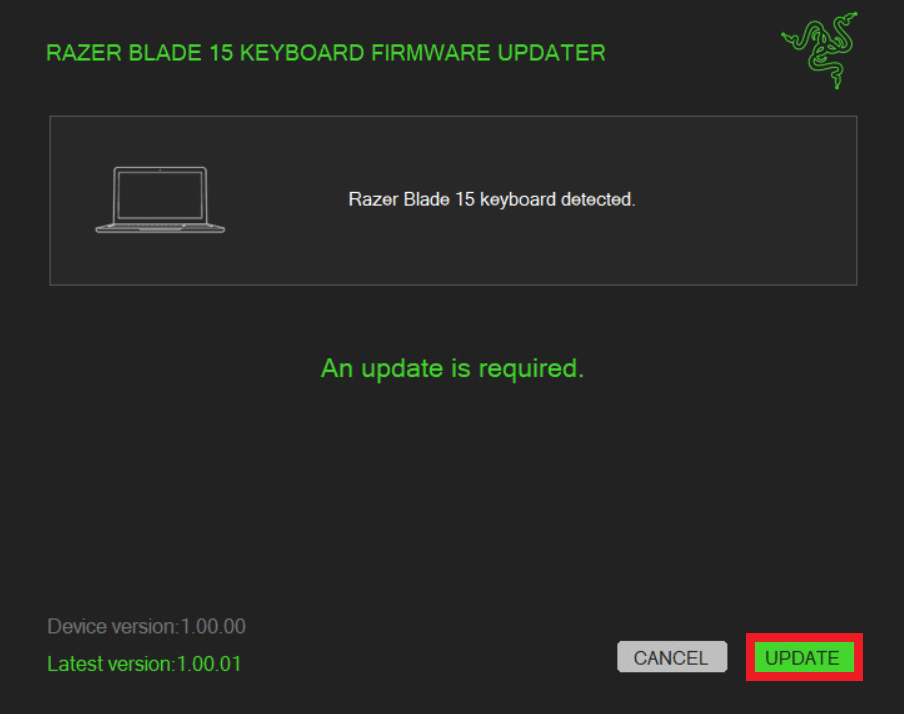
Click "UPDATE" to initiate the update process of your Razer Blade laptop.
-
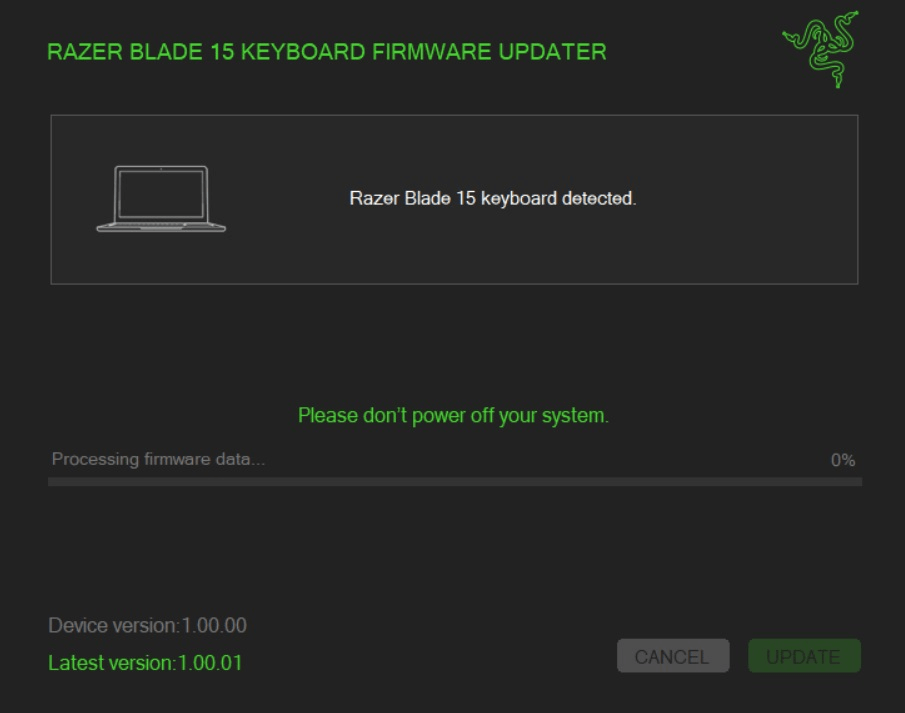
A progress bar will appear indicating the status and progression of the installation process. During the installation process, you will not have access to other applications. Wait for the system to complete the updating process.
-
This completes the installation process. Click "CLOSE" to quit the firmware updater.


