Effective February 3, 2026, Razer Synapse 3 will no longer receive updates or support cloud services. After this date, cloud syncing of configurations across PCs using the same Razer ID will be disabled.
Note: Your installed devices will continue to be configurable in Razer Synapse 3. However, if you uninstall these devices completely, you will need to upgrade to Razer Synapse 4 to continue customization.
Download Razer Synapse 4 and migrate your existing Razer Synapse 3 profiles using the Profile Migration Tool to retain access to your configurations. See How to migrate your Razer Synapse 3 Profile to Razer Synapse 4 for instructions.
Text Function is one of the programmable features of the Razer mouse that enables you to input texts or phrases with a single click. If you are playing team-based games and constantly send the same message to your teammates, you can program it to your Razer mouse to type it in one click.
See the step-by-step instructions below on how to use the Text Function feature on a Razer mouse.
Choose an option
Razer Synapse 4
-
Launch Razer Synapse 4.
-
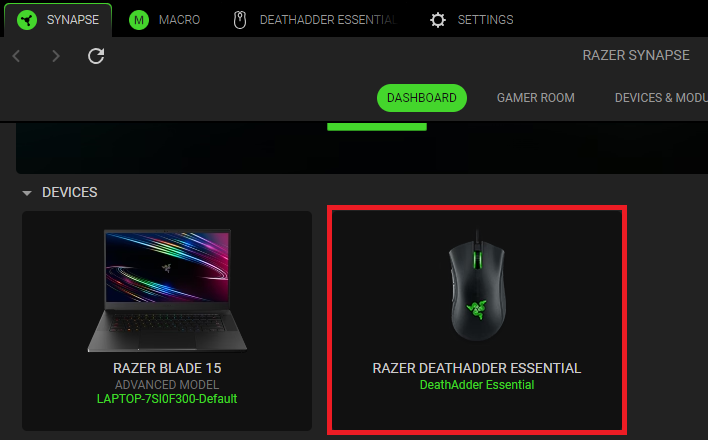
Select your mouse from the DASHBOARD.
-
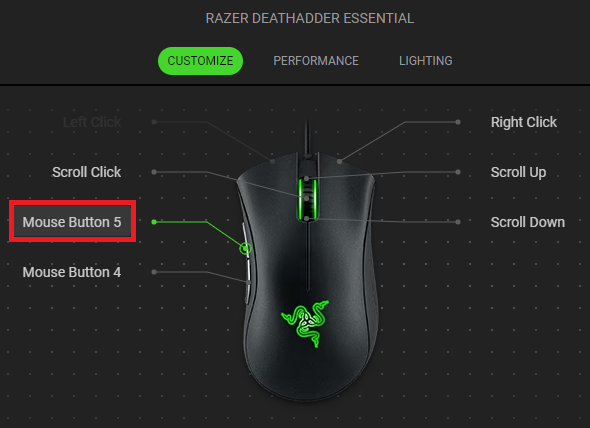
Select a button you want to customize.
-
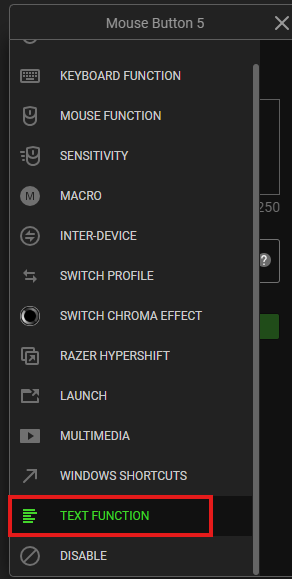
Click “TEXT FUNCTION”.
-
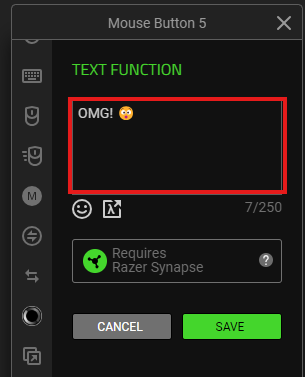
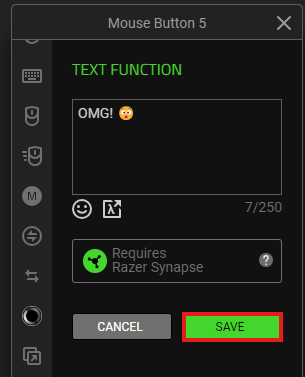
Type the text you wish to program in the text field provided.
-
Click “SAVE” to complete the process.
-
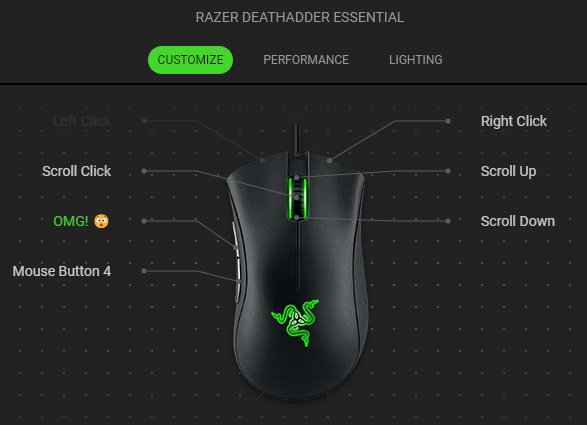
The device layout of your mouse nowreflects the changes made.
Razer Synapse 3
-
Open Razer Synapse 3.
-
Click on the Razer mouse on the Razer Synapse homepage.

-
Go to the “CUSTOMIZE” tab.
-
Select which button you wish to program with a windows shortcut and click on it.

-
Click on “TEXT FUNCTION” under the customization menu on the left side of the window.

-
Type the text you wish to program on the text field provided.
-
Click “SAVE” to complete the process.

Note: The button is now named after the text assigned to it on the device layout.
