How to adjust the polling rate on a Razer mouse

| Answer ID: 1980
This answer provides instructions on how to adjust the polling rate on your Razer mouse.

Effective February 3, 2026, Razer Synapse 3 will no longer receive updates or support cloud services. After this date, cloud syncing of configurations across PCs using the same Razer ID will be disabled.

Note: Your installed devices will continue to be configurable in Razer Synapse 3. However, if you uninstall these devices completely, you will need to upgrade to Razer Synapse 4 to continue customization.

Download Razer Synapse 4 and migrate your existing Razer Synapse 3 profiles using the Profile Migration Tool to retain access to your configurations. See How to migrate your Razer Synapse 3 Profile to Razer Synapse 4 for instructions.

Polling rate is the measure of how many times your mouse reports its position to your computer. If the polling rate of your mouse is set to 100 Hz, it means it is reporting its position to your computer at 100 times per 1 second, or every 10 milliseconds.

See the step-by-step instructions below on how to adjust the polling rate on a Razer mouse.

Choose an option

Razer Synapse 4

  1. Launch Razer Synapse 4.

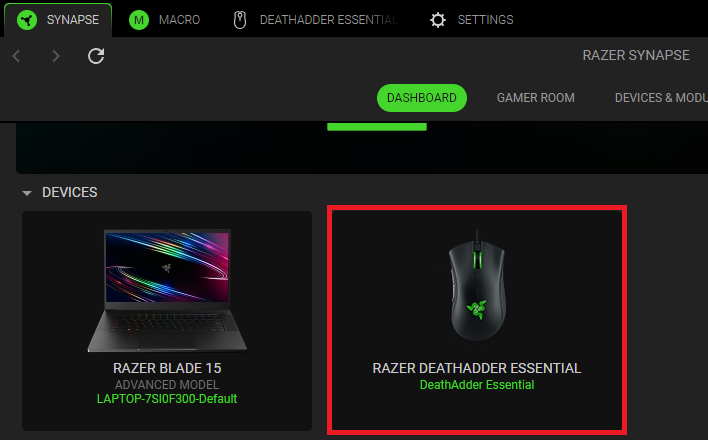
  2. Select your mouse from the DASHBOARD.

    Razer Synapse Dashboard

  3. Click “PERFORMANCE”.

    Razer Synapse Performance tab

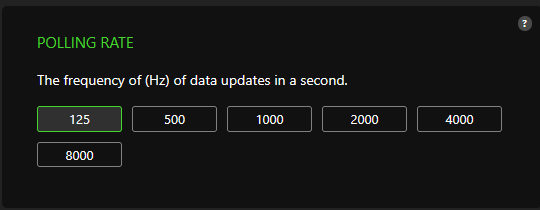
  4. Select the preferred polling rate from the given presets.

    Note: The POLLING RATE options vary depending on the mouse. Some mice have more polling rate presets and options to choose from.
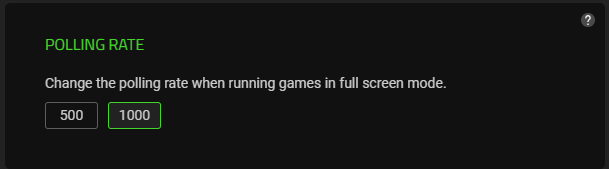
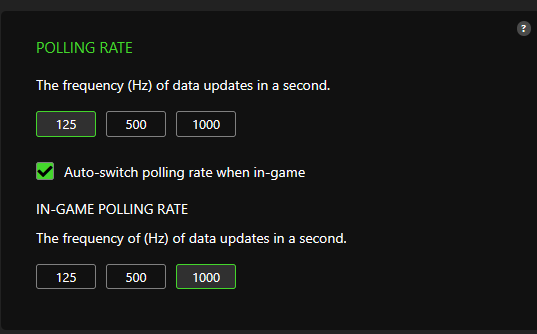
    Razer mouse polling rate

    Razer Synapse polling rate

    Razer Synapse polling rate

    The polling rate on your mouse is now adjusted.

Razer Synapse 3

  1. Open Razer Synapse.

  2. Click on your mouse.

    Select mouse in Synapse 3

  3. Click “PERFORMANCE”.

    Performance tab

  4. Select the your preferred "POLLING RATE". There are two ways:

    • Select the preferred POLLING RATE from the given presets.

      Select polling rate

    • Open the POLLING RATE drop down menu and select your preferred polling rate.

      Polling rate drop-down menu

    The polling rate on your mouse is now adjusted.

Is this answer helpful?