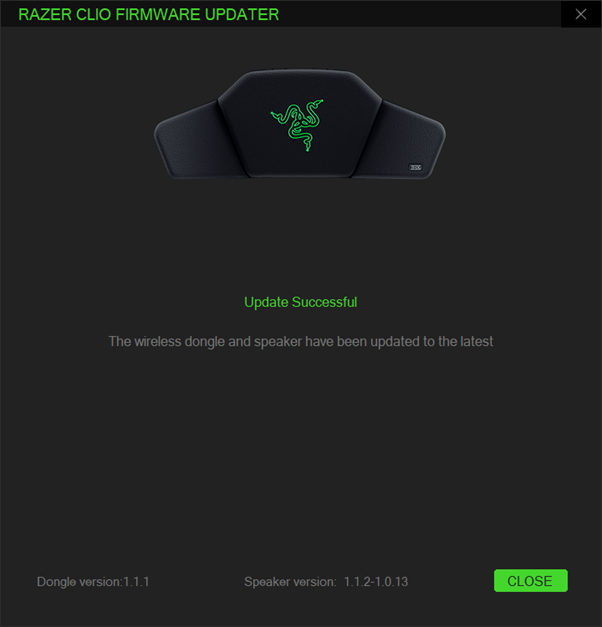
A firmware updater is a tool that keeps your gaming gear running at its best. Installing the latest firmware can improve performance, fix known issues, and help devices work more smoothly and reliably.
Applicable models:
Firmware updater v1.1.2_r4
- https://rzr.to/6e6rvk | May 14, 2025
Release notes
- Improve power saving features
Follow the detailed instructions below to run the updater on your device.
Step-by-step Process
Before you start
-
If using a laptop, ensure it is plugged into a wall outlet. Do not let it run on battery alone.
-
Save any open documents on your computer.
-
Close all other programs.
-
Download the latest firmware.
Update process
Note: Ensure your device is on dongle mode before updating the firmware.
-
Run the updater.
-
Click "Yes" if the User Account Control window pops up to proceed.
-
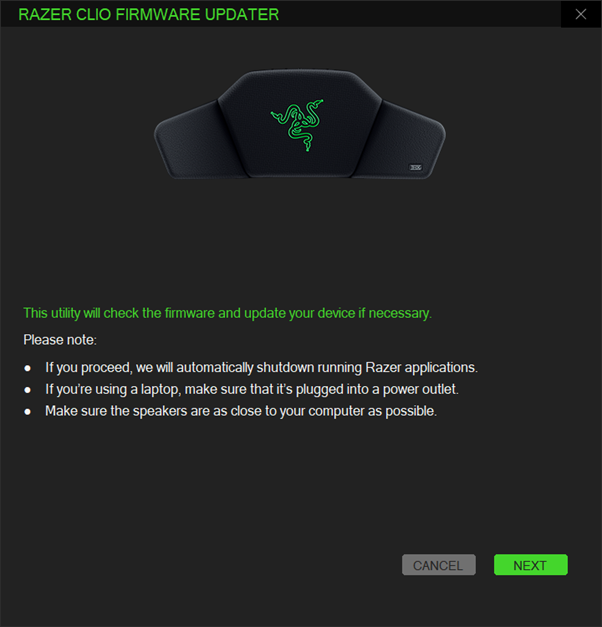
Click "NEXT" to proceed. The updater will close all running Razer applications.
-
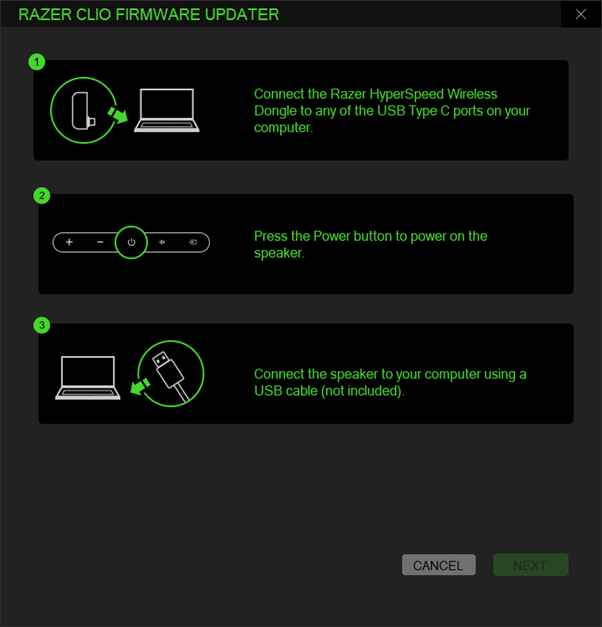
Connect the Razer HyperSpeed Wireless dongle to any of the USB Type-C ports on your computer.
-
Press the power button on the device.
-
Connect the speaker to your computer using a USB cable.
-
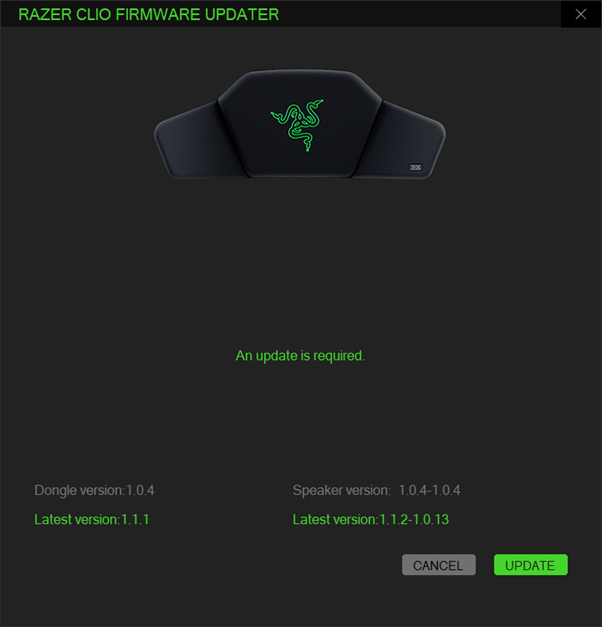
Click "UPDATE".
-
Wait until the update process is complete. Do not interrupt.

-
Click "CLOSE" once the update is complete.