
If your Razer mouse is not functioning correctly after surface calibration, it is likely due to improper calibration. Recalibrate the sensor of your mouse to resolve this issue.
See the step-by-step instructions below on how to recalibrate your Razer mouse.
-
Launch Razer Synapse 4.
-
Select your mouse from the DASHBOARD.
-
Click on “CALIBRATION”.

-
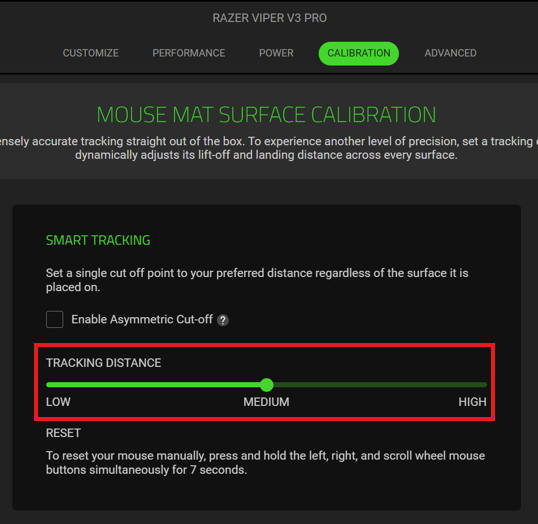
Adjust the surface calibration by dragging the slider to set the desired TRACKING DISTANCE. The options are LOW, MEDIUM, and HIGH.
-
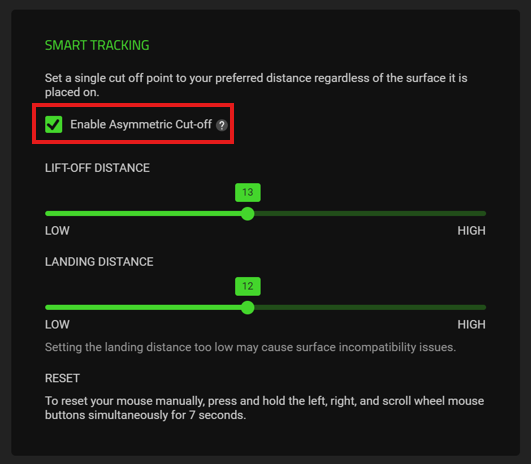
Additionally, you can check “Enable Asymmetric Cut-off” to dynamically adjust both the LIFT-OFF DISTANCE and LANDING DISTANCE across every surface.
-
Your mouse will apply your calibration settings immediately.
-
After recalibration, test your mouse to ensure it is functioning correctly.

