
Razer wireless mice consume battery power. Battery consumption depends on how you use your mouse, whether for work or gaming, but the good thing with Razer mice is that there are options on Razer Synapse that allow you to adjust the power settings to save battery power.
Razer Synapse has two battery features:
Wireless Power Saving – This allows you to set how many minutes of idle time the mouse needs to enter sleep mode.
Low Power Mode – This mode is enabled when the battery level reaches below the set percentage (%).
Note: These modes are enabled by default.
See the step-by-step instructions below on how to adjust power or battery preferences on your Razer mouse.
Set Wireless Power Saving
Launch Razer Synapse.
Select your mouse from the DASHBOARD.
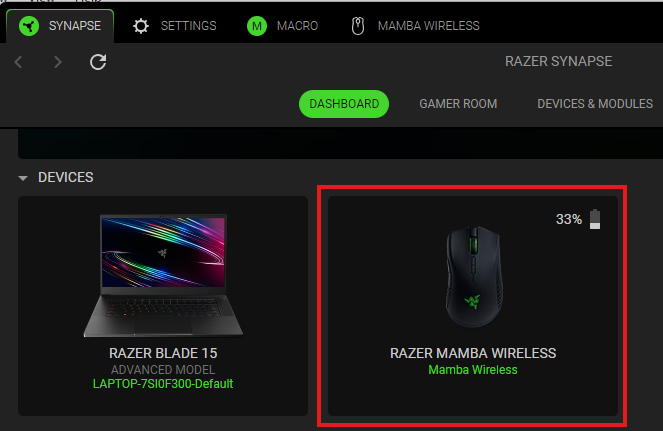
Click on the “POWER” tab.

Use the slider to adjust how you want your mouse to be left idle before it goes to sleep mode.
Note: The setting can be adjusted anywhere between 1 and 15 minutes.
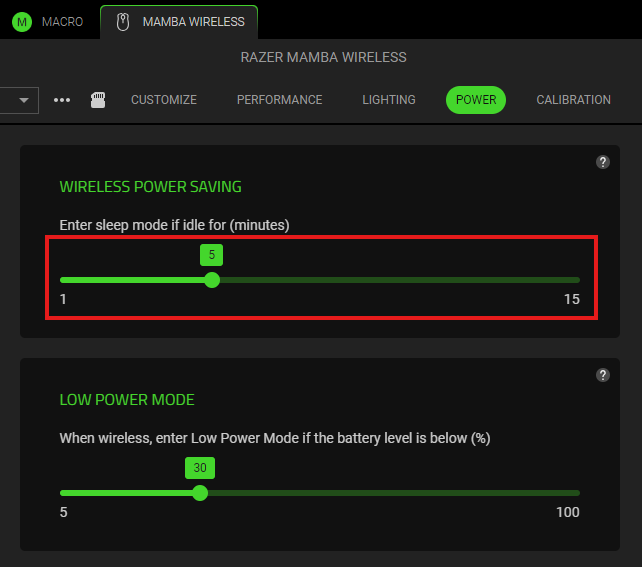
The wireless power saving setting on your mouse is now adjusted.
When the mouse enters sleep mode after the specified time, it will automatically disconnect and disappear from the Razer Synapse Dashboard.
Set Low Power Mode
Launch Razer Synapse.
Select your mouse from the DASHBOARD.
Click on the “POWER” tab.
Use the slider to choose the amount of battery power you want to trigger the Low Power Mode.
Note: The setting can be adjusted anywhere between 5% and 100%.
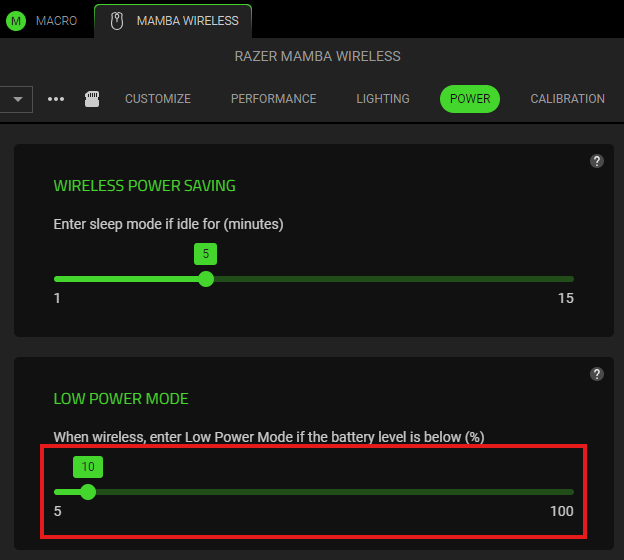
The Low Power Mode setting on your mouse is now adjusted.
Tips to extend battery life
Wireless PC peripherals are in near-constant use, making battery longevity and power efficiency a critical performance consideration.
Several factors can affect the battery life of your Razer mouse, including:
- Settings
- Charging
- Connectivity
- Storage Temperature
Below are the tips to help extend the battery life, maximize performance, and prevent damage to your Razer mouse.
Set your Razer mouse to "off" while charging. A fully depleted battery will not charge properly if the mouse is left in the "on" state.
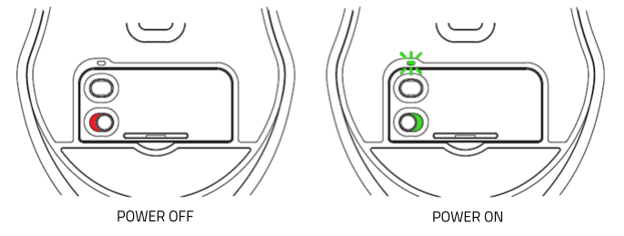
Turn your Razer mouse off when not in use to prevent slow battery discharge.
Do not store the battery in a fully depleted state. Unlike NiCad batteries, the Lithium-ion batteries in Razer mice do not develop memory, so routine full discharges are not necessary — in fact, fully discharging a Lithium-ion battery can damage it.
Store your Razer mouse with the battery charged to just below full if you will not use it for an extended period.
Keep the battery charge between 20% and 80% to preserve long-term battery health.
Keep the battery away from excessive heat. Lithium-ion batteries perform best in cooler temperatures.
Use the original charging cable that came with your Razer mouse.

