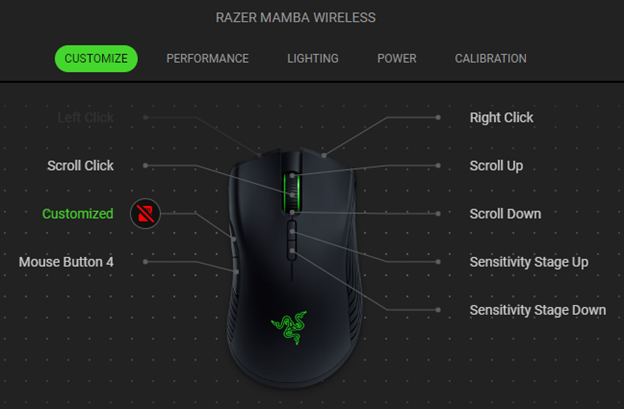
The Razer mouse allows you to switch between Razer Chroma lighting effects with a single click. Follow the detailed instructions below to assign Switch Chroma Effect function on your Razer mouse.
Step-by-step Process
-
Customize a Chroma effect on your mouse using the Razer Chroma App. See How to customize a Chroma effect on Razer Chroma App for more details.
-
Launch Razer Synapse 4.
-
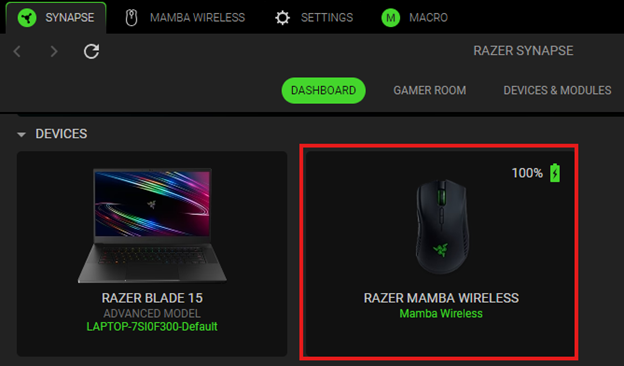
Select your mouse from the DASHBOARD.
-
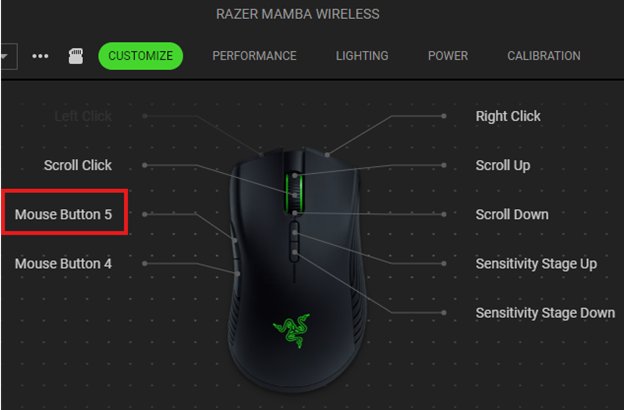
Select a button you want to customize.
-
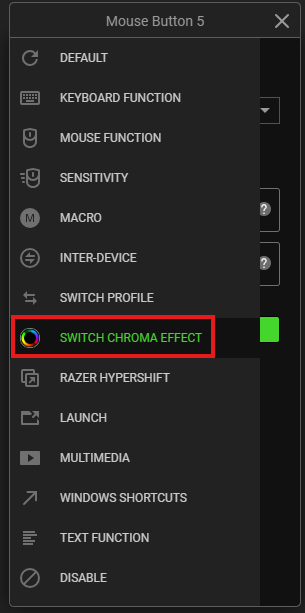
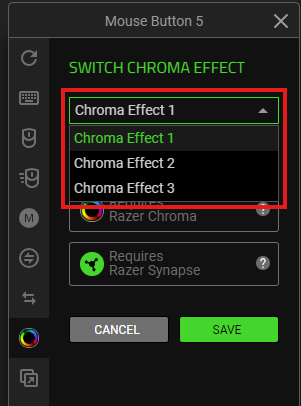
Click “SWITCH CHROMA EFFECT”.
-
Choose a Chroma effect from the dropdown list.
-
Click “SAVE” to complete the process.
Note: Keep Razer Synapse and Razer Chroma running in the background to use this function.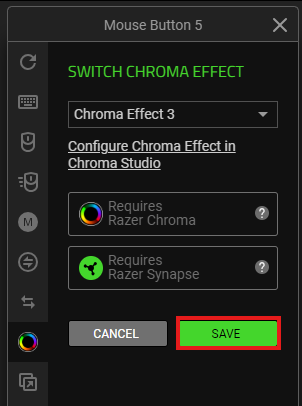
The assigned button is displayed after the shortcut on your device layout.