
If the touchscreen on your Razer Blade is unresponsive, glitching or not working properly, update Windows, re-enable or reinstall the touchscreen driver, or recalibrate the screen. Follow the steps below in order.
Step-by-step process
Ensure that you have the latest software, drivers, and security updates for your system. See How to get the latest software and driver updates from Windows for more details.
If you just updated Windows, please install the "Optional updates" under Settings > Windows Update > Advanced options.
Restart the Razer Blade and test if the issue still persists after the reboot.
Re-enable the touchscreen driver.
a. Right-click on the "Start" button.
b. Select “Device Manager”.

c. Right-click “HID-compliant touch screen” under “Human Interface Devices".

d. If the device is disabled, click “Enable device”. If it is enabled, click “Disable device”.

e. Restart the Razer Blade.
f. Re-enable the "HID-compliant touch screen".
If the issue persists, update or reinstall the touchscreen driver.
a. Right-click “HID-compliant touch screen” again and select “Update driver” to check for any available updates.
b. If there is no update, select “Uninstall device”, then restart the Razer Blade to reinstall the driver.
If the touchscreen responds but is glitching or inaccurate, calibrate the screen for touch input.
a. Press the Start button, then type “Calibrate”. Select “Calibrate the screen for pen or touch input”.

b. Under Tablet PC Settings, click “Calibrate…”
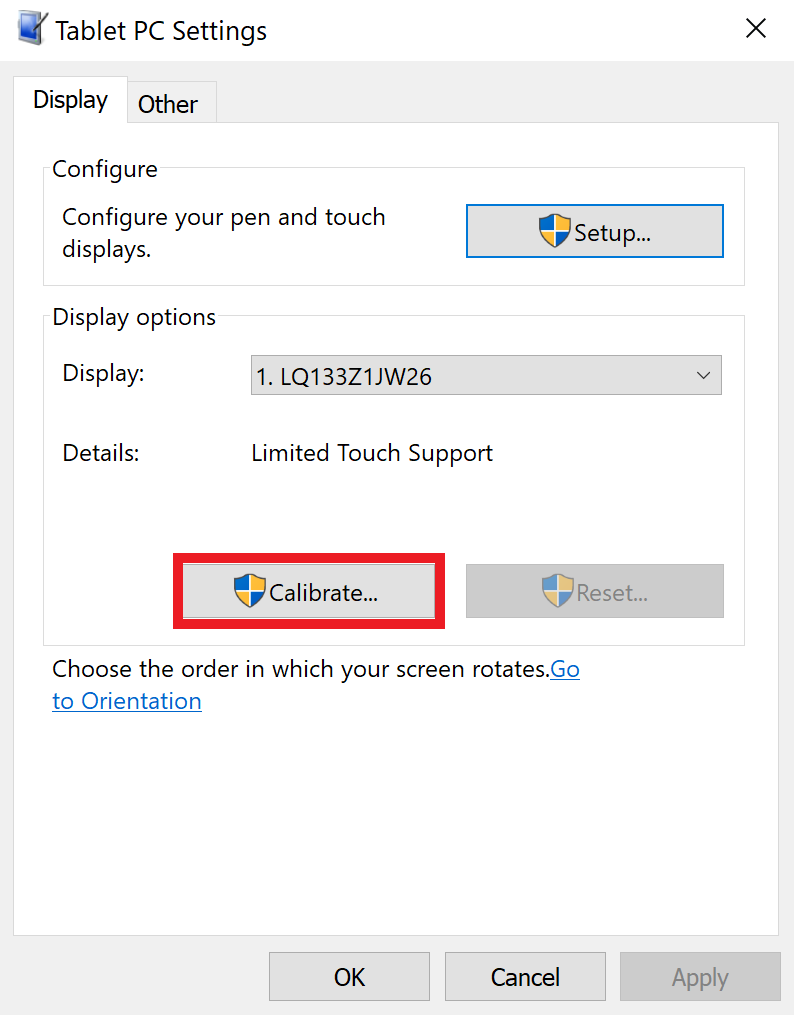
c. Your screen will turn white and guide you through the calibration process. Once the calibration process has been completed, the computer will prompt you to save the calibration data.
d. Select “Yes” to save calibration data.
If the issue persists, perform a system recovery or factory reset. See How to reset the Razer Blade to its factory default settings for more details.
If none of the steps above resolve the issue, the touchscreen may have a hardware problem. As there is no way to check for any loose connection or deformities in the hardware without voiding the warranty, we recommend that you contact Razer Support.

