Note: Live support for Razer Sila is no longer available. Please refer to our knowledge base or Insider Forum for support.
In Bridge Mode, a router will disable all its router services. This means that it will no longer assign an address to devices on the network and no longer perform Network Address Translation (NAT) when devices connect to the internet. These services can conflict if multiple routers are connected.
When in Bridge Mode, Razer Sila will also no longer provide:
-
NAT
-
DNS caching
-
DHCP
-
Application-aware QoS
-
UPnP
-
Port Forwarding/Port Triggering
-
Remote Management
-
Guest Network
-
Parental Controls
-
Block Sites
-
Block Services
-
VPN service
-
VLANs
-
Enhanced security
Important: Make sure that another router in your network can provide these services.
Follow the detailed instructions below to operate the Razer Sila router in bridge mode.
Select a method
Place Razer Sila into Bridge Mode from the Mobile App
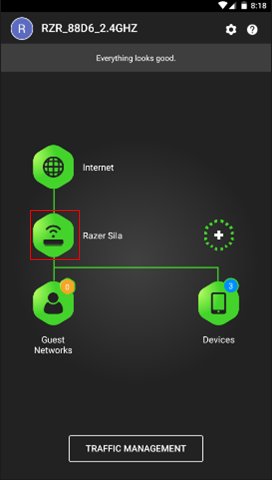
- Tap the “Razer Sila” icon from the main page.
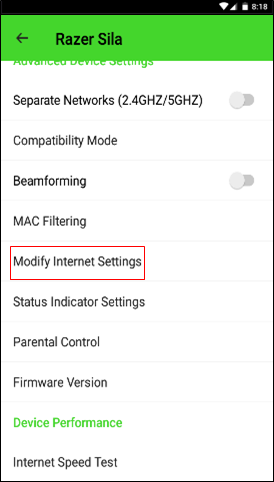
- Select “Modify Internet Settings”.
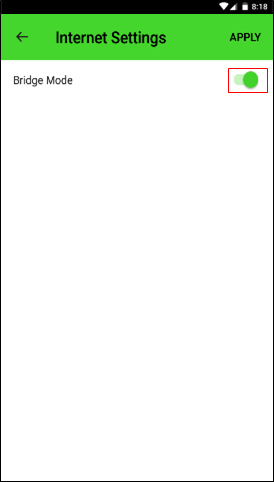
- Enable Bridge Mode by toggling the switch and tapping “Apply”.
Place Razer Sila into Bridge Mode from a web browser
- Point the browser URL to sila.razer.com or 192.168.8.1.
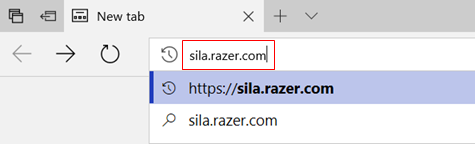
- Input admin password at the main page and click “Sign In”.

- Select “LAN IP” from the menu on the left.
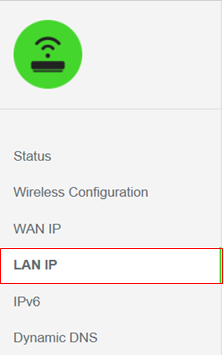
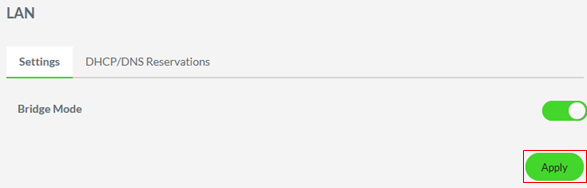
- Enable “Bridge Mode” by toggling the switch.
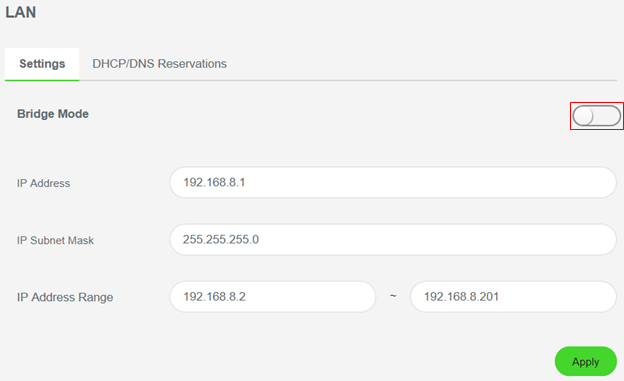
- Click “Apply”.