Important:
Remote Play can function over the Internet (not just your home Wi-Fi), provided your home network is properly configured. Make sure you comply with the following key requirements:
- Your home router must support either UPnP or manual port forwarding, and both features must be enabled.
- Your PC must remain powered on, connected to the internet with a public IP address, and signed in to the same Razer ID as your Nexus device.
- Once the initial pairing is completed on the same network, your devices can connect over different networks, such as home Wi-Fi and mobile data, provided your network setup supports this functionality.
Before you get started, properly configure your PC as a host. See the answer below for more details.
Set up Remote Play
Nexus App
-
Open your Nexus app.
-
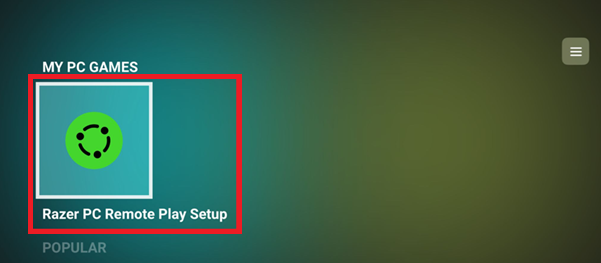
Select “Razer PC Remote Play Setup”.
-
Click “Computers”. Your host PC will be listed under “UNPAIRED PC”.
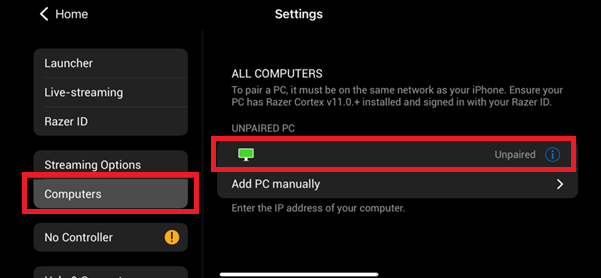
Note: Your host will appear only if both devices are logged into the same Razer ID. Otherwise, you will be prompted to enter a four-digit PIN code on your PC.
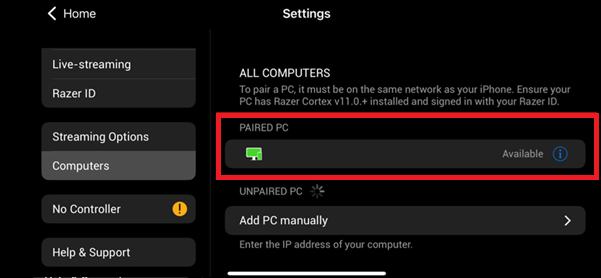
Once it is paired successfully, it will appear under “PAIRED PC” as “Available”.
-
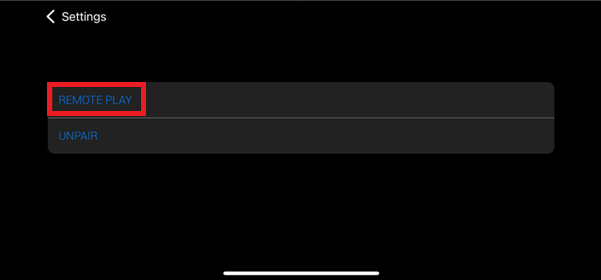
Select “REMOTE PLAY” to start streaming.
Remote Play App
Important: Ensure both the mobile device and the host are on the same network.
-
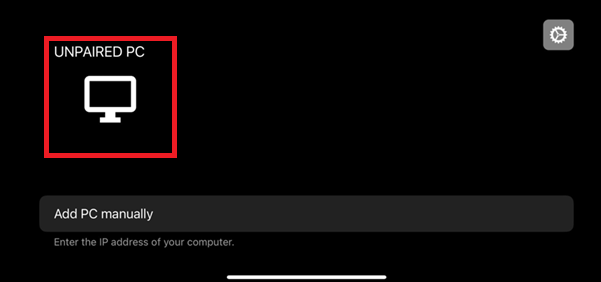
Open the Remote Play App. The host should appear under “UNPAIRED PC”.
-
Select the host.
-
Enter the given four-digit PIN code on the host device, then click “SEND”.
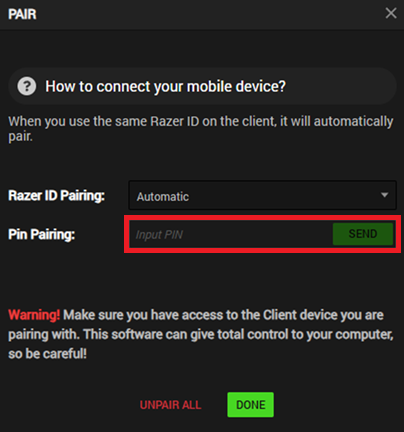
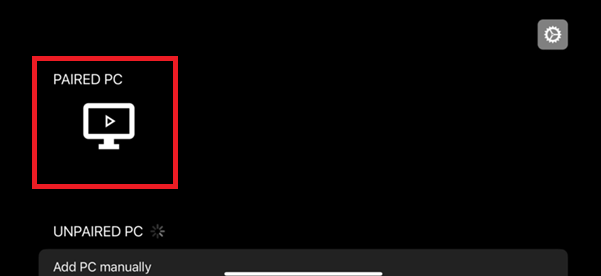
After pairing successfully, the host device will show as “PAIRED PC”.
-
Select the paired PC to start streaming.