
Below are the steps to fix intermittent Bluetooth connection issues on a Razer Blade.
Note: Ensure you have installed all the latest Windows operating system and security updates before proceeding.
-
Click “Start” and select “Settings”.
-
Go to Update & Security > Troubleshoot > Bluetooth.
-
Click “Run the troubleshooter”.

The troubleshooter will scan for Bluetooth issues and recommend steps for the fix.
Perform the following steps if the troubleshooter is unable to resolve the issue:
-
Move closer to your device. Be sure that the Bluetooth devices are about 10 meters apart from each other.
-
Remove obstructions and ensure you have a clear line of sight to your Bluetooth device to help improve your Bluetooth connection.
-
Remove devices that interfere with your connection.
-
Re-establish your Bluetooth connection.
-
Go to Settings > Devices > Bluetooth & other devices.
-
Click the device you want to remove then click “Remove device”.
-
Reconnect your Bluetooth device and test.
-
-
Connect your Bluetooth device to another device (mobile phone or laptop).
-
Update your Bluetooth driver.
-
Go to “Device Manager” and select “Bluetooth”.
-
Right-click the Bluetooth driver “Intel(R) Wireless Bluetooth(R)”.
-
Select “Update driver”.

-
-
Restart your Razer Blade and your Bluetooth device.
-
Reinstall your Bluetooth driver if the issue persists.
-
Go to “Device Manager” and select “Bluetooth”.
-
Right-click the Bluetooth driver “Intel(R) Wireless Bluetooth(R)”.
-
Select “Uninstall device”.

-
Click on the “Action” tab.
-
Select “Scan for hardware changes”.
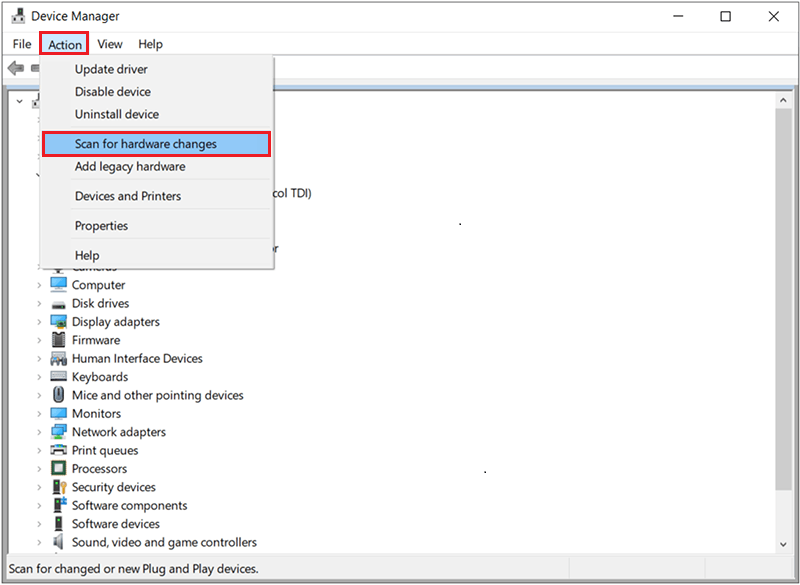
Your Razer Blade will automatically detect and install your Bluetooth Driver.
-
Restart your Razer Blade and check if the issue persists.
-
-
Perform a system recovery or factory reset if the steps above did not resolve your issue.

