Note: The Razer Sila app will no longer be usable after the 16th of October 2024. Live support for Razer Sila is no longer available. Please refer to our knowledge base or Insider Forum for support.
Increase the security of your network from hackers or intruders by changing your SSID password.
Follow the steps below to change your SSID password via Razer Sila Web UI.
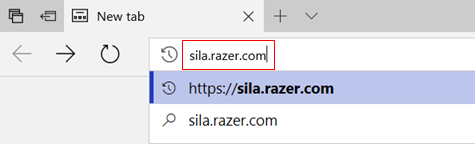
- Open a browser and search for sila.razer.com.
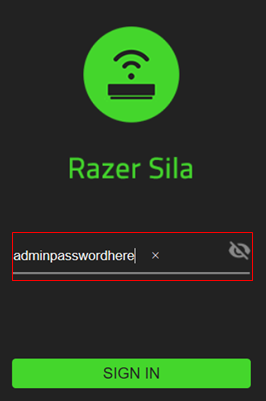
- Enter your admin password.
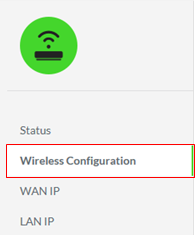
- Click “Wireless Configuration” from the menu on the left.
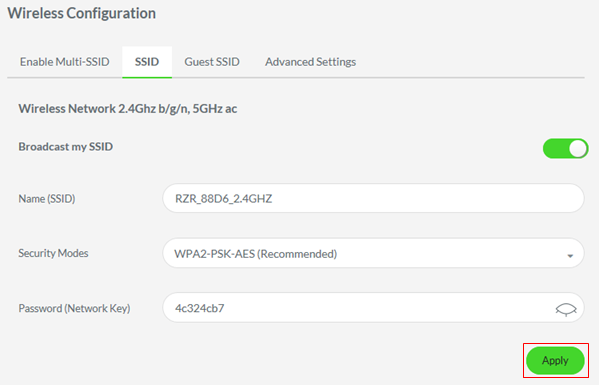
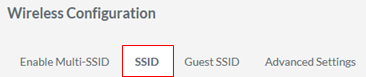
- Select the “SSID” tab from the options on the center of the screen.
- Click the password input field and replace it.
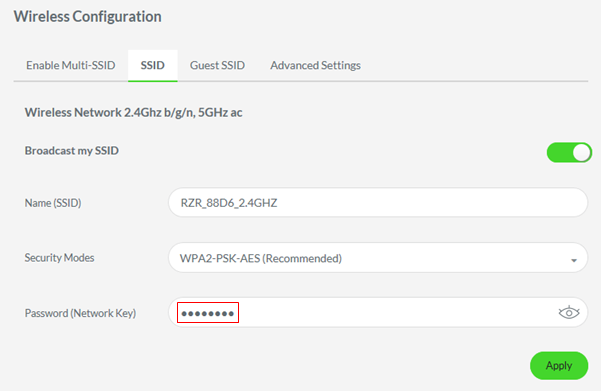
- Click “Apply” to save changes.