
If the Razer Phone restarts on its own without any prompt, the issue is likely caused by an incompatible third‑party app or a software bug that may have been resolved in a recent update. To troubleshoot the issue, follow the steps below.
Note: Make sure the phone is sufficiently charged. You may also keep the device plugged in throughout the entire troubleshooting process.
-
Boot the Razer Phone into Safe Mode.
-
Observe the device for up to 24 hours to check if the issue persists.
If the phone functions normally while in Safe Mode, the problem is likely caused by a third‑party application. Consider uninstalling the most recently installed app before the issue started.
To boot to safe mode, follow the detailed instructions below.
For Android Version 9 (Pie)

-
Press and hold the power button.
-
Touch and hold “Power off”on your screen.

- Tap “OK” when asked if you want to reboot to safe mode.

- If you are still experiencing the issue, check if you are running the latest software for the device. Ensure that your device is always up-to-date by performing a software update.
Note: Steps may vary depending on your device’s operating system.
For Android Version 9 (Pie)
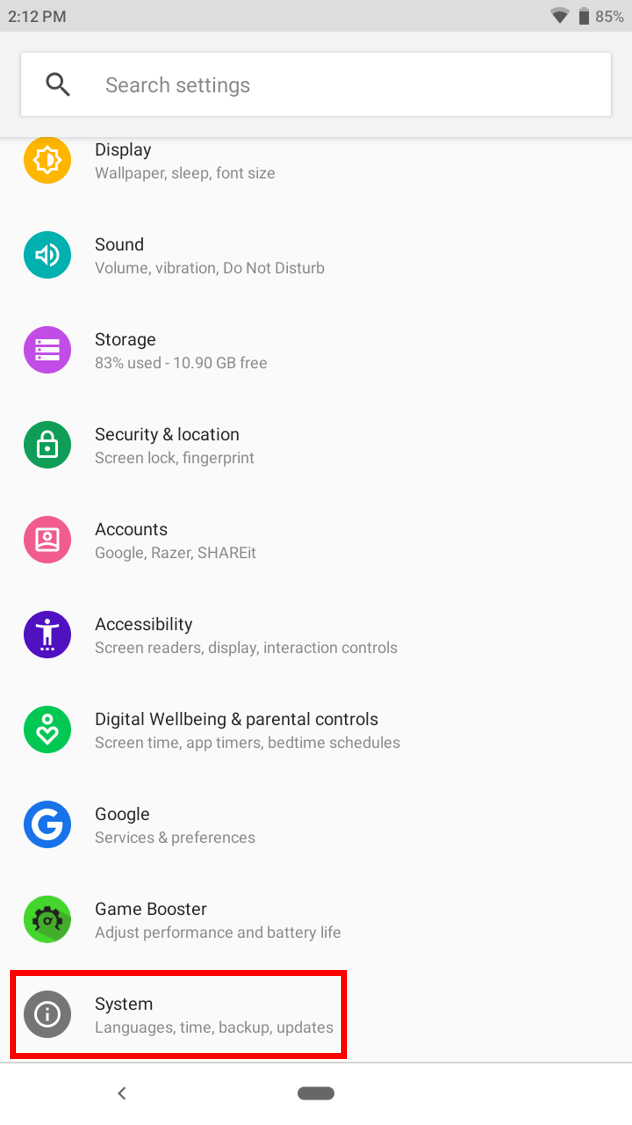
- Go to Settings > System.

- Go to Advanced > System update.

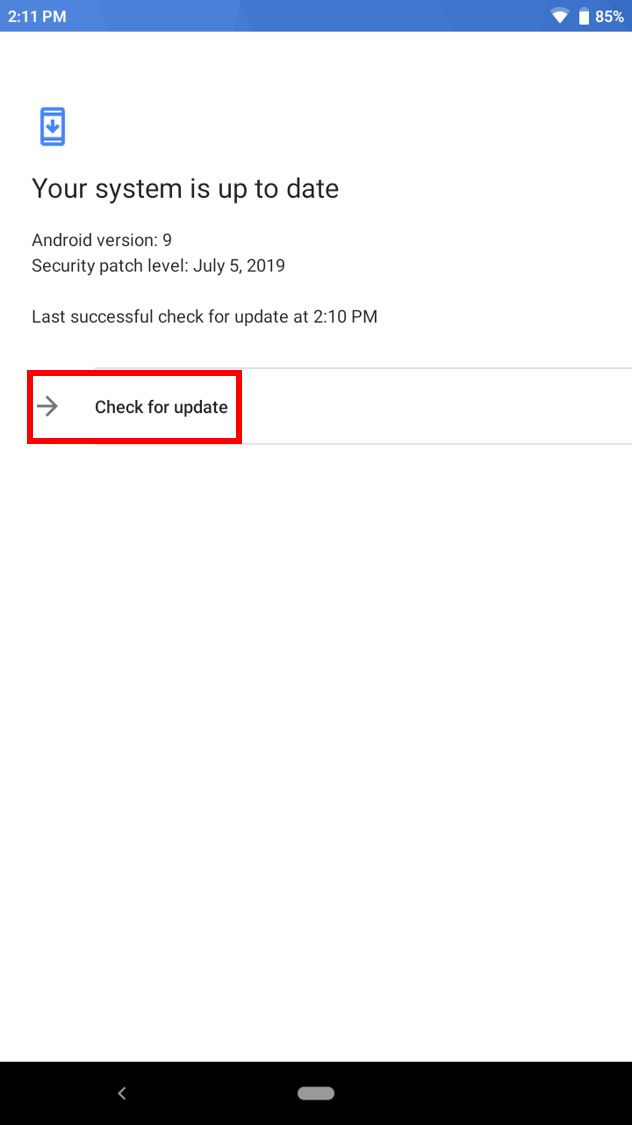
- Tap “Check for update”.
-
Tap “Update Now” if an update is available.
-
If the issue persists, consider doing a factory data reset. To do that, follow the steps below:
- Before resetting your phone, first backup your data to Google Drive. Go to Settings > System.
- Go to Advanced > Backup.

- Toggle “Backup up to Google Drive” option on.

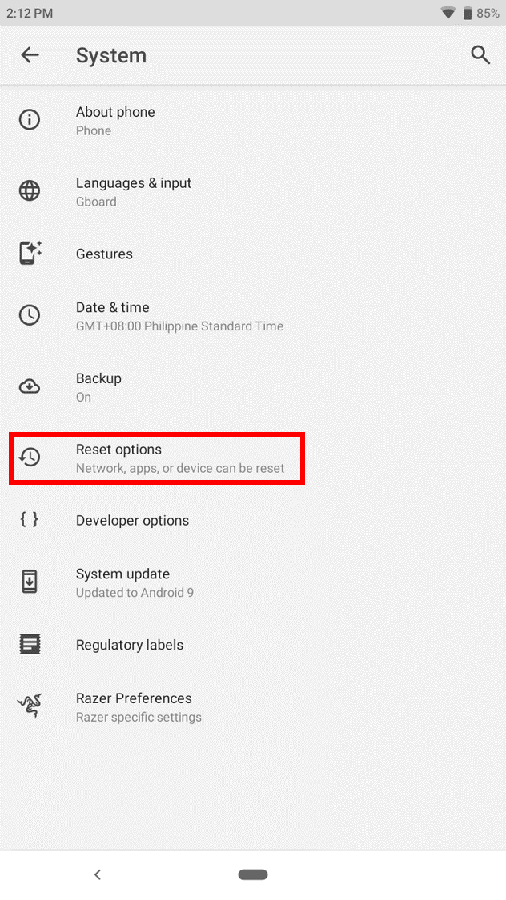
- To reset your phone, go back to Settings > System, then tap “Reset options”.
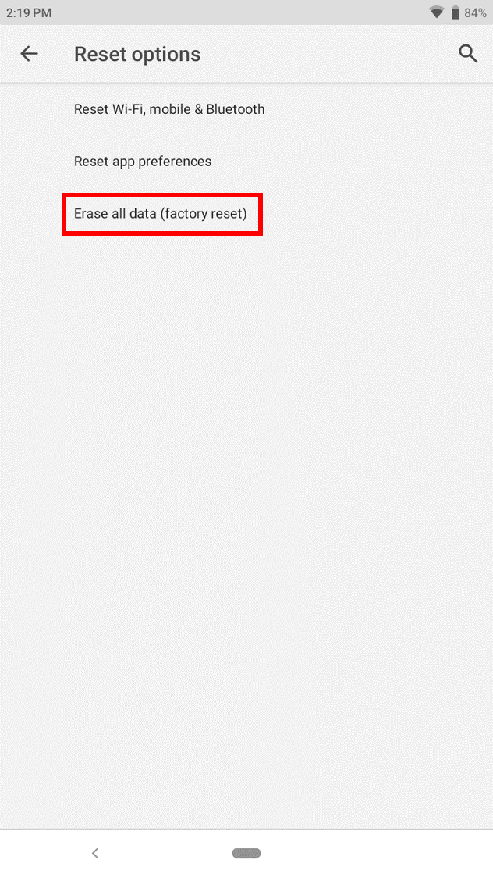
- Tap on “Erase all data (factory reset)”.
-
On the next window, tap “RESET PHONE”.

- Before resetting your phone, first backup your data to Google Drive. Go to Settings > System.

