Follow the steps below to set and customize alerts for different streaming events such as Follows, Subscriptions, Cheers, and more.
Step-by-step process
- Open the Streamer Companion App and click the “ALERTS” tab.

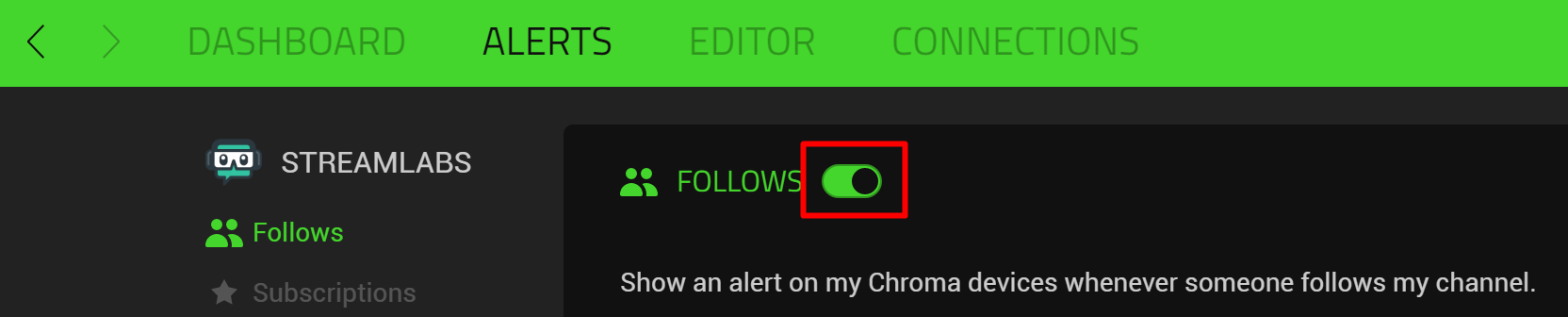
- Click the event you want to set an alert to. In this case, click “Follows”.

- Toggle the switch highlighted to “On”.
- Add your device under the specific event.

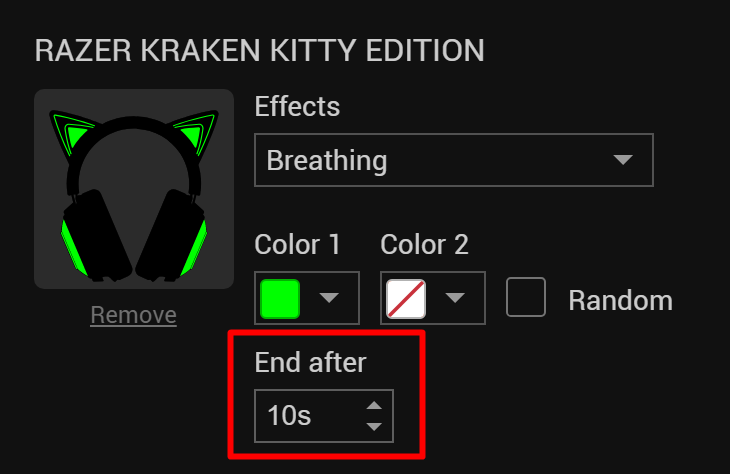
- Select an effect you wish to set off during an event. Click the dropdown arrow and select one of the standard effects. You may also select the custom alerts you've made in the "EDITOR" tab.

- Adjust the duration of the effect by entering the number of seconds in the field under "End after".