
Follow the steps below to install an NVMe M.2 SSD into the Razer Thunderbolt™ 5 Dock Chroma.
-
Disconnect all cables from your Razer Thunderbolt™ 5 Dock Chroma.
-
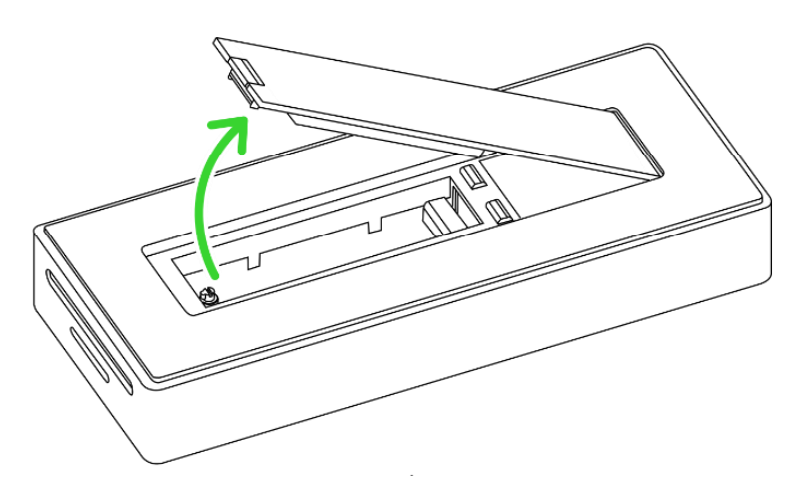
Unlatch the bottom cover.
-
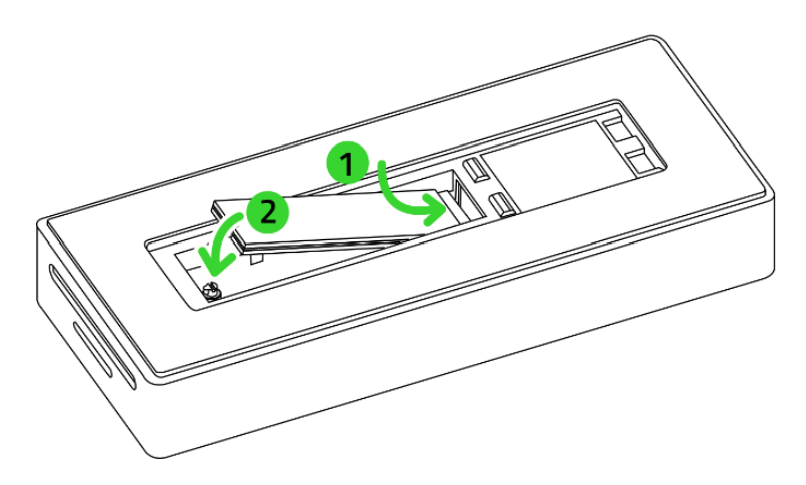
Insert the compatible storage drive into the M.2 PCIe slot.
-
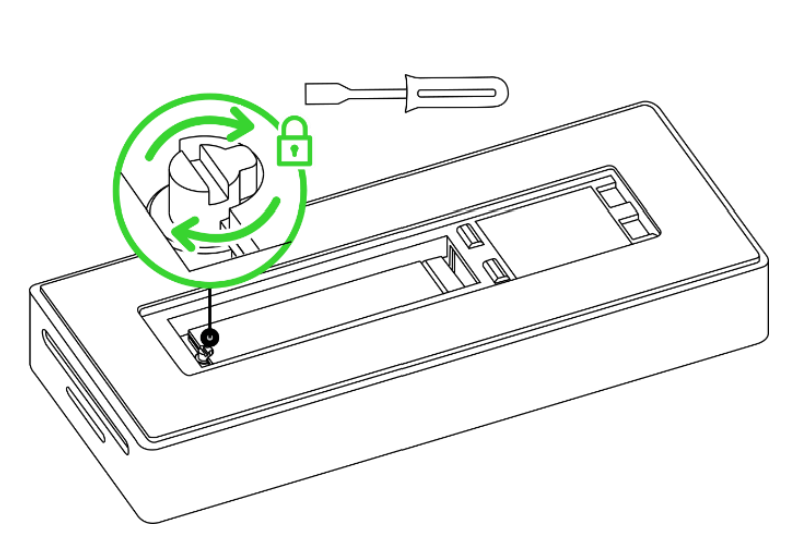
Turn the locking mechanism with a flat edge to secure the drive in place.
-
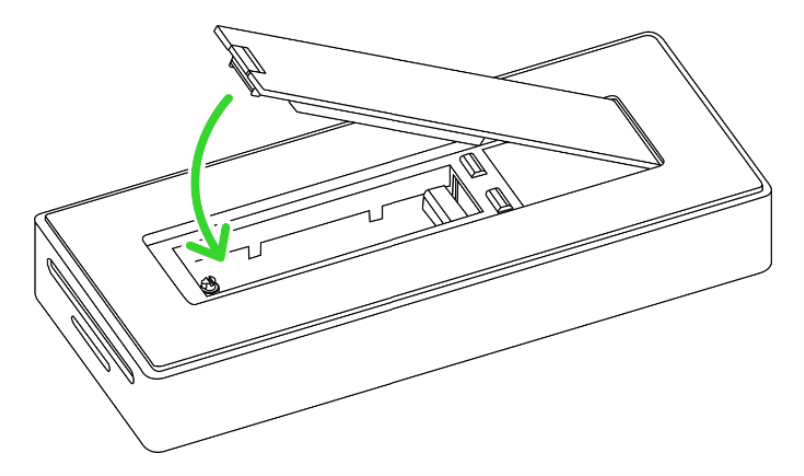
Replace the bottom cover and reconnect your devices.
-
Follow the on-screen instructions to initialize your drive according to the drive manufacturer.

