
Follow the detailed instructions below to resolve internet or wifi issues on your Razer Blade while connected to a LAN.
Select applicable method below
Use Windows Network Diagnostics
- Update your operating system to the latest version.
- Right-click on the network options at the bottom-right corner of your Desktop.
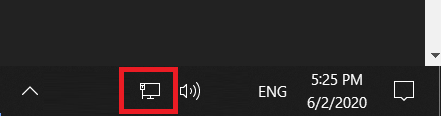
- Select “Troubleshoot problems”.

- Follow the onscreen instructions to resolve the issue.
Scan your Razer Blade
- Restart your Razer Blade.
- Run a complete computer scan. Some malwares can cause internet disconnections.
- Check if your device is properly connected and has no physical damage.
Reinstall your LAN Adapter
- Go to Device Manager.
- Expand "Network Adapters".
- Right-click on "Killer E2400 Gigabit Ethernet" and select "Uninstall".
- Under “Device Manager”, select “Action” and click “Scan for hardware changes". The laptop will detect your LAN adapter and automatically install it.
- Restart your device.
Reinstall your Modem
- Connect a different device to the same network and check if it's experiencing the same issue.
- Turn off your modem, wait for 10 seconds and turn it back on.
- Right-click on "Killer E2400 Gigabit Ethernet" and select "Uninstall".
- If the issue persists, contact your internet service provider.
- Restart your device.
If the above steps did not resolve your issue, consider doing a system recovery or factory reset.

