
Black screen, no signal or poor video issues on a Razer Ripsaw HD or Razer Ripsaw capture card can be caused by a variety of reasons. Before you begin, ensure that all your cable connections are correct and that the source is connected to the correct port. Then select the issue you are experiencing below.
Select your issue
Black screen or no image in OBS or XSplit
- If you are capturing a game from your gaming console, ensure that the HDMI cable is plugged into the HDMI output port of the game console and the HDMI input port on the Razer Ripsaw HD | RZ20-02850 capture card.
- Close OBS, then unplug the USB cable from your streaming computer, plug it back in, and open OBS to try again.
- If you experience issues when using screen capture software on a laptop or multi-GPU system, ensure that the appropriate application services are running using the same GPU as the game or program being captured.
Refer to the links below for more details on the specific software:
OBS: https://obsproject.com/wiki/Laptop-Troubleshooting
XSplit: https://support.xsplit.com/en/article/fixing-sources-that-only-display-black-1r93ov5/
Black screen when capturing gameplay from a PS4
Ensure all your cable connections are correct.
Disable HDCP on the PS4.
Go to "Settings" > "System" on your PS4.
Go to "Enable HDCP".
Uncheck the box.
Stuttering, frozen or choppy video in the stream or recording
The performance of the capture is heavily reliant on the performance capability of the PC you are streaming to. If the capture resolution is set to 1080p, try lowering it to 720p to reduce CPU usage.
Ensure your gaming PC’s graphics card is configured to output 60 FPS. See How to configure your graphics card to output 60 FPS / 60 Hz for detailed instructions.
If the issue persists, follow the steps outlined below.
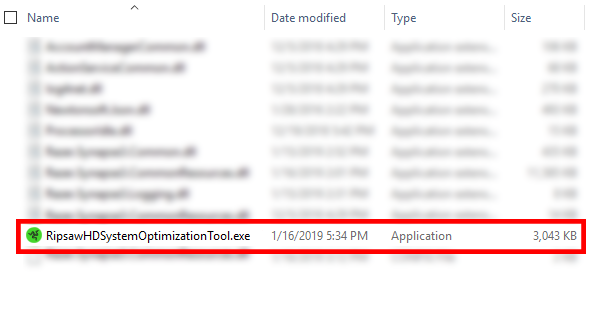
Download the RipsawHDSystemOptimizationTool.
Extract the downloaded ZIP file.
Run the “RipsawHDSystemOptimizationTool.exe” file.
Important: Run the tool on the PC where OBS or similar streaming software is installed.
Toggle “CPU Booster” on.

Pass-through video does not appear on screen
Ensure that you have installed the drivers delivered via Razer Synapse to output or view the pass-through video from your Razer Ripsaw.
Static desktop screen in a dual-PC setup
This issue occurs when your computer treats the Razer Ripsaw HD signal as a monitor extension. To resolve it:
Right-click on your computer's desktop screen.
Select "Display settings".
Adjust your settings to duplicate your display instead of extending it.
Cannot select 1440p on Xbox One
The Razer Ripsaw HD | RZ20-02850 can only support 1440p resolution at 30 FPS. Xbox One does not support this, so the resolution is downscaled to 1080p at 60 FPS.
"No Signal" error on the Razer Ripsaw
Ensure that the Razer Ripsaw | RZ20-01780 is plugged into a USB 3.0 port for the device to function correctly.
Monitor resolution is stretched when connected to the Razer Ripsaw
This is a Windows display scaling issue. To resolve it:
- Go to Settings > System > Display.
- Select your preferred size of text, apps, and other items under “Scale and layout”.

