
A system recovery stick is used to restore your Razer Blade or Razer Tomahawk Gaming Desktop to its original state. It fixes persistent software issues encountered after installing an application or driver update.
Warning: This process will permanently erase all data on your device. Back up your files before proceeding.
Note: Your download and use of this system recovery image is governed by the Razer Services & Software – General Terms of Use.
You can view the video below for instructions or review a copy of the video transcript.
Follow the detailed instructions below to create and use a system recovery stick for your Razer Blade or Razer Tomahawk Gaming Desktop.
Select your device for a guide to create and use a recovery stick
Razer Blade
Preparations
Take note of the following before performing system recovery:
-
This process removes all data, files, settings, games, and applications. Back up your blade.icm file in “C:\Windows\System32\spool\drivers\color” and all other data to an external drive. To backup and restore a custom color profile, see How to backup and restore custom color profile on the Razer Blade.
-
Once system recovery is successful, Windows, Razer Synapse updates, and other software installations are required.
-
If your Razer Blade was upgraded to a different OS other than the one it shipped with, the recovery partition will revert it to the original OS.
-
Ensure the Razer Blade is connected to a power supply. This may take a few hours to complete and may require several system updates and restarts.
-
Check the Power Settings to ensure the Razer Blade will not go to sleep during the process.
-
Go to “Settings” > “System”.

-
Ensure “Sleep” is set to “Never” under “Power & sleep”.

-
System recovery stick creation
-
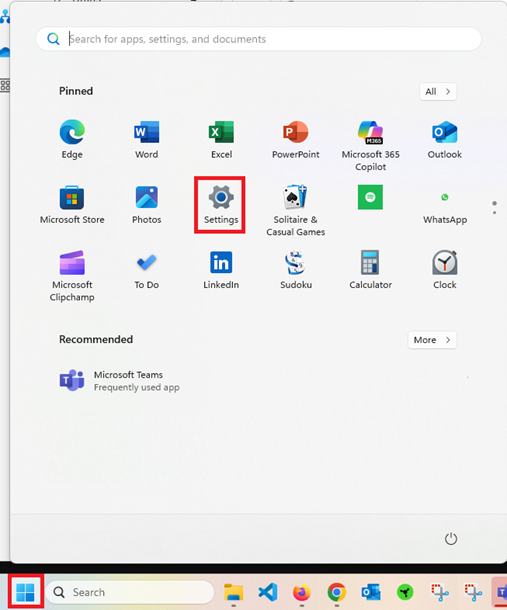
Click the Windows logo, then go to “Settings”.
-
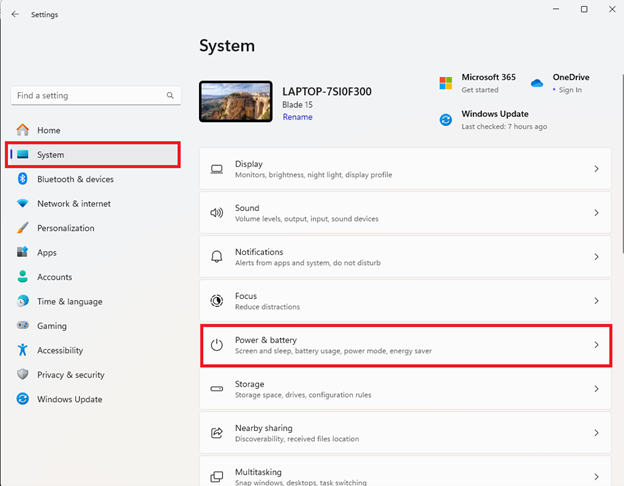
Click “System” > “Power & battery”.
-
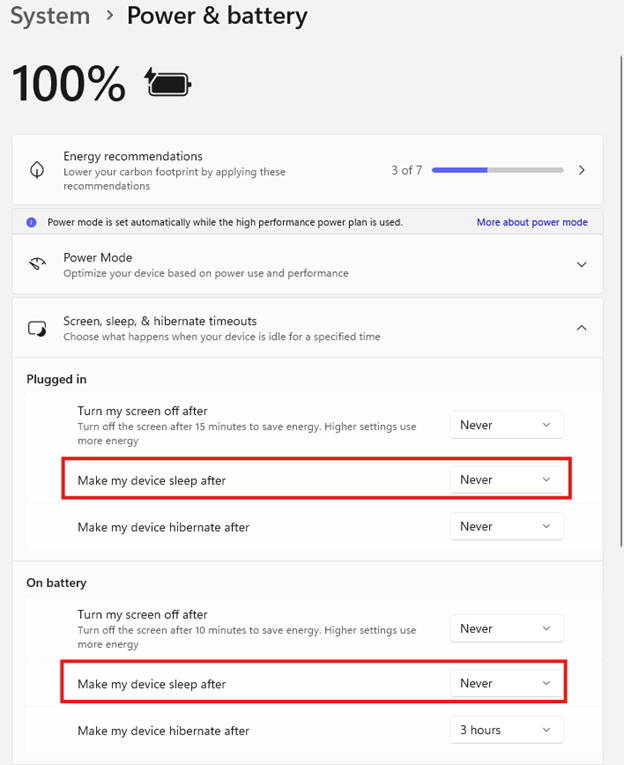
Ensure “Make my device sleep after” is set to “Never” under “Power & battery”.
Note: You have the option to create a recovery stick from your existing system using the Recovery Drive app or by downloading the original recovery image.
Using the original recovery image
-
Download the system recovery files to create a system recovery stick from the link provided by Razer Support. See How to download the recovery image for instructions. If the file download is interrupted, click on “Resume” to continue downloading. However, if system recovery files from Razer Support are unavailable, use the Recovery Drive app method instead.
-
Insert a USB drive with at least 32 GB capacity directly into your computer. Use a USB 3.0 drive to shorten the duration of the recovery process. Do not use a switch or USB hub.
-
If the USB drive is not detected, insert it into a different USB port.
-
If the USB drive is still not detected, use another USB storage device.
-
-
Format the USB drive to NTFS (New Technology File System).
-
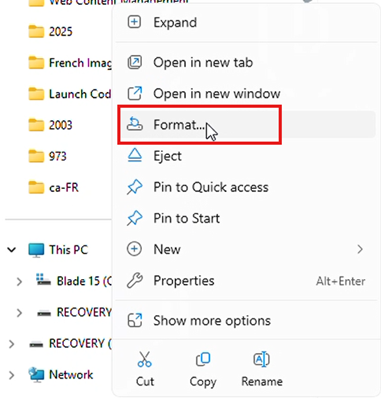
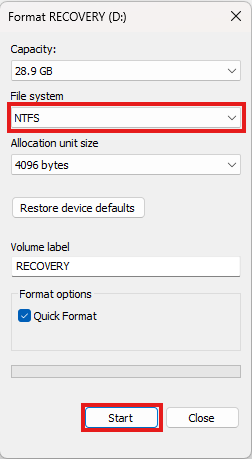
Right-click on the USB drive and select “Format”.
-
Select “NTFS” as the file system then click “Start”.
-
Locate the downloaded system recovery image zip file and extract it to the prepared USB drive.
-
Using the Recovery Drive app
-
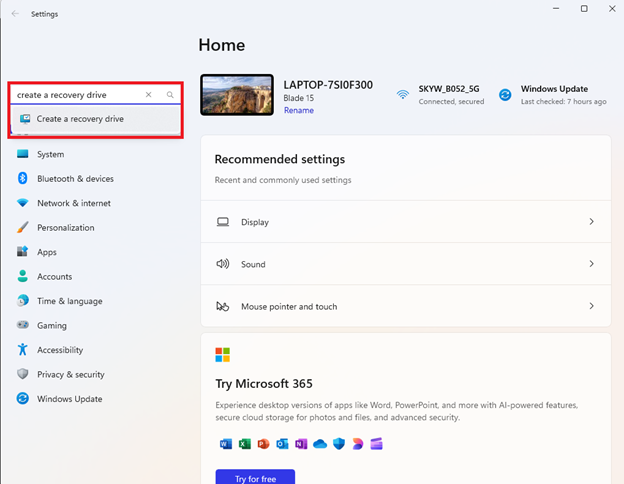
Go to “Settings”, search for “Create a recovery drive”.
-
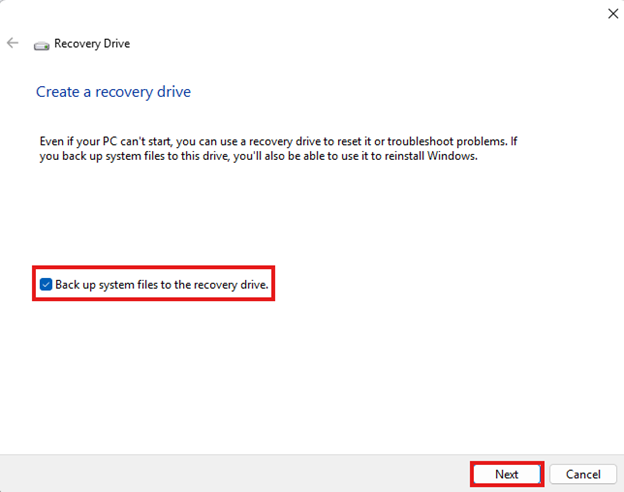
Ensure “Backup system files to the recovery drive” is selected then click “Next”.
-
Follow the on-screen instructions and plug in the USB drive to proceed.
To create and use a system recovery stick for the Razer Tomahawk Gaming Desktop, see the answers below:
System recovery process
-
Shut down the Razer Blade, then unplug all devices except for the power adapter.
-
Connect the recovery stick directly to the Razer Blade. Do not use a USB hub, as this may cause the recovery process to fail.
If the recovery stick is not detected or not working, perform the following:
- Transfer the USB drive to a different USB port. Ensure it is properly inserted.
- If the recovery stick is still not working, try creating another recovery stick using a different USB drive.
-
Power on the Razer Blade and repeatedly press “F12” to go to the boot menu.
-
Select “UEFI: USB DISK 3.0 PMAP, Partition 1” then follow the on-screen instructions until the process is completed.

Razer Tomahawk Gaming Desktop
Preparations
Take note of the following before performing system recovery:
- This process will remove all data, files, settings, games, and applications. We recommend backing up all your data to an external drive.
- Windows and Razer Synapse updates, and other software installation will be required once system recovery is successful.
- If your Razer Blade was upgraded to a different OS other than the one it shipped with (Windows 8 to Windows 10 for example), the recovery partition will revert it to the original OS.
- This may take a few hours to complete and may require several system updates and restarts. Ensure that the Razer Blade is connected to a power supply.
- Check the Power Settings and ensure that the Razer Blade will not go to sleep during the process.
- Go to “Settings” > “System”.
- Under “Power & Sleep”, ensure that “Sleep” is set to “Never”.
- Go to “Settings” > “System”.
Create system recovery stick
-
Download the system recovery files from the link provided by Razer Support. See How to download the recovery image for instructions. The file may take some time to download depending on your internet connection. If the file download is interrupted, click on “Resume” to continue downloading.
However, if system recovery files from Razer Support are not available, utilizing the Windows Recovery Drive app is the viable option. Skip to step 5.
-
Insert a USB drive with at least 32 GB capacity directly into your computer. We recommend using a USB 3.0 drive since it can significantly shorten the duration of the recovery process. Do not use a switch or USB hub.
- If the USB drive is not detected, insert it to a different USB port.
- If the USB drive is still not detected, it may be damaged or incompatible. Try using another USB storage device.
-
Format the USB drive to NTFS (New Technology File System).
-
Right-click on the USB drive and select “Format”.

-
Select “NTFS” as the file system then click “Start”.

-
Locate the downloaded system recovery image zip file and extract it to the prepared USB drive.
-
-
Once the USB has successfully formatted to NTFS, unzip the contents of the Worldwide Image to the USB. The contents of the unzipped file should contain the following:

-
To create a recovery drive using the Recovery Drive app:
- Go to “Settings”, search for “Create a recovery drive”.

- Ensure “Backup system files to the recovery drive” is selected then click “Next”.

- Follow the on-screen instructions and plug in the USB drive to proceed.
- Go to “Settings”, search for “Create a recovery drive”.
Start the system recovery process
-
Shut down the Razer Tomahawk Gaming Desktop then unplug all devices except for the power adapter.
-
Connect the recovery stick directly to the Razer Tomahawk Gaming Desktop. Do not use a USB hub as this may cause the recovery process to fail.
If the recovery stick is not detected or not working, try the following:
- Transfer the USB drive to a different USB port. Ensure that it is properly inserted.
- If the recovery stick is still not working, try creating another recovery stick using a different USB drive.
-
Power on the Razer Tomahawk Gaming Desktop and repeatedly press "F10" to go to the boot menu. Select the USB Recovery device that was created.

-
This screen will show up and then click "Start Recovery".

Note: The process may take some time to complete.


-
When it is done, the system will shut down and turn it on again to see this screen. This may take some time to get ready.

-
Once the recovery is successful, Windows setup will appear and the recovery process is completed.

Troubleshoot system error
System errors during the recovery process on your Razer Tomahawk Gaming Desktop interrupt and prevent it from completing successfully.
See the answer below for more details.

