
Razer keyboards can be connected either through the 2.4 GHz USB dongle or Bluetooth. Below is the step-by-step process for switching between connectivity modes on a Razer keyboard.
You can view the video below for instructions or review a copy of the video transcript.
2.4 Ghz
Razer HyperSpeed Wireless mode button
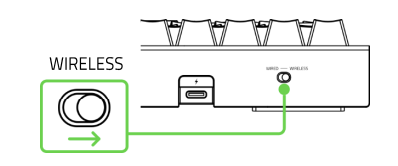
- Toggle the mode switch from “WIRED” to “WIRELESS”.
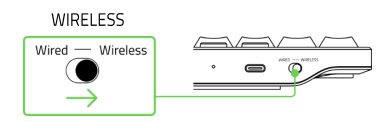
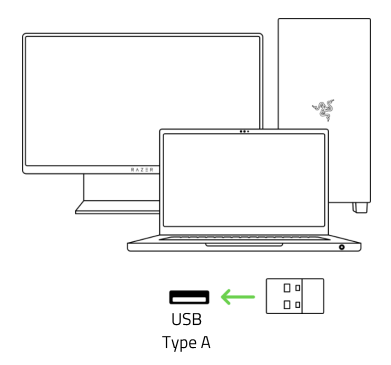
- Connect the wireless HyperSpeed USB dongle to your computer.
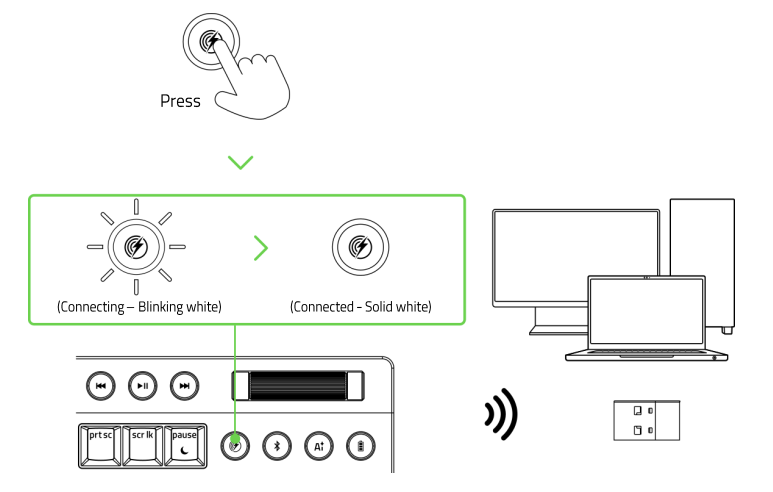
- Press the Razer HyperSpeed mode button. Observe the mode button for the connection status.
- Blinking White – Connecting
- Solid White – Connected
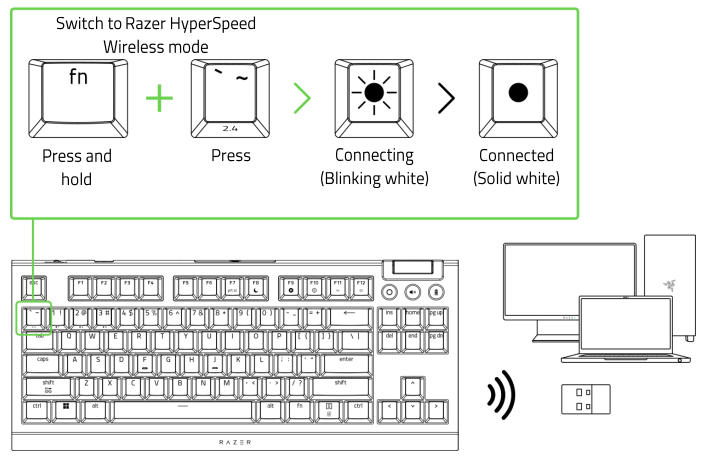
Razer HyperSpeed Wireless mode (Tenkeyless)
- Plug the wireless Hyperspeed USB dongle to your computer.
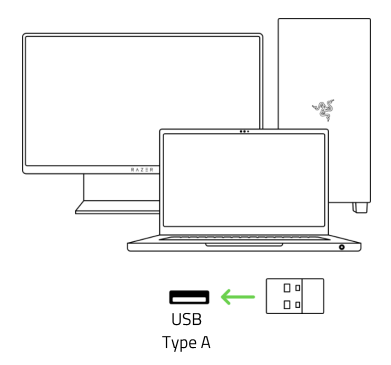
- Toggle the mode switch from “WIRED” to “WIRELESS”.
- Press and hold the “fn” key and the Razer HyperSpeed mode key. Observe the mode key for the connection status.
- Blinking White – Connecting
- Solid White – Connected
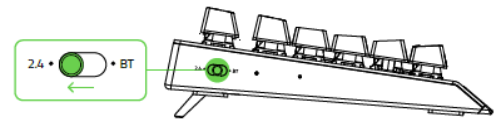
2.4/BT Switch
- Set the mode switch to 2.4.
Note: The switch can be found either at the side or at the back of your Razer keyboard.
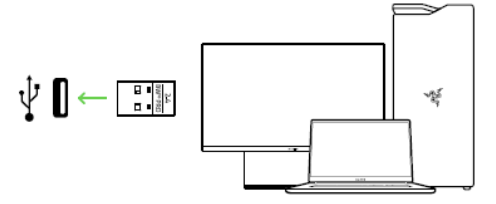
- Remove the wireless USB dongle from the dongle compartment and connect it to your computer.
Bluetooth
Bluetooth mode button
- Toggle the mode switch from “WIRED” to “WIRELESS”.
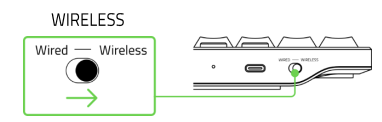
- Press the Bluetooth mode button. Repeat this until the desired Bluetooth profile is active.

- Enable Bluetooth on your device and select your Razer keyboard from the list of devices found.
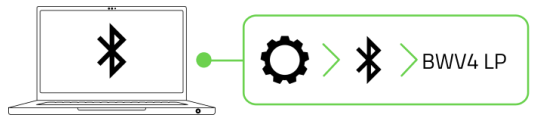
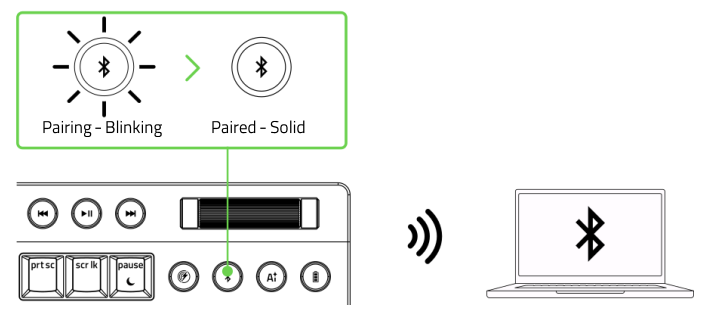
- Pair and connect your Razer keyboard with your computer. Observe the mode button for the connection status.
- Blinking – Connecting
- Solid – Connected
Bluetooth Profile key (Tenkeyless)
- Toggle the mode switch from “WIRED” to “WIRELESS”.
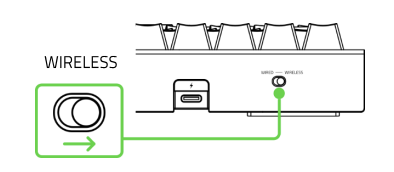
- Press and hold the “fn” key and the desired profile key to activate. The selected profile key will blink while pairing.
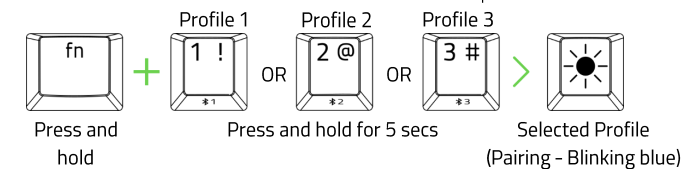
- Enable Bluetooth on your device and select your Razer keyboard from the list of devices found.
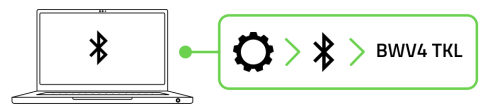
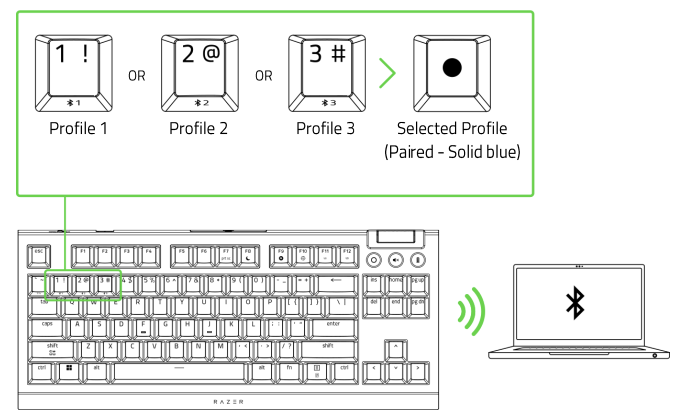
- Pair and connect your Razer keyboard with your computer. The selected profile will have a solid blue light once it is paired.
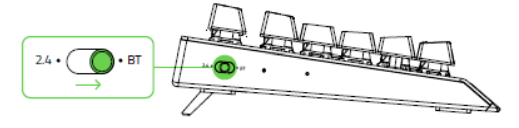
2.4/BT Switch
- Set the mode switch to BT.
- Press and hold “alt + fn”, then hold down the desired profile key to activate. The selected profile key will blink blue.

- Enable Bluetooth on your device and select your Razer keyboard from the list of devices found.
- Pair and connect your Razer keyboard with your computer. The selected profile key will temporarily change to static blue.
- To switch between paired devices, press and hold “alt + fn”, then press the desired profile. The selected profile key will temporarily change to static blue.


