
Razer pairing utilities help you connect compatible wireless headsets, mice, and keyboards to their corresponding wireless dongles. These tools are used to pair a new device, restore a lost connection, manage device pairings, or add compatible peripherals to a Razer Multi-Device HyperSpeed Dongle for a more streamlined wireless setup.
Choose from the list below for help connecting your Razer device to its original or replacement wireless dongle.
Select a utility
How to install and use the Razer Headset Pairing Utility
Applicable Model:
Barracuda Line
BlackShark Line
- Razer BlackShark V2 HyperSpeed | RZ04-0496
- Razer BlackShark V2 Pro | RZ04-03220
- Razer BlackShark V2 Pro (2023) | RZ04-0453
- Razer BlackShark V2 Pro (Xbox Licensed) | RZ04-04530x
- Razer BlackShark V2 Pro for PlayStation | RZ04-04530x
- Razer BlackShark V3 | RZ04-05410x
- Razer BlackShark V3 for Xbox | RZ04-054102
- Razer BlackShark V3 for PlayStation | RZ04-054103
- Razer BlackShark V3 Pro | RZ04-0540x
- Razer BlackShark V3 Pro for Xbox | RZ04-0540x
- Razer BlackShark V3 Pro for PlayStation | RZ04-0540x
- Razer BlackShark V3 X HyperSpeed | RZ04-054201
- Razer BlackShark V3 X HyperSpeed for Xbox | RZ04-054202
- Razer BlackShark V3 X HyperSpeed for PlayStation | RZ04-054204
Hammerhead Line
Kaira Line
Latest Pairing Utility
- https://rzr.to/5djb0n | April 24, 2026
- Added Razer Hammerhead V3 HyperSpeed
Follow the detailed instructions below to run the pairing utility on your device.
Step-by-step Process
-
Download the pairing utility on your PC.
-
Run the pairing utility.
-
Select your device. Ensure you have the correct dongle for the headset that you’re trying to pair it with.

-
Follow the on-screen instructions.
-
Click "NEXT" or PAIR".

-
Wait for the pairing process to complete.
-
Click "CLOSE" once the pairing process is completed.

Your Razer headset is now paired with your wireless USB dongle.
Related article:
How to install and use the Razer Mouse Pairing Utility
Applicable Model:
Razer mouse
- Razer Basilisk Ultimate | RZ01-03170
- Razer Basilisk X HyperSpeed | RZ01-03150
- Razer Boomslang 20th Anniversary Edition | RZ83-0253
- Razer DeathAdder V2 Pro | RZ01-03350
- Razer DeathAdder V2 X HyperSpeed | RZ01-0413
- Razer DeathAdder V3 Pro (Smooth Touch) | RZ01-04630
- Razer DeathAdder V4 Pro | RZ01-0533
- Razer Naga Pro | RZ01-03420
- Razer Orochi V2 | RZ01-03730
- Razer Viper Mini Signature Edition | RZ01-04410
- Razer Viper Ultimate | RZ01-03050
- Razer Viper V3 Pro | RZ01-0512
Pairing Utility v1.00.07_r2
- https://rzr.to/qypdla | March 3, 2026
Follow the detailed instructions below to run the pairing utility on your device.
Step-by-step Process
-
Download the pairing utility on your computer.
-
Run the pairing utility.
-
Select your device.

-
Plug the wireless USB dongle into your PC.
-
Connect your mouse to your PC using the supplied USB cable.
-
Click "PAIR".

-
Wait for the pairing process to complete.
-
Click "CLOSE" once the pairing process is completed.

Your Razer mouse is now paired with your wireless USB dongle.
How to install and use the Razer Keyboard Pairing Utility
Applicable Model:
Pairing Utility v1.02.00_r4
- https://rzr.to/8ovpwz | January 6, 2025
- Added support for Razer BlackWidow V4 Pro 75%.
Follow the detailed instructions below to run the pairing utility on your device.
Step-by-step Process
-
Download the pairing utility on your computer.
-
Run the pairing utility.
-
Click "NEXT" to proceed. Do note that Razer Synapse and other Razer applications will be automatically closed.

-
Plug the wireless USB dongle into your computer.

-
Click "NEXT".
Note: The "NEXT" button will not be available if the wireless USB dongle is not properly connected to your computer.

-
Connect the keyboard to your computer using the supplied USB cable.

-
Click "PAIR" to start the pairing process.
Note: Both the wireless USB dongle and supplied USB cable must be connected to the computer for pairing to work.

-
Click "CLOSE" once the pairing process is completed.

Your Razer keyboard is now paired with your wireless USB dongle.
How to use the Razer USB HyperSpeed Dongle Utility
Applicable Model:
Razer Mouse
Razer USB Hyperspeed Dongle Utility v1.00.16_r1
- https://rzr.to/cbsutq | January 8, 2026
You can view the video below for instructions.
Follow the detailed instructions below to use the Razer USB HyperSpeed Dongle Utility.
Step-by-step Process
-
Download the dongle utility on your computer.
-
Run the dongle utility.
-
Plug the wireless USB dongle into your PC.

-
Click "NEXT" to proceed. Note that Razer Synapse and other Razer applications will be automatically closed.
-
Select your device.

-
Wait for the update to finish. Do not turn off your computer or unplug the dongle while the firmware is still updating.

-
Follow the steps indicated to pair your chosen Razer device. Click "PAIR" to start the pairing process.
Note: Both the wireless USB dongle and the supplied USB cable must be connected to the computer for pairing to work. For devices without a USB port, use Bluetooth connectivity instead.

-
Click "CLOSE" once the pairing process is completed.

Your Razer device is now paired with your wireless USB dongle.
How to add a device to a multi-device dongle
Applicable Model:
Razer Mouse
* The bundled HyperPolling Wireless dongle supports single-device connectivity only and does not support multi-device pairing.
Important:
-
Ensure the device is not connected via USB cable.
-
Remove the additional device’s USB dongle if it’s connected to the system.
-
Keep the device close to the Hyperspeed dongle.
You can view the video below for instructions.
Note: The pairing for your second device is at the 45-second mark of the video.
Follow the detailed instructions below to add a device to a multi-device dongle
Step-by-step Process
-
Launch Razer Synapse 4.
-
Go to your device’s profile.
Note: If your device is not on the latest firmware, you will be prompted for an update.
-
Update your device to the latest firmware.
-
Visit Razer Support to check for firmware updates.
-
Download and install them on your device.
-
-
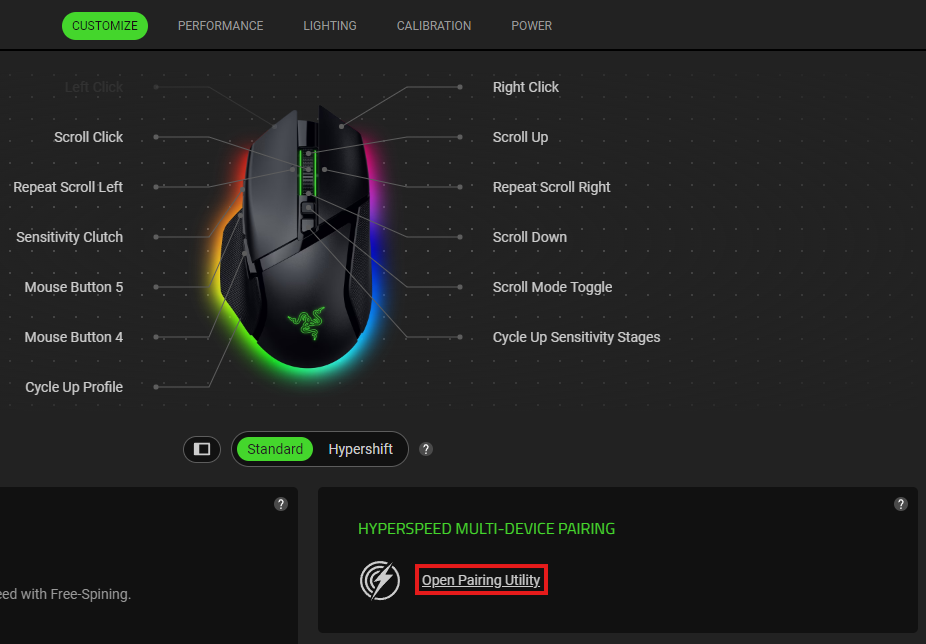
Click on “Open Pairing Utility”.
-
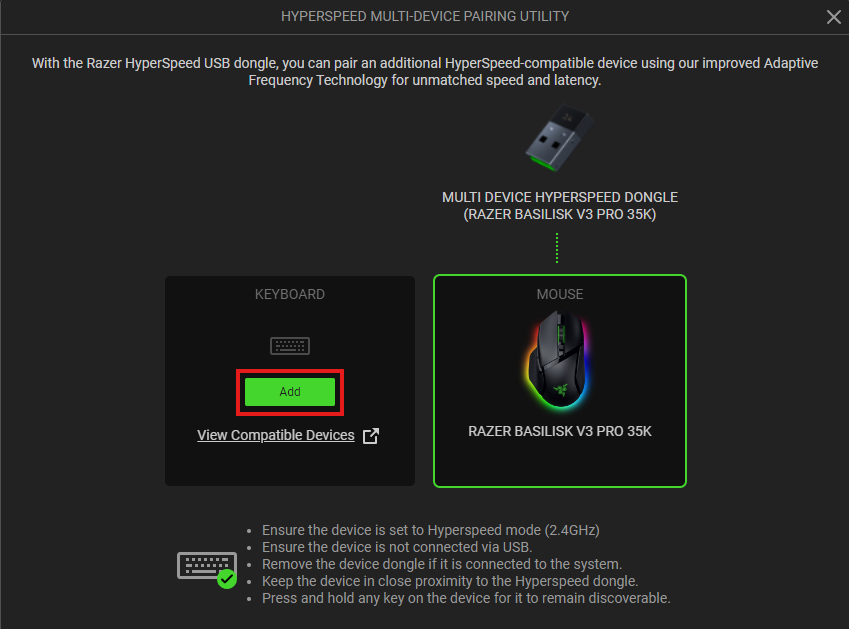
Click the "ADD" button to start scanning for a device.
-
Set the compatible device switch to Hyperspeed (2.4G) mode.
-
Press and hold any key on the device you want to pair to keep it discoverable.
-
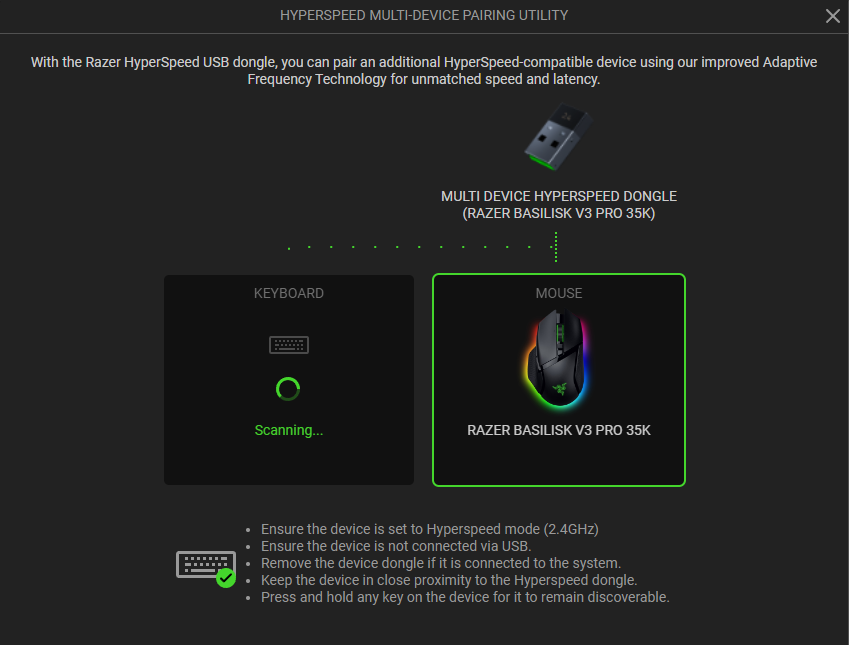
Wait while scanning is in progress.
-
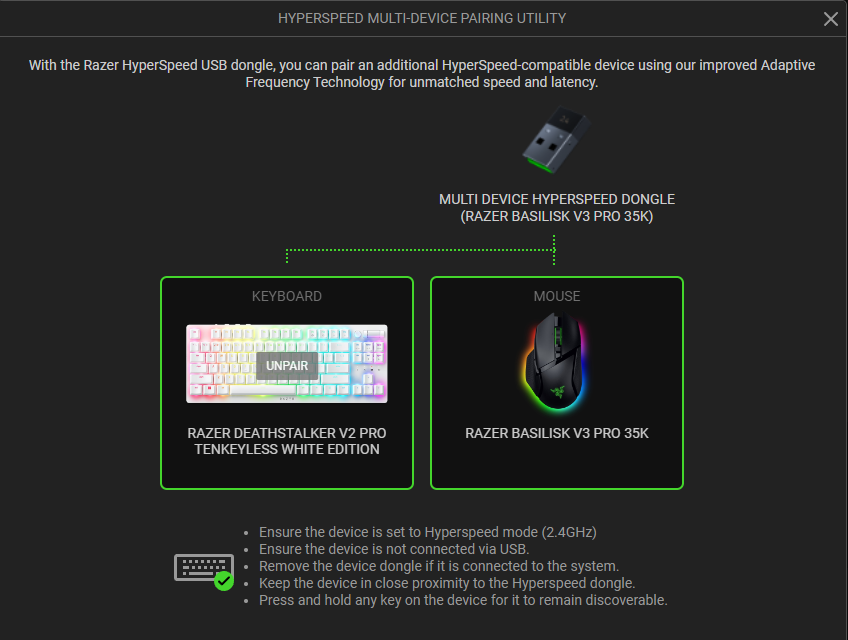
Device will automatically be paired.
How to add a Razer Hyperspeed device to a multi-device dongle
If you have a Razer HyperSpeed Wireless device that uses a Razer HyperSpeed Multi-Device Dongle, you no longer require separate dongles for each peripheral as this can now support a keyboard and mouse at the same time.
To unlock this functionality, download the firmware updater for your supported device below.
- Razer DeathAdder V2 Pro Firmware Updater
- Razer Naga Pro Firmware Updater
- Razer BlackWidow V3 Pro Firmware Updater
You can connect one keyboard and one mouse with each Razer HyperSpeed Multi-Device Dongle.
Each device can only connect to one dongle at a time. All Razer HyperSpeed Multi-Device Dongles are interchangeable, and you can set the dongle pairing via Razer Synapse.

