
Performing a hard reset restores your Razer keyboard to its factory default state. This can help resolve issues where the keyboard becomes unresponsive, keys or lighting behave unexpectedly, or the keyboard is not properly detected by your computer or Razer Synapse.
Note: A hard reset will clear any onboard settings stored on the keyboard, such as saved profiles and lighting configurations. You can reapply your preferred settings through Razer Synapse after the reset is complete.
Applicable models:
Huntsman Line
BlackWidow Line
Tartarus Line
Before you start
- Close Razer Synapse and any other peripheral software running in the background.
- Disconnect the keyboard's USB cable from your computer.
- If you are using a wireless keyboard, ensure it is fully powered off and disconnected from any paired devices before proceeding.
Step-by-step Process
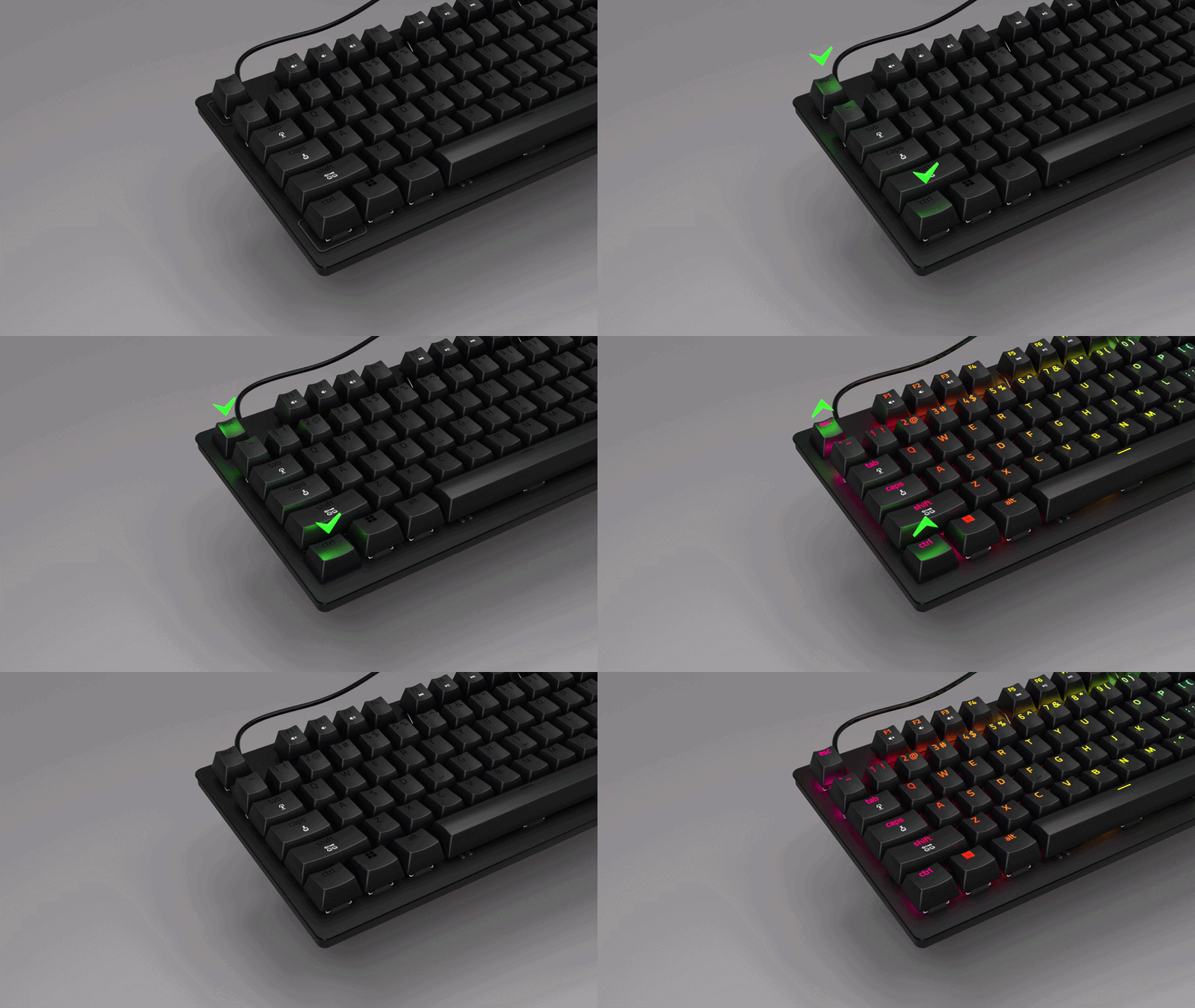
- With the keyboard disconnected, press and hold Left Ctrl + Esc simultaneously.
Note: For Razer Tartarus V2 Pro, press and hold "Key 1" and "Key 24" together instead.
- While continuing to hold both keys, plug the USB cable back into your computer.
- Keep holding Left Ctrl + Esc for approximately 5 seconds after plugging in, then release both keys.
- The keyboard will restart automatically. You may notice the lighting turn off and back on — this indicates the reset is in progress.
- Once the lighting returns to its default effect, the reset is complete.
- After the reset, launch Razer Synapse to reconfigure your lighting, key bindings, and profiles.
- If the keyboard supports onboard memory, resave your preferred profiles to the device.
- Check for the latest firmware through Razer Synapse to ensure your keyboard is up to date.
If your keyboard continues to behave unexpectedly after performing a hard reset:
- Try connecting the keyboard to a different USB port (preferably a USB port directly on the computer, not a hub).
- Test the keyboard on another computer to isolate the behavior.
- Contact Razer Support for further assistance.

