
An EC updater refines the laptop's dedicated hardware that reacts to physical inputs and conditions in real time, like closing the lid, plugging in a charger, or sensing internal temperature. This chip works quietly in the background even when the laptop is off or asleep, coordinating things like charging LED behavior and fan responsiveness. Updating it fine-tunes those background reflexes.
Applicable model:
EC Updater v1.01
- https://rzr.to/9ad7mj | July 22, 2026
Release notes
- Added support for a new power adapter
- Added HyperBoost mode for enhanced performance
- Updated power delivery settings for improved compatibility
- Fan speed automatically increases to a higher preset when the performance boost mode is active, to help keep your system cool
- Added a check to detect non-genuine or unauthorized batteries
Keyboard FW v1.06.00
- https://rzr.to/vrkv2o | July 22, 2026
Release notes
- Added HyperBoost mode support for the Razer Cooling Pad
- Improved fan speed reporting for more accurate performance feedback
- Improved connection detection between the Razer Cooling Pad and Razer Synapse
- Fixed an issue where keyboard illumination (Fn+F, Fn+R/T/P) wouldn't turn on when pressed while Razer Synapse was running or when the Razer Cooling Pad was connected
Follow the detailed instructions below to run the updater on your device.
Step-by-step Process
Before you start
-
Ensure Windows is up to date. See How to get the latest software and driver updates from Windows.
If you just updated Windows, install the "Optional updates" under Settings > Windows Update > Advanced options.
-
Plug the Razer Blade into a wall outlet. Do not let it run on battery alone before proceeding.
-
Save all files and close all programs.
-
Download the latest updater.
Update process
-
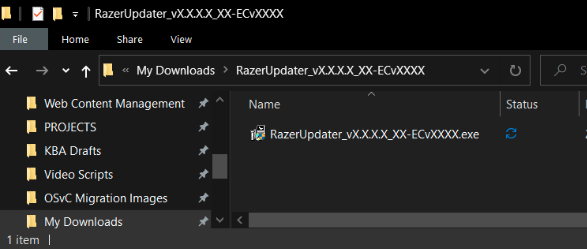
Run the updater.
-
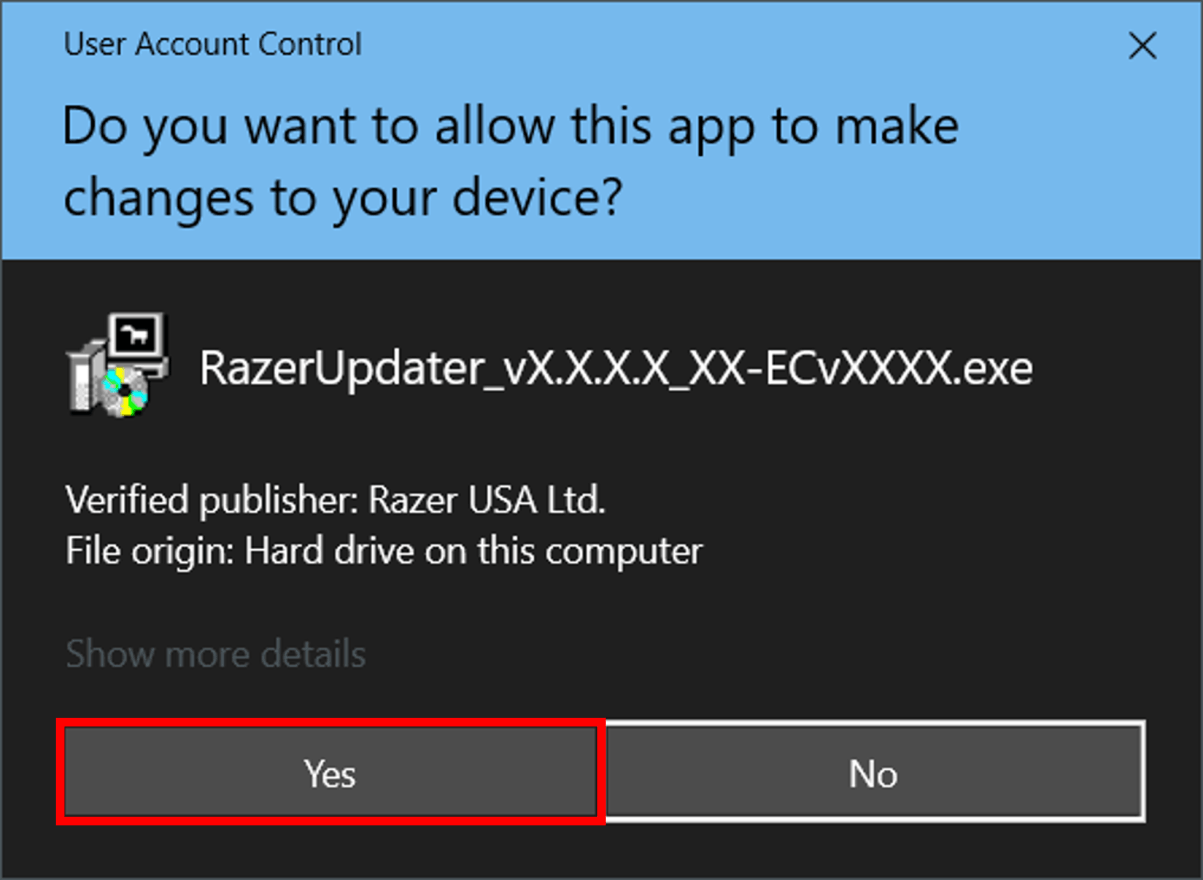
Click “Yes” if the User Account Control window pops up to proceed.
The Razer Blade Updater window will appear with details regarding your current update version and the version that your Razer Blade laptop will be updated.
-
Click "UPDATE" to initiate the update process.
Note: Control of your mouse and keyboard during the updating process will be lost temporarily. You will not be able to proceed if you already have the latest software installed.
A progress bar will appear indicating the status of the installation process. During installation, you will not be able to access other applications.
The Razer Blade will restart a few times and will automatically boot to Windows once the update is complete.
Important: Do not force restart or shut down the Razer Blade during this process.

