
Set the dedicated GPU as your preferred graphics processor on your Razer Blade to make the best out of the graphics. This setup is optimized for gaming but will increase your battery consumption.
There are four ways to set the dedicated GPU as the preferred graphics processor on your Razer Blade:
- Changing the GPU mode via Razer Synapse*
- Using the NVIDIA Control Panel
- Using Windows Graphics settings
- Selecting the display mode in BIOS
*See the answer below to check the list of applicable Razer Blade models.
By default, these models run with their dedicated GPU out of the box.
Changing the GPU mode via Synapse
This is only applicable to the list of Razer Blades. By default, these models run with their dedicated GPU out of the box. See the answer below for more details.
Note: This method overrules the settings made in the other four methods.
Below are the steps on how to change GPU mode in Synapse:
-
Open Razer Synapse and go to "PERFORMANCE".
-
Select your preferred mode under the "GPU MODE" section.
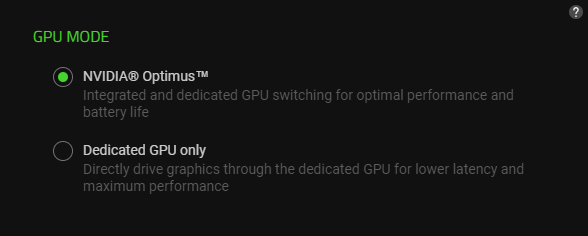
-
Restart your computer to apply changes.
For the rest of the Blade models, you may change GPU settings by following any of the options below.
Using the NVIDIA Control Panel
For Blade models that support Nvidia Advance Optimus/DDS, you can click on "Manage Display Mode" and enable it by selecting "Automatic Select". See the answer below for more details on this list.
Please note that this option is only available if the laptop is plugged into a power outlet (AC mode).
-
This will enable your system to automatically switch to "NVIDIA GPU only" mode when in-game and the highest refresh rate will be available.

Using Windows Graphics settings
-
Go to Settings > System > Display > Graphics settings.

-
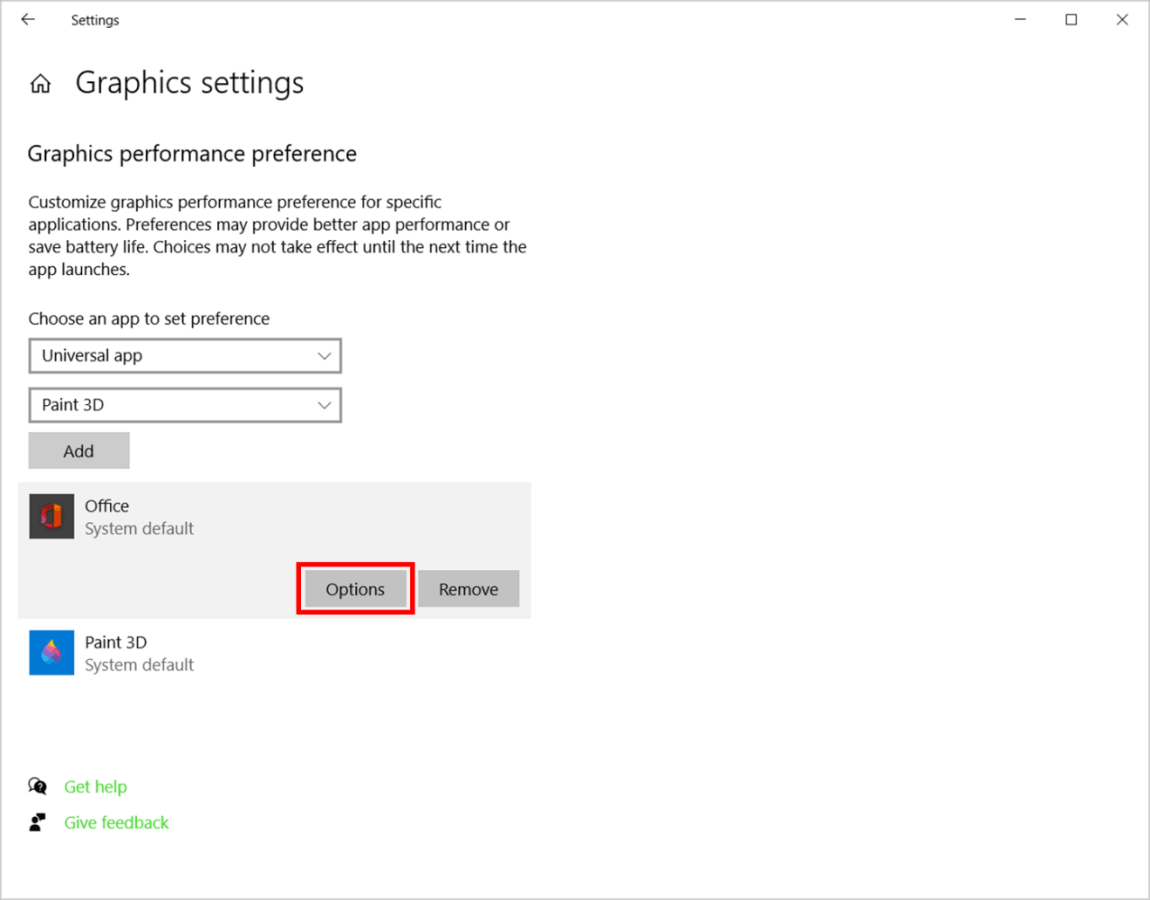
Apply preferences to your chosen Classic or Universal apps.
- To set preferences to a Classic app, select "Classic app" from the "Choose an app to set preference" dropdown list.
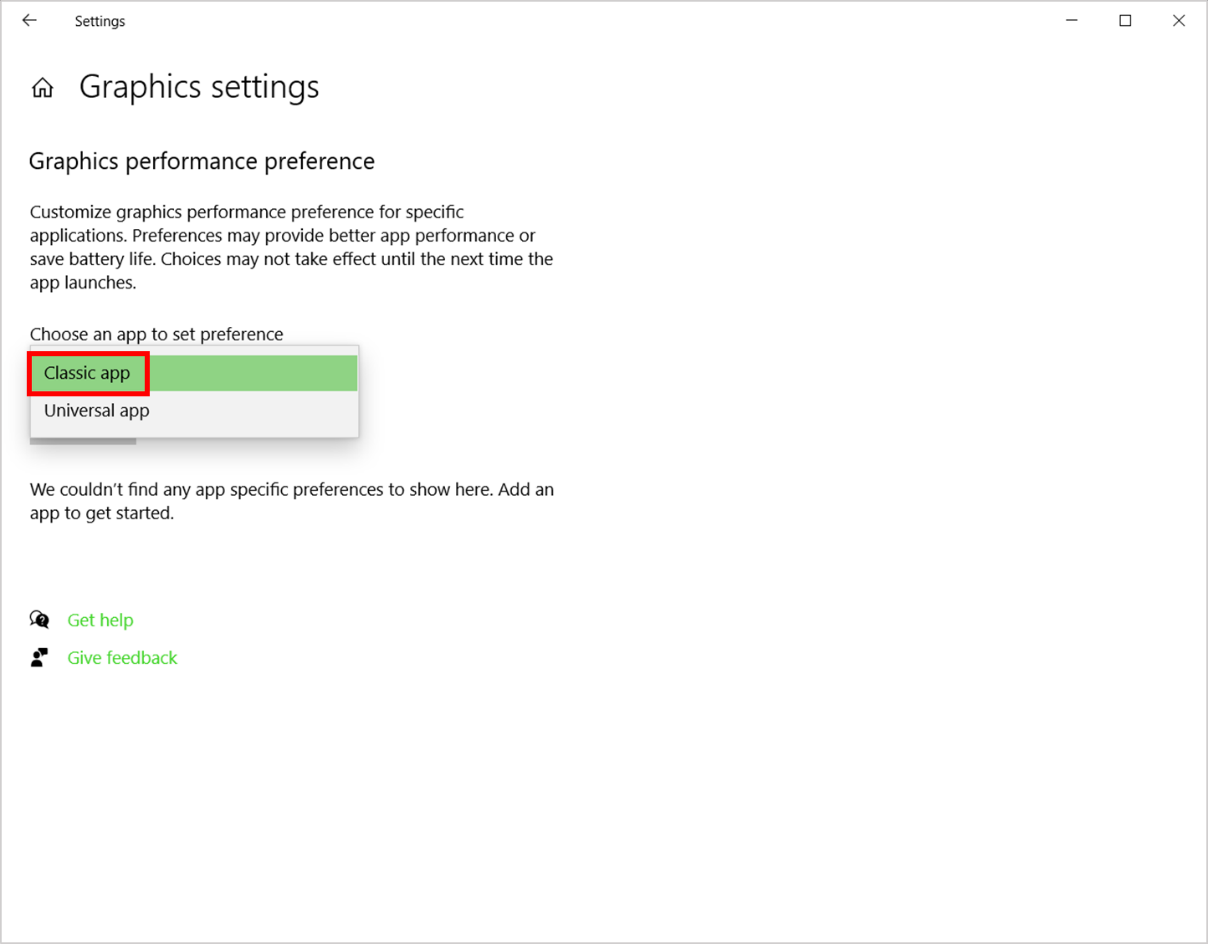
Browse for an app you want to add (.exe file), then click "Add".

- To set preferences to a Universal app, select "Universal app" from the "Choose an app to set preference" dropdown list.
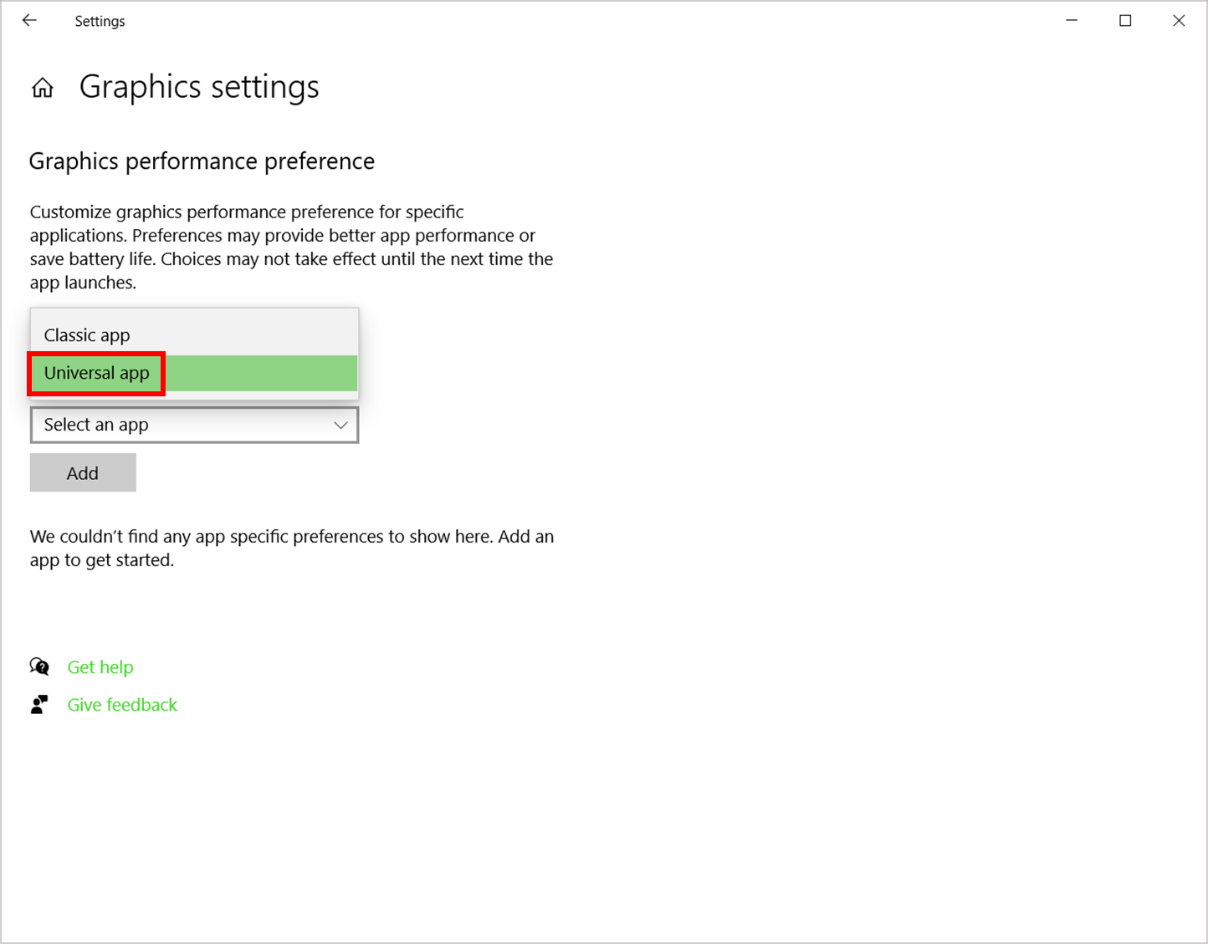
Select an app you want to add from the dropdown list, then click "Add".
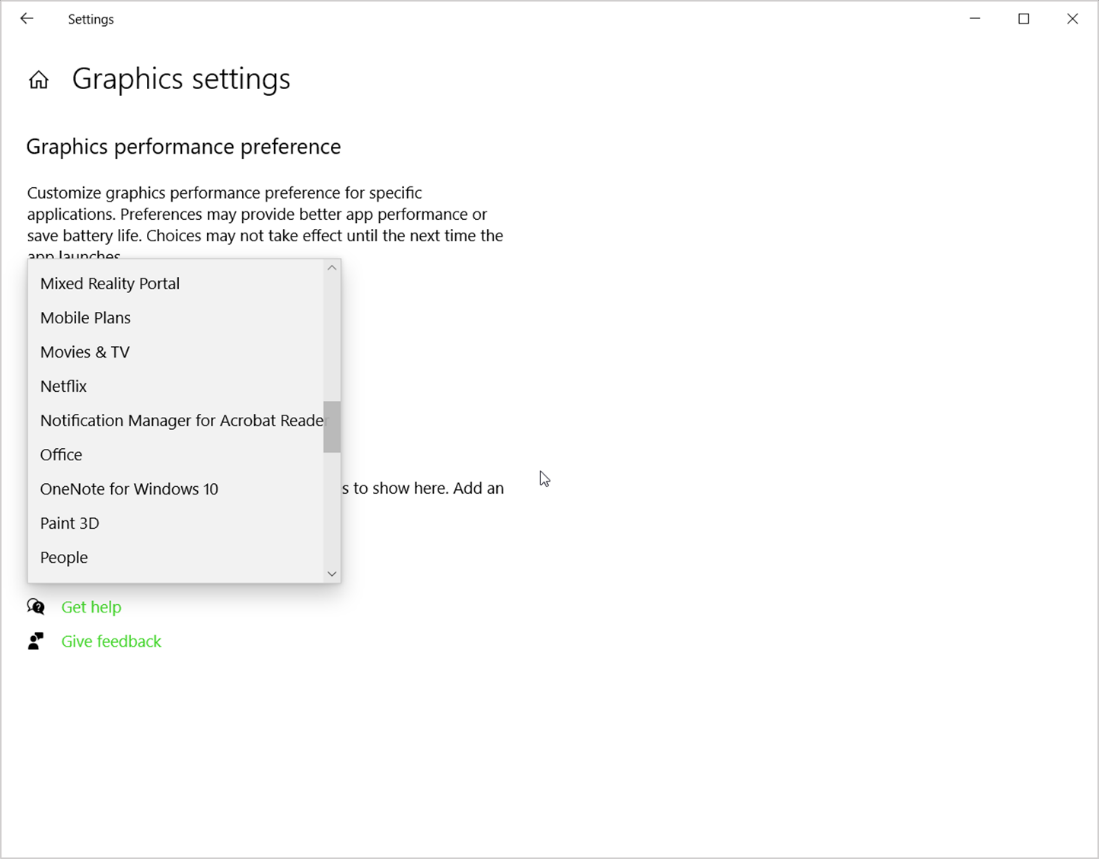

- To set preferences to a Classic app, select "Classic app" from the "Choose an app to set preference" dropdown list.
-
Click on the added app then select "Options".
-
Select your graphics preference then click "Save".

Selecting the display mode in BIOS
-
Go to BIOS > Chipset and select whether you want to utilize "Dedicated GPU Only" or "NVIDIA(R) Dynamic Display Switch".


