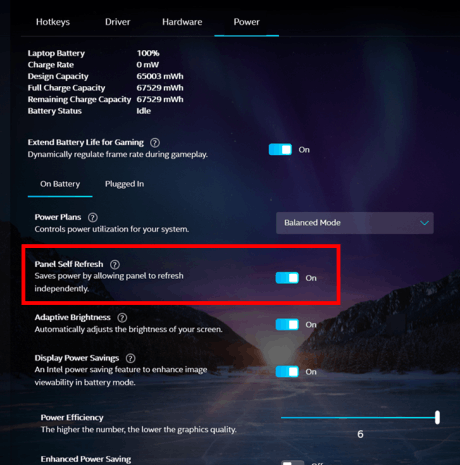
The Intel® Graphics Command Center is Intel’s new Graphics Control Panel which offers simplified, easy to understand features and functions.
Before you start with any of the steps below, download and install the Intel® Graphics Command Center app from Microsoft Store.
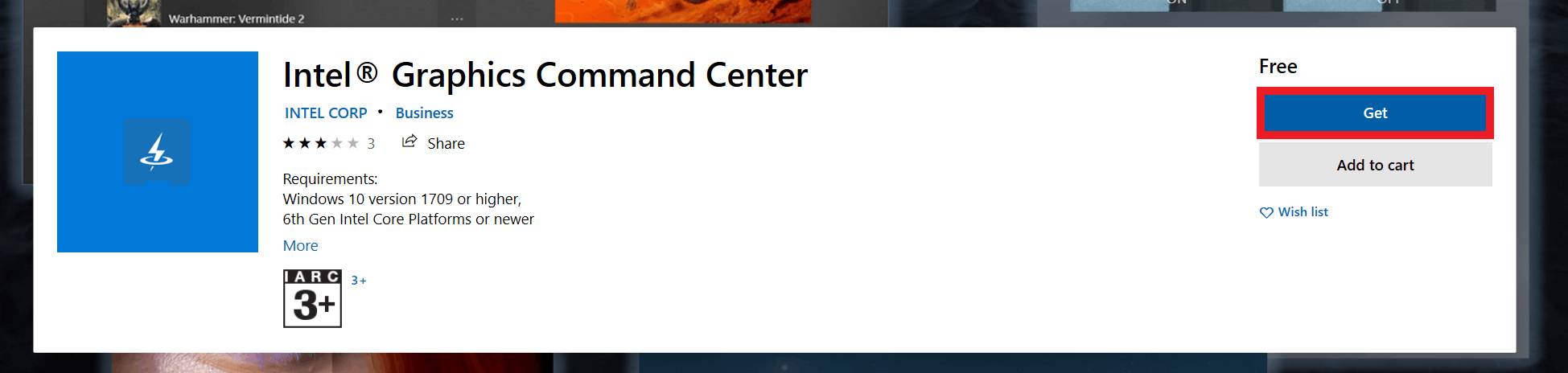
The following are the steps on how to adjust the power settings on your Razer Blade laptop:
-
Press the Windows key or click the “Start” button then search and select “Intel® Graphics Command Center” to launch the app.

-
Go to System > Power.

-
Under the “Power” tab, you can adjust power settings to your preference.
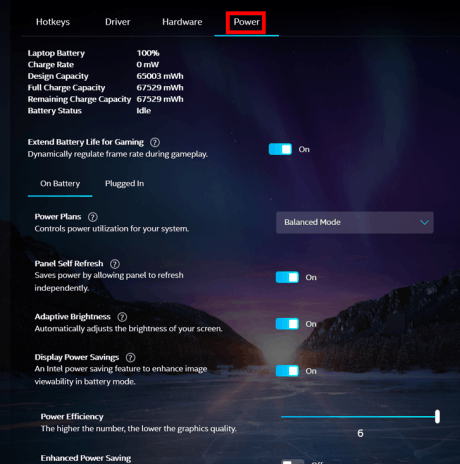
This feature usually fixes power related issues such as flickering screen after plugging or unplugging your laptop to an outlet. The flickering is caused by the shift of your system to or from battery mode.
With the Intel® Graphics Command Center, you can simply resolve this issue by ensuring that the “Panel Self Refresh” is on under the Power settings.