
Razer Synapse 2.0 will continue to operate on existing PCs but cloud-related features will no longer be supported effective October 28, 2025.
Note:
- You can still log in with your Razer ID to access local profiles.
- Existing settings, such as Profiles and Macros created before the sunset date, will remain stored locally.
- You can manually export settings to another PC using Razer Synapse 2.0.
- Cloud syncing of new settings to other PCs will no longer be supported.
To ensure a smooth transition, log in with your Razer ID and export any Profiles or Macros you want to keep.
See the answer below for details.
Applicable Model:
Razer Blade models
- Razer Blade 18” (2026) | RZ09-0582x
- Razer Blade 18" (2025) | RZ09-0529x
- Razer Blade 16" (2025) | RZ09-0528x
- Razer Blade 14" (2025) | RZ09-0530x
- Razer Blade 18" (2024) | RZ09-0509x
- Razer Blade 16" (2024) | RZ09-0510x
- Razer Blade 18" (2023) | RZ09-0484x
- Razer Blade 16" (2023) | RZ09-0483x
- Razer Blade 15" (2023) | RZ09-0485x
- Razer Blade 17" (2022) | RZ09-0423x
- Razer Blade 15" (2022) | RZ09-0421x
- Razer Blade 17" (2021) | RZ09-0406
- Razer Blade 15" Advanced (2021) | RZ09-0409x
- Razer Blade Pro 17" (2021) | RZ09-0368x
- Razer Blade Pro 17" (2020) | RZ09-0329x
- Razer Blade Pro 17" (2019) | RZ09-0314x
- Razer Blade Pro 17" (2019) | RZ09-0287x
Follow the detailed instructions below to turn off the Razer logo lighting on my Razer Blade.
Select a Razer Synapse version
Razer Synapse 4
-
Launch Razer Synapse 4.
-
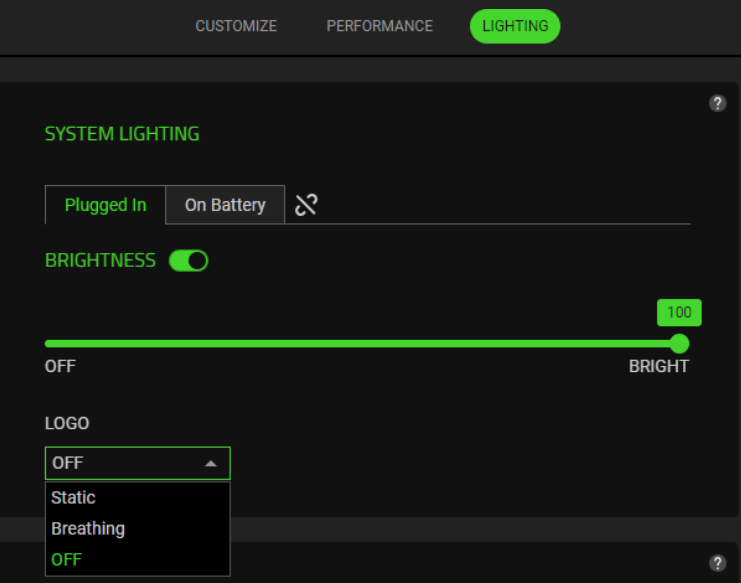
Go to "LIGHTING".

-
Click the drop-down under "LOGO".
-
Select "OFF" to turn off the logo lighting.
Razer Synapse 2.0
-
Launch Razer Synapse 2.0.
-
Go to "SYSTEM" > "LIGHTING".
-
Uncheck the "Enable logo lighting" box to turn off the logo lighting.


