Safe Mode starts Windows in a basic state, using a limited set of files and drivers, which is used to narrow down the cause of issues on the computer. If the issue is not observed in Windows Safe Mode, then it is highly likely that the cause is third-party software.
Three versions of Safe Mode:
- Safe Mode
- Safe Mode with Networking - used when internet access and network access are needed.
- Safe Mode with Command Prompt - used when Command Prompt is needed.
Select preferred method
From Settings
-
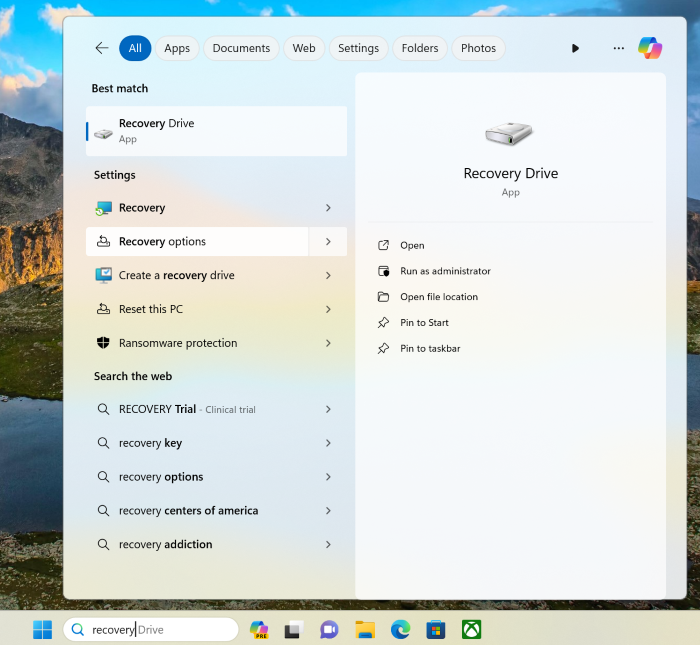
Go to the search bar and enter “Recovery”.
-
Select "Recovery options".
-
Select "Restart now".

-
In the “Choose an option” screen, select “Troubleshoot”.

-
Select “Advanced options”.

-
Select “Startup Settings”.

-
Click “Restart”.

-
After restarting, choose how to boot up your Blade. Select one of the Safe Mode options below:
- Press "4" or "F4" to boot up the Blade in Safe Mode.
- Press "5" or "F5" to boot up the Blade into Safe Mode with Networking.
- Press "6" or "F6" to boot up the Blade into Safe Mode with Command Prompt.
From the Sign-in screen
-
From the Windows sign-in screen, press and hold the shift key and select "Power" > "Restart".
Note: Shift key + Restart method will also work while already signed into Windows.
-
Select "Troubleshoot" once the Blade restarts into the Windows Recovery Environment (Windows RE).
-
Select “Advanced options”.
-
Select “Startup Settings”.
-
Click “Restart”.
-
After restarting, choose how to boot up your Blade. Select one of the Safe Mode options below:
- Press "4" or "F4" to boot up the Blade in Safe Mode.
- Press "5" or "F5" to boot up the Blade into Safe Mode with Networking.
- Press "6" or "F6" to boot up the Blade into Safe Mode with Command Prompt.
From Blank or Black screen
-
Press and hold the power button for about 10 seconds or until the Blade turns off.
-
Turn on the Blade by pressing the power button.
-
Once the Three-Headed Snake (THS) Logo shows up, press and hold the power button for about 10 seconds until it turns off again.
-
Turn on the Blade again by pressing the power button.
-
Once the Three-Headed Snake (THS) Logo shows up, press and hold the power button for about 10 seconds until it turns off again.
-
Turn on the Blade again. It will boot up to Windows Recovery Environment.
-
Select “Troubleshoot”.
-
Select “Advanced Options”.
-
Select “Startup Settings”.
-
Click “Restart”.
-
After restarting, choose how to boot up your Blade. Select one of the Safe Mode options below:
- Press "4" or "F4" to boot up the Blade in Safe Mode.
- Press "5" or "F5" to boot up the Blade into Safe Mode with Networking.
- Press "6" or "F6" to boot up the Blade into Safe Mode with Command Prompt.
Exit Safe Mode
-
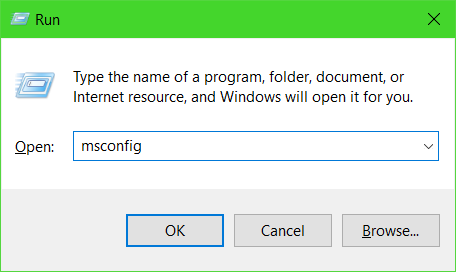
Press the Windows key + R
-
Type “msconfig” in the search box then press enter.
-
Select the “Boot” tab.
-
Clear the “Safe boot” checkbox.

-
Click “Apply” and then “OK”.
-
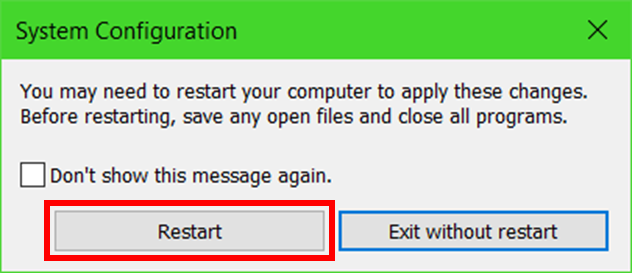
Select “Restart” in the System Configuration pop-up message to apply the changes.