How do I switch between the different keyboards I have installed on my Razer Phone?

| Answer ID: 3196
This article contains the steps to change the keyboard on your Razer Phone.


Follow the steps below to switch to different keyboards installed on the Razer Phone, :

Note: Before you proceed, ensure the Razer Phone is up to date.

For Android Oreo:

  1. Go to your apps list and select "Settings".
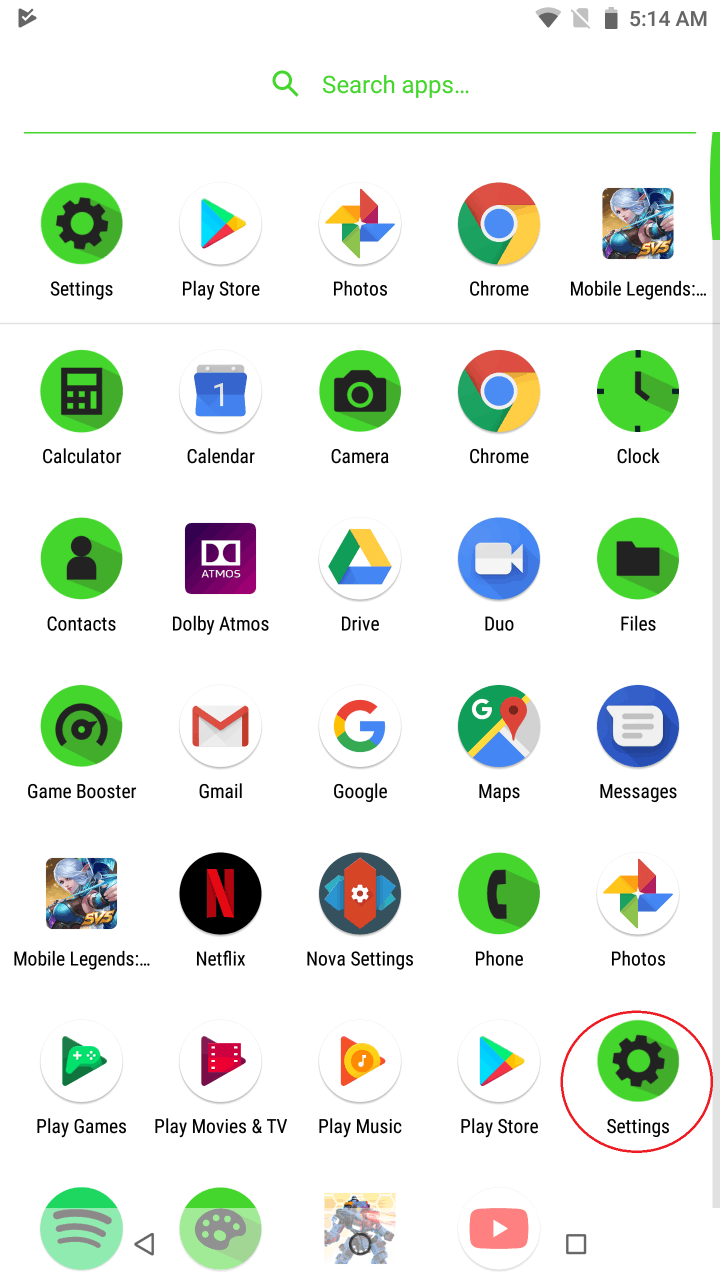
    Screenshot of the Settings icon on the Home screen of the Razer Phone    

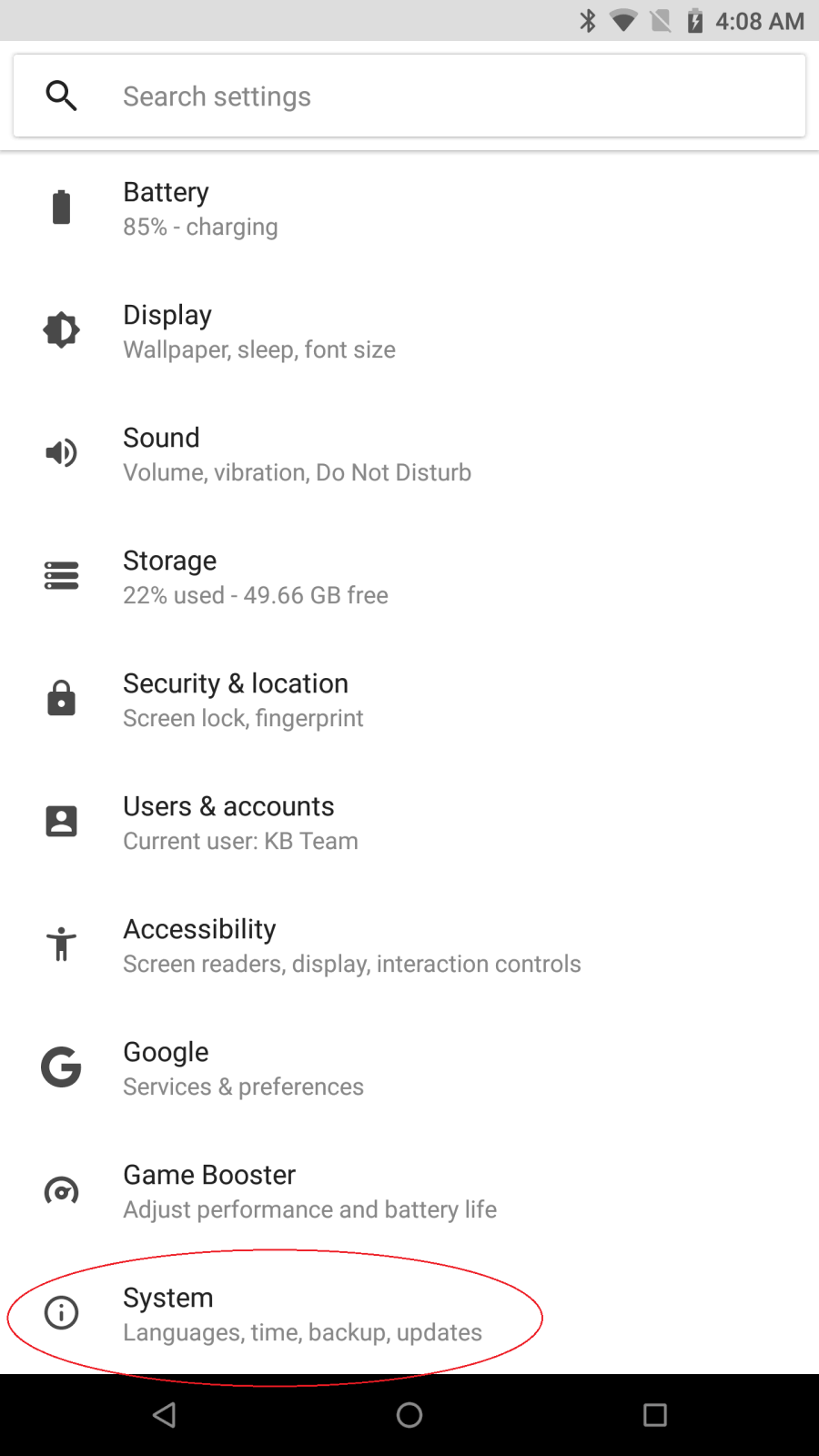
  2. Go to "System".

    Screenshot of the System option under Settings on the Razer Phone

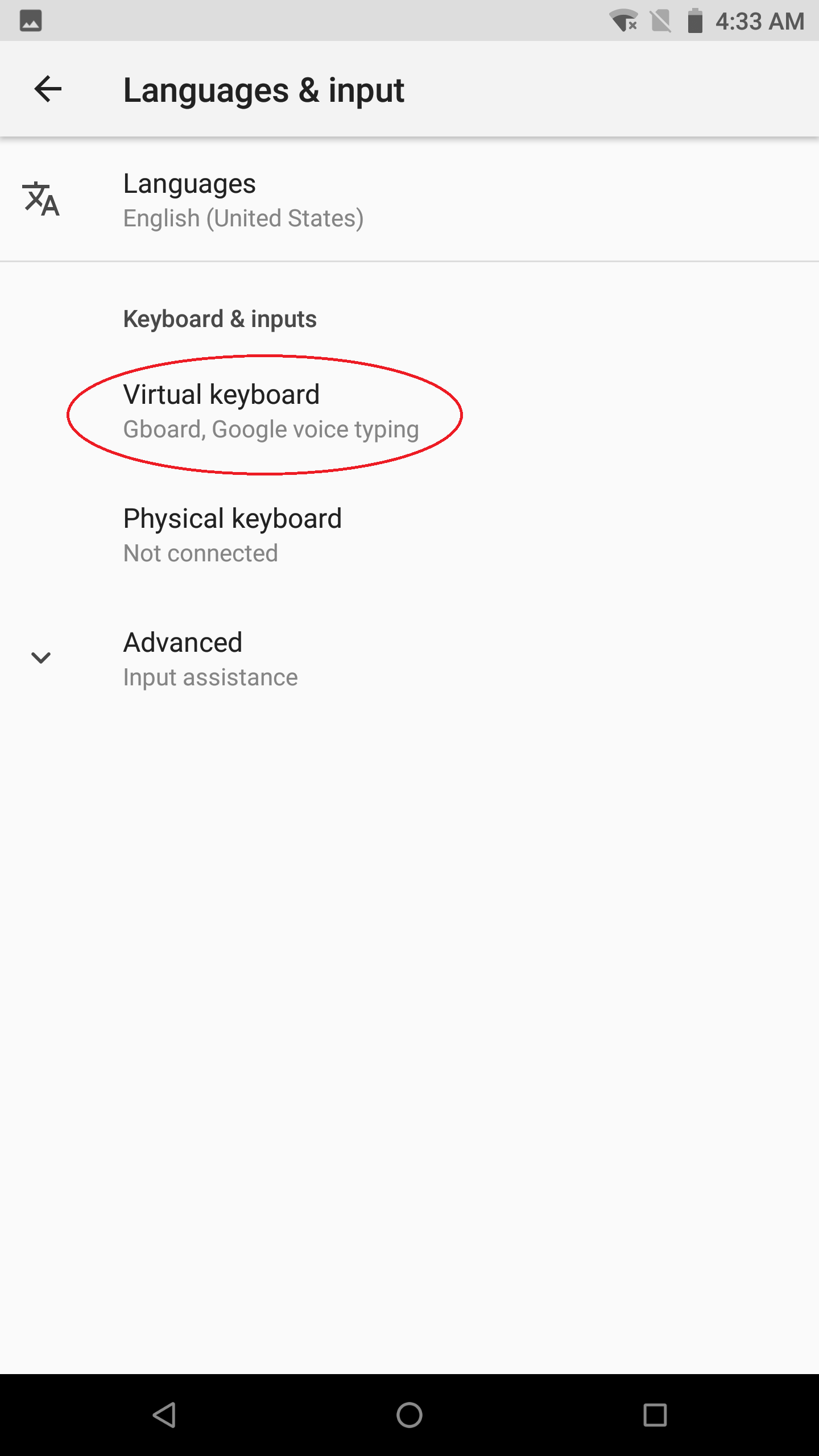
  3. Select "Languages & Input" and tap "Virtual keyboard".
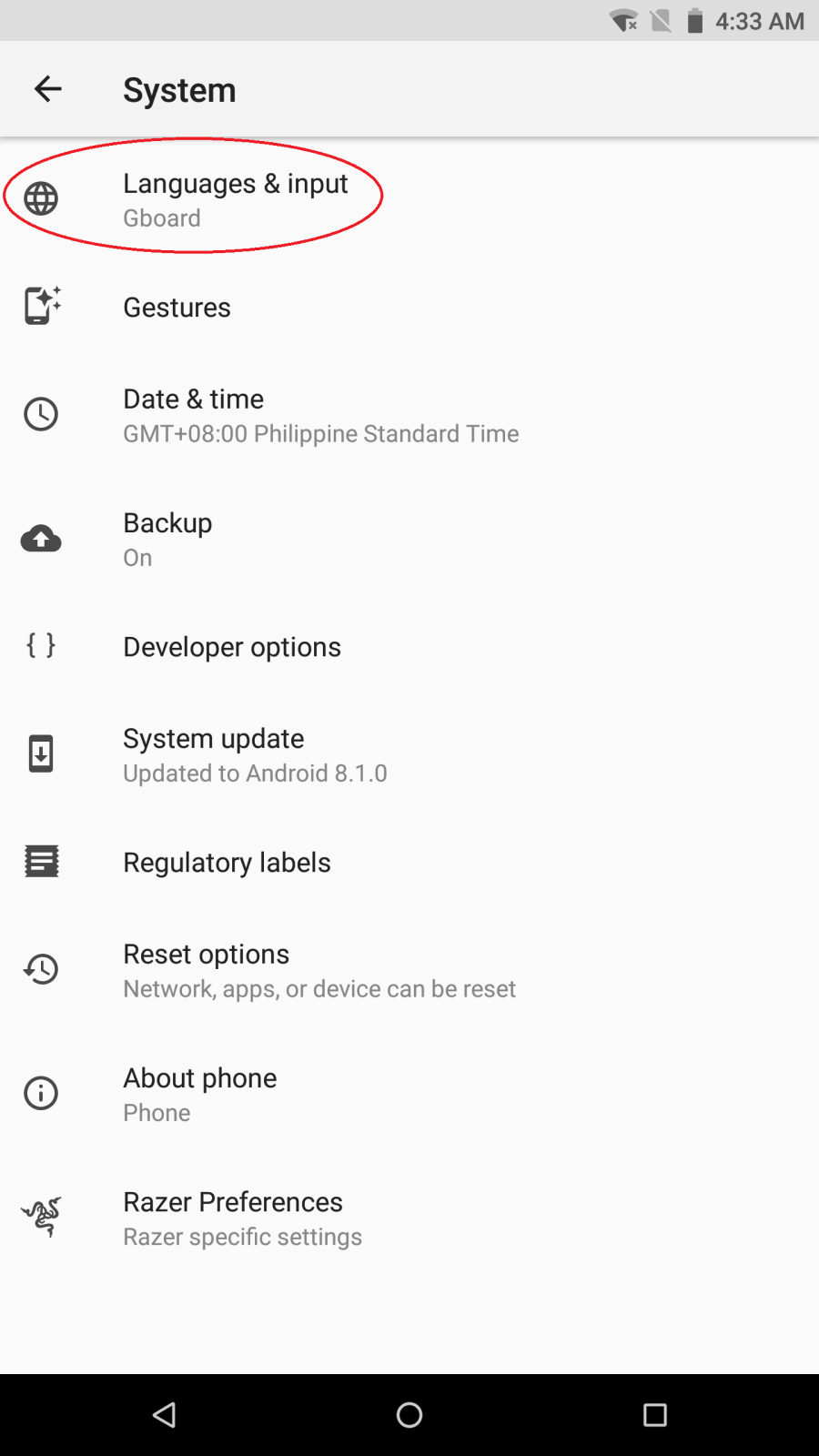
    Screenshot of the Languages & input option under System of the Razer Phone     Screenshot of the Virtual keyboard option under Languages of the Razer Phone

  4. Tap "Manage keyboards".

    Screenshot of the Manage keyboards option under Virtual keyboard on the Razer Phone

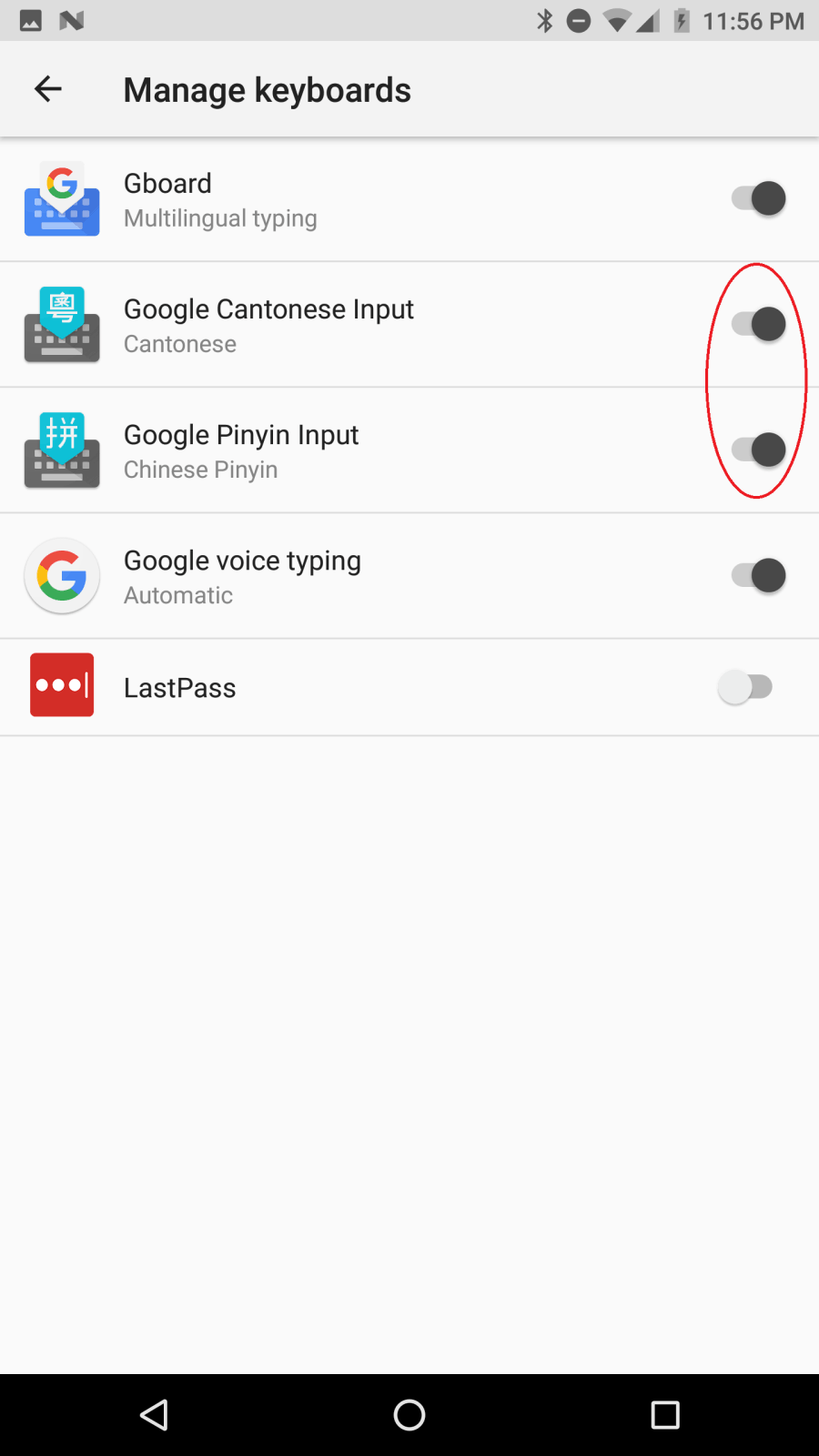
  5. Enable the keyboards you installed

    Screenshot of the keyboard list under Manage keyboards page of the Razer Phone

  6. Tap "OK" when prompted to enable permissions.
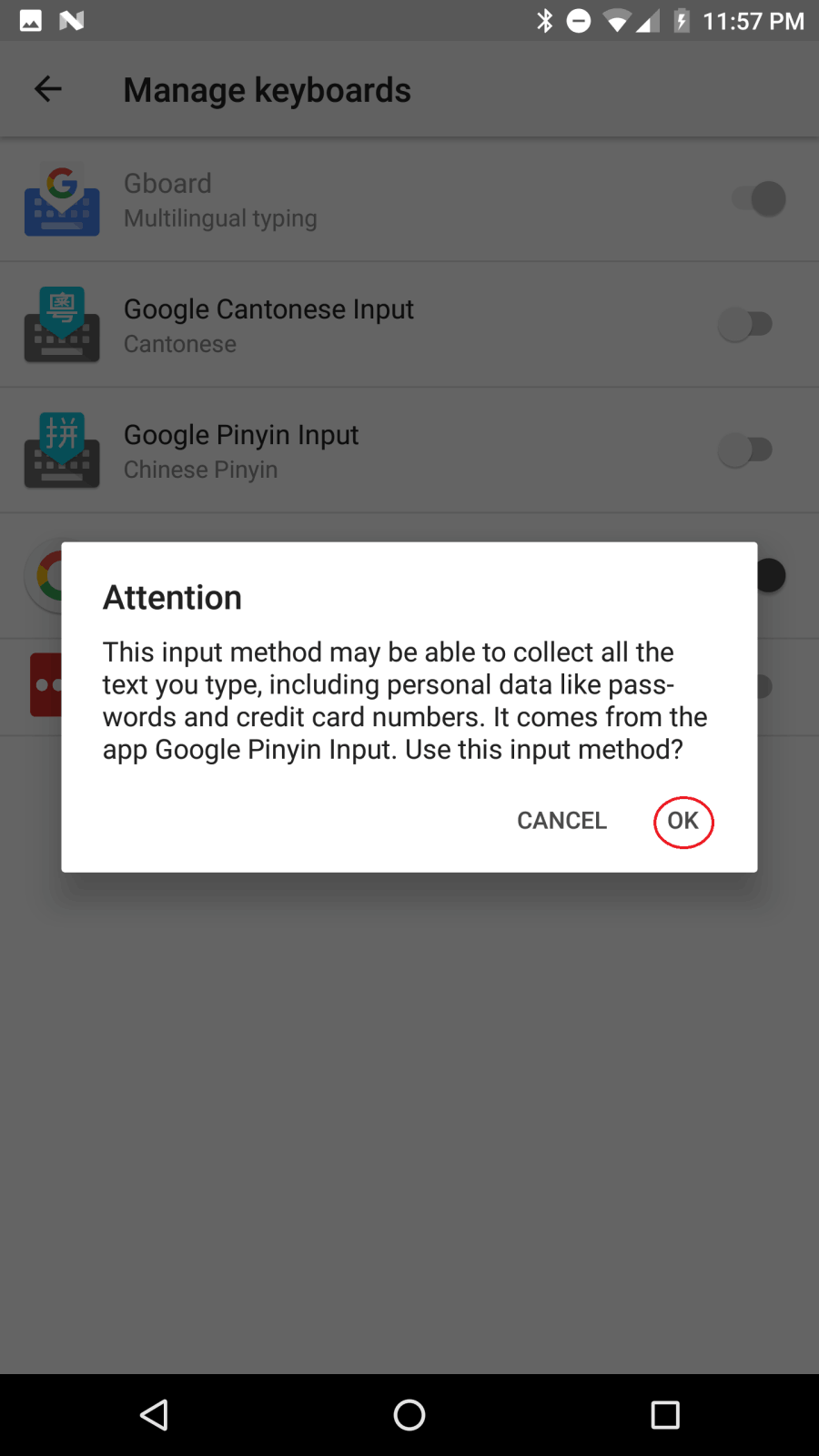
    Screenshot of the permissions pop-up window of the Razer Phone

  7. To switch keyboards when entering text, tap the keyboard icon in the very bottom-right of the screen.

    Screenshot showing the keyboard icon at the bottom of the screen on the Razer Phone

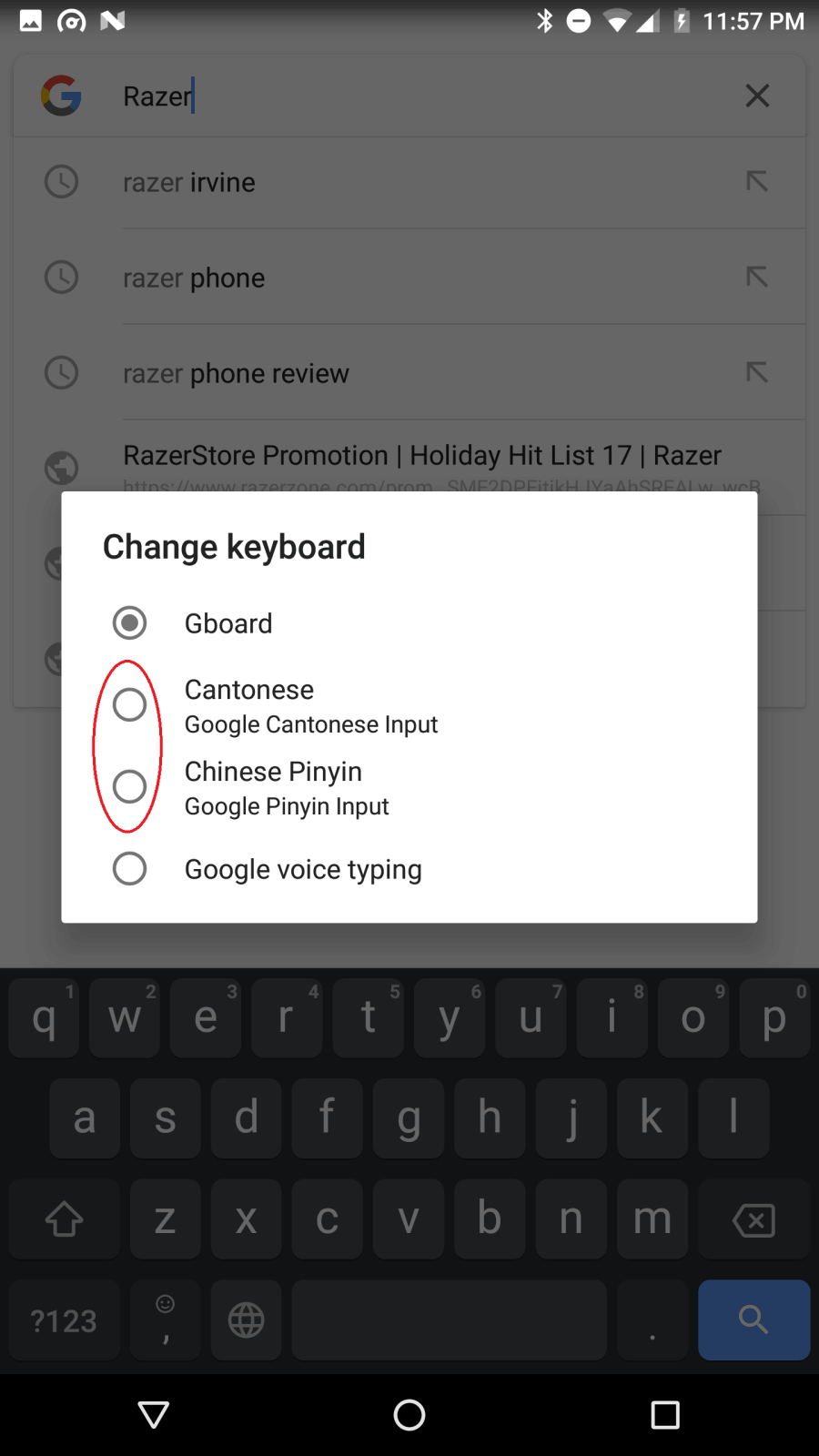
  8. Choose your desired keyboard.

    Screenshot of the keyboard options on the pop-up window of the Razer Phone

Is this answer helpful?