
What is BSOD?
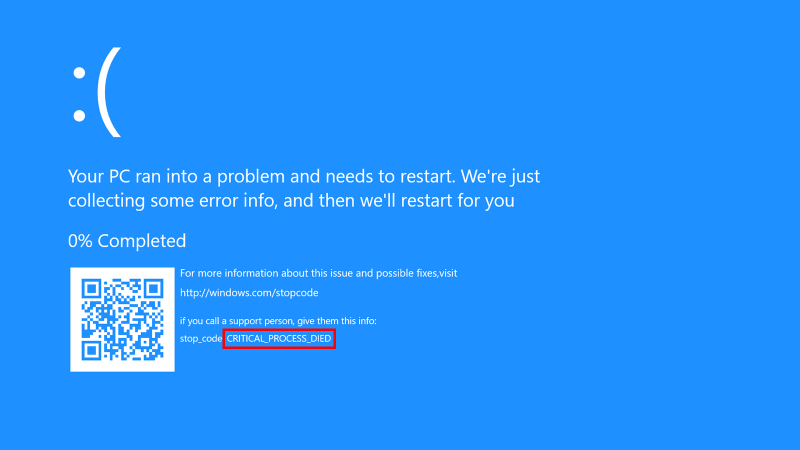
Blue Screen of Death (BSOD) is an error screen displayed on a Windows computer system after a fatal system error — when the operating system reaches a condition where it can no longer operate properly.
Causes of BSOD:
- Incompatible device driver, a conflict between two or more drivers, or the corruption of critical Windows system files
- A malfunction in one of the computer's subsystems, such as the GPU, the RAM, a motherboard controller
You can view the video below for instructions or review a copy of the video transcript.
Select an action
Step-by-step process on how to fix BSOD errors
-
Scan the QR code displayed on the screen by using any third-party QR scanner app on your phone. You will be directed to the Windows – Troubleshoot blue screen errors page.
-
Follow through with the troubleshooting instructions.
-
Download a QR scanner app from Google Play Store or Apple Store.

Alternatively, copy the error code. Go to the Windows Support page and type in the error code in the search bar, then press enter to get the troubleshooting guide.

- Check if BIOS and EC firmware are updated in the system. Go to your Blade model's Razer Laptop Support for the latest BIOS/EC firmware for Razer Blade Systems.
-
Ensure Windows is up to date. See How to get the latest software and driver updates from Windows.
If you just updated Windows, please install the "Optional updates" under Settings > Windows Update > Advanced options.
-
Rule out the error being caused by hardware changes.
-
Remove any recently installed hardware, for example, RAM, SDD, HDD, and so on.
-
Once suspected hardware has been removed, restart your Blade.
Note: Any damage or issues caused during installation or as a result of incompatible parts being used is not covered under the warranty and may void the warranty coverage. See Razer Warranty Policy.
Also, keep in mind that the hardware on your computer degrade over time and may cause blue screen error.
-
For other hardware-related causes like blue screen error occurs when unplugging the Razer Core X Chroma, ensure that you have the latest drivers and updates installed on your system including the latest Windows 10 RS5 or later. Some applications may have issues with hot removal. Similar to removing a flash drive, you should eject or disconnect the GPU from the NVIDIA and AMD drivers before unplugging the Thunderbolt 3 cable.
-
-
Rule out the error being caused by software, remove any incompatible applications, drivers, or third-party antivirus.
-
If you are still able to boot up Windows, uninstall any suspected software.
Note: A suspected software can be the application you recently installed or that causes the blue screen error to occur while being run.
Check recently installed system or driver updates, for some of it may cause the error to occur.
See How to get the latest NVIDIA drivers for Razer systems for Nvidia driver related issue.
-
Open “Settings”.
-
Click on “Apps”.
-
Find and select the suspected software then click the “Uninstall” button.
-
Follow the on-screen instructions to complete the uninstall process.
-
Repeat the steps to remove all suspected software that may be causing the problem.
-
-
If booting up Windows is not possible, boot your Razer Blade into safe mode .
-
Press the power button to turn on your Razer Blade.
-
Keep holding the power button down for about five seconds until the Razer Blade shuts down automatically.
-
Repeat this process a couple of times until you will be greeted with the Recovery option.
-
Select “Troubleshoot”, and then “Advanced Options”.

- Click “Startup Settings”.

- Click “Restart”.
- After the computer restarts, choose “Enable Safe Mode with Networking”.
-
While in safe mode, proceed to uninstall any suspected software.
-
-
If the issue persists, perform system recovery. See How to create and use a system recovery stick for more details.
For additional information on fixing BSOD errors, refer to the tips below:
BSOD Troubleshooting Tips
- Update BIOS and EC firmware to the latest version. For the latest BIOS/EC firmware for Razer Blade Systems, go to your Blade model's Razer Laptop Support.
- Ensure you have updated Windows to the latest version. To help verify if your OS is up to date, please refer to this article.
- If applicable, disable overclocking on your Razer Blade.
- Open Razer Synapse 3.
- Go to “SYSTEM” > “PERFORMANCE”.
- Toggle off or disable “CPU OVERCLOCKING”.
- Run CHKDSK.
- Open the Command Prompt as an administrator.
- Type “chkdsk/r” and press “Enter”.
- Run SFC (System File Check).
- Open the Command Prompt as an administrator.
- Type “DISM/online/cleanup-image/restorehealth” and press “Enter”.
- Wait for the process to finish.
- Type “sfc/scannow” and press “Enter”.
- Restart your computer.
- Uninstall programs that you have recently installed.
- Third-party antivirus software. Temporarily uninstall this software to determine if it is causing your issue, and then reinstall the software after your device is back up and running.
- Rollback, disable, or uninstall drivers.
- Reset Windows.
- Open Settings.
- Click Update & Security and select Recovery.
- Under Reset This PC click the Get Started button.
- Choose an option to keep your files or remove everything.
- Wait for your PC to restart.
Below are tips for specific error codes:
Code: 0x00000116

Cause:
The T in TDR stands for Timeout, the D stands for Detection, and the R stands for Recovery. The Video_TDR function is designed to prevent blue screens of death from occurring. The error “nvlddmkm.sys” is a problem most likely related to the display driver of your Nvidia graphics card.
Troubleshooting:
- For Razer Blade 15” (2019) Advanced Models (RZ09-0288x, RZ09-0301x, and RZ09-0313x):
-
Perform a driver rollback by uninstalling your current NVIDIA graphics driver and reinstalling using the factory version found in this guide. Proceed to the next steps if the issue persists or you are using a different laptop model.
-
Boot the computer in Safe Mode.
-
Uninstall NVIDIA GPU drivers and other NVIDIA-related software from Apps and Features while in Safe Mode:

-
Restart the computer back to normal mode and observe.
-
Contact Razer Support if the issue persists.
Code: 0x0000009F
Message: DRIVER_POWER_STATE_FAILURE

Cause:
This Blue Screen of Death error is mostly a result of the incompatible driver for any hardware device.
Troubleshooting:
-
Boot the computer in Safe Mode.
-
Open Device Manager while in Safe Mode and check for devices with yellow exclamation mark (!) or white question mark (?) signs.
-
Select "Uninstall Device" if there are devices listed with (!) or (?).
-
Restart the computer back to normal mode and reinstall the drivers.
-
Change the Power Settings by turning off fast startup.
-
If the issue persists, perform an SFC and DISM Scan. Visit the DISM Overview page for more information.
Other BSOD Error Messages
- CRITICAL_PROCESS_DIED
- SYSTEM_THREAD_EXCEPTION_NOT_HANDLED
- IRQL_NOT_LESS_OR_EQUAL
- VIDEO_TDR_TIMEOUT_DETECTED
- PAGE_FAULT_IN_NONPAGED_AREA
- SYSTEM_SERVICE_EXCEPTION
- DPC_WATCHDOG_VIOLATION
- MACHINE_CHECK_EXCEPTION
Troubleshooting:
- Remove external hardware. Sometimes, your device’s external devices can be the cause of blues screen stop errors.
- Restart your device.
-
Boot the computer in Safe Mode. While in Safe Mode, uninstall third-party antivirus software or you can also rollback, disable or uninstall drivers.
- Scan the BSOD QR Code and proceed to the Microsoft website to get more information on how to fix the issue.

- Contact Razer Support if the troubleshooting steps above still are unable to fix the problem.

