

Tips to help you get started
You can view the video below for instructions or review a copy of the video transcript.
The Razer Ripsaw HD is a dedicated game capture card designed to complement your dedicated streaming PC for pro-grade streaming on console and PC setups. With the ability to produce high quality, detailed footage, and crisp audio, your gameplay looks just as good to your audience as it does to you.
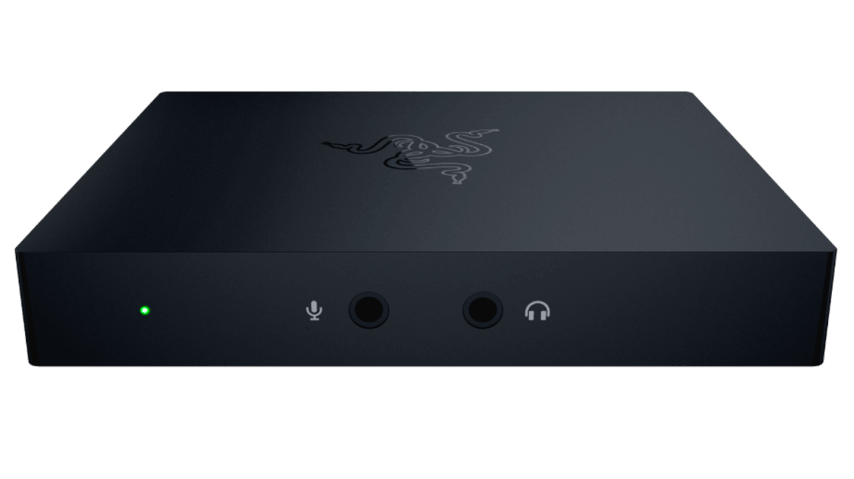
Key Features
- Full HD 1080p at 60 FPS for powerful stream performance
- 4K 60 FPS passthrough for uninterrupted, smooth gameplay
- Full audio mixing capabilities for hassle-free audio management
- HDMI 2.0 & USB 3.0 connectivity for zero-latency output and maximum details
- 3.5mm audio cable for easy, software-free setup
Package Contents
- Razer Ripsaw HD game capture card
- USB 3.0 Type-C to Type-A cable
- HDMI cable
- 3.5 mm audio cable
- Important Product Information Guide
System Requirements
- Windows 8 64-bit or higher with a free USB 3.0 port
- Intel Core i3-6100 (or higher) for Desktop
- Intel Core i7-4810MQ (or higher) for Laptop
- NVIDIA GeForce GTX 660 (or higher) for Desktop
- NVIDIA GeForce GTX 870M (or higher) for Laptop
- 4 GB minimum (8 GB recommended)
Device Layout

- Status indicator
- Microphone input port
- Headphone port
- Type C port
- HDMI input port
- HDMI passthrough port
- USB 3.0 Type C to Type A cable
- HDMI cable
- 3.5 mm audio cable
Full Technical Specifications
| Category | Specification |
|---|---|
|
Interface |
USB 3.0 |
|
Video input |
Digital – HDMI 2.0 |
|
Audio input |
Digital – HDMI |
|
Audio mix-in input |
3.5 mm mic-in 3.5 mm aux-in |
|
Video output |
HDMI 2.0 |
|
Max video capture resolution |
2160p at 30 FPS 1080p at 60 FPS |
|
Supported video resolutions |
|
|
Color format |
YUY2 |
|
Bit depth |
16 bits |
|
Chroma sub-sampling |
4:2:2 |
How To
How do I set up the Razer capture card?
- Connect the HDMI cable from the HDMI port of your PC or gaming console to the HDMI input port of the Razer capture card.
- Connect an HDMI cable from the HDTV or monitor to the HDMI pass-through port of the Razer capture card.
- Connect the USB cable from the USB port of your recording PC to the USB port of the Razer capture card.
- A status indicator will light up to indicate that the Razer capture card is powered on.
You can view the video below for instructions or review a copy of the video transcript.
See the answer below for more details.
How do I set up the Razer capture card to work with my high refresh rate gaming monitor?
There is a method to ensure a full high refresh rate gaming performance while allowing the Razer capture card to stream at 60 Hz preventing screen tearing.
See the answer below for more details.
How do I enable Nintendo Switch to be captured on my Razer capture card?
- Go to OBS Studio settings.
- Right-click the Razer capture card "Scene" and change video settings from "default resolution" to "Custom".
How do I mix audio inputs in stream or recording using Razer capture card and OBS?
- Open OBS Studio.
- Add an audio input device under “Sources”.
- Select your device from the dropdown list and click “OK”.
- Adjust the audio to your desired level using the sliders under “Audio Mixer”.
You can view the video below for instructions or review a copy of the video transcript.
See the answer below for more details.
How do I stream audio from my game to my computer while also listening through my headset?
Use a digital audio splitter like Voicemeeter to send audio to both your Razer capture card and headset or speakers.
How do I clean the Razer capture card?
- Unplug all connections and switch off your device.
- Wipe the surface of your device using a lint-free microfiber cloth.
See the answer below for more details.
General Information
Applicable Model:
Firmware v1200.13
- https://rzr.to/XRIwm | April 20, 2020
- Fixed an issue where the streaming video is discolored when used with some monitors.
Follow the detailed instructions below to run the updater on your device.
Update process
- Download the latest firmware update by downloading the link found above.
- Close Razer Synapse and all other running applications before proceeding with the update.
- Run the downloaded firmware (The installer will prompt you to close Synapse and all other applications, if you have already done so, left click "OK" to proceed).
- Connect the Razer Ripsaw HD and click "Update".
- Wait for the update to complete.
- Once the firmware has been successfully applied, left-click "Close" to exit the installer.

