
The Razer Blade supports the WoL feature and is enabled by default. To fully utilize the feature, you need to configure Windows:
Note: WoL does not work when the Razer Blade is hibernating.
Step-by-step process-
Right-click on the Windows Start button.

-
Select “Device Manager”.

-
Expand “Network & adapters” and right-click on the Ethernet Adapter or Controller then select “Properties”.
Optional: You can also apply the following settings to the Wireless Network Adapter.

-
Go to the “Power Management” tab.

-
Tick “Allow this device to wake the computer” and “Only allow a magic packet to wake the computer” checkboxes, then click “OK”.

-
Go to the “Advanced” tab, select and enable the “Wake on Magic Packet” option in the “Property” list box then click “OK”.
-
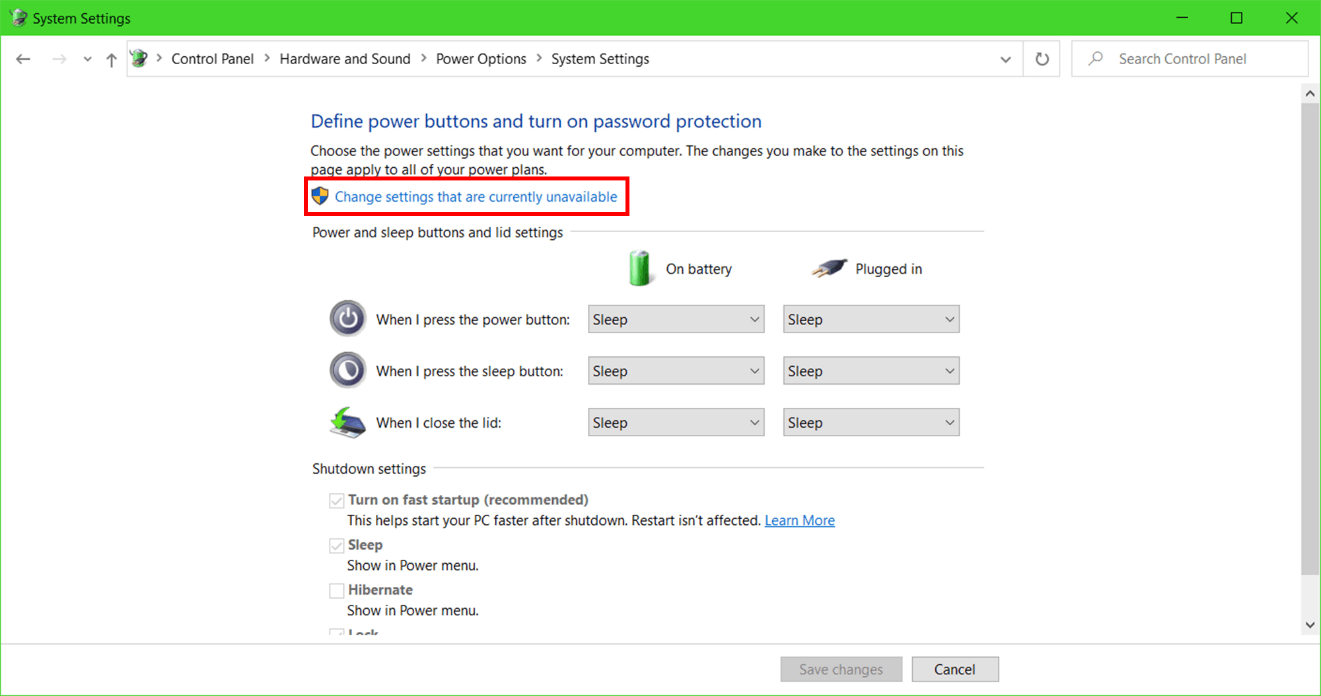
Disable “Turn on fast startup (recommended)”. To do so, go to Control Panel > Hardware and Sound > Power Options > Choose what the power buttons do. Untick the “Turn on fast startup (recommended)” checkbox, then click “Save changes”.

Note: You may need to click “Change settings that are currently unavailable” if Shutdown settings checkboxes are greyed out.
Note: You need a PC client to trigger the wake-up request and ensure that the PC is on the same network. You may also use a third-party app to issue the Wake-on-LAN (or Wireless) request.
Here are some of the apps you can use:

