
To setup your Razer Charging Pad Chroma, follow the steps below.
- Connect the charging pad to the Type C port of your PC using the Type C cable. The underglow lighting will briefly display a rapid wave of colors to show that you can now begin charging your smartphone.

The charging speed is dependent on the connection of the charging pad, as shown here:
|
Connection |
Charging speed** |
|
|---|---|---|
|
PC / Laptop |
Type C port |
Standard charging (5W) |
|
Type A port* |
||
|
Power adapter* |
5V 2A power adapters |
|
|
Up to 12W power adapters** |
Fast charging (10W) |
|
*Power adapter and Type C to Type-A cable (for Type A connection), not included.
**Compatible with Quick Charge / Power Delivery (2.0 or 3.0 compliant) power adapters. The charging pad’s ambient temperature can directly affect its charging speed. Depending on the OS of your smartphone, the charging pad can either shift to standard charging (5W) or stop charging your smartphone if its operating temperature exceeds its recommended range (see Safety and Maintenance).
- Place your smartphone on the center of the charging pad. The underglow lighting will display a slow wave of colors to indicate that it is now charging your smartphone.

When fast charging (10W), the underglow lighting will display a rapid wave of colors.
If the underglow lighting continuously flashes in red (a charging error), check if your smartphone is compatible and/or properly placed at the center of the charging surface.
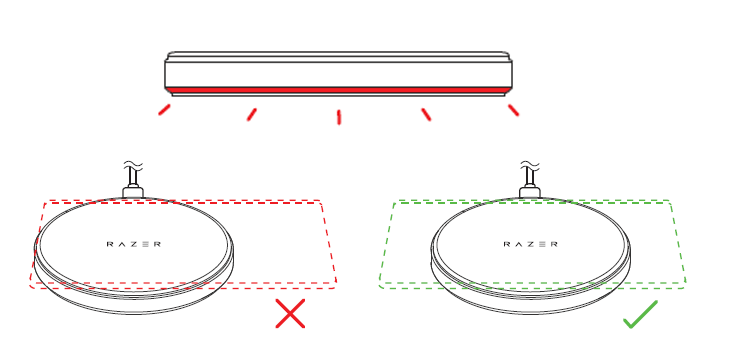
- Wait for your smartphone to fully charge. The charging pad will gently pulse in green to indicate that it has finished charging.
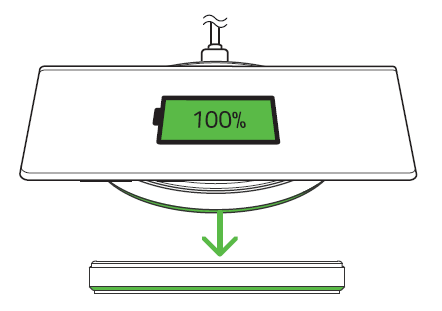
Your smartphone must support full-battery communication for the charging pad to indicate that it has been fully charged.
- Use Razer Synapse* to customize the brightness and lighting effects of your charging pad when charging and/or idle, and synchronize its lighting with other Razer Chroma-enabled devices for a unified look across your devices.
*Install Razer Synapse when prompted or download the installer from razer.com/synapse. Your charging pad is only visible in Synapse if it connected to the PC. The lighting effects will only show when connected to the PC and Synapse is running.

