
You can view the video below for instructions or review a copy of the video transcript.
Step-by-step process
Important: Ensure that your Windows OS is updated. See How to receive the latest software updates from Windows for more details.
-
Reinstall the driver of the network adapter.
-
Go to "Device Manager".
-
Click on "View" and ensure that the "Show hidden devices” is enabled.

-
Right-click on your Network Adapter and select “Uninstall device”.

-
Ensure that the “Delete the driver software from this device” is checked and click “Uninstall”.

-
Follow the on-screen instructions to uninstall the driver.
-
Once the uninstallation is complete, click "Action" > "Scan for hardware changes".

-
Click on “Locate and install driver software (recommended)”.
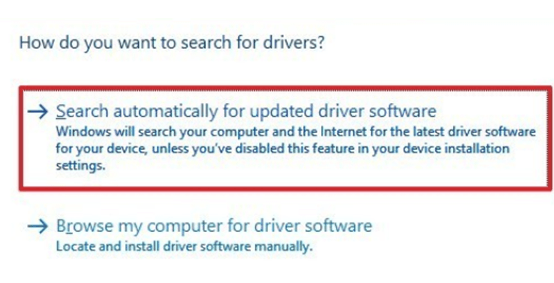
Note: To find the latest Intel driver details, you visit Intel® Driver & Support Assistant.
-
Proceed with the installation.
-
Once completed, your network adapter should now be detected.

