
Every Razer Book’s display is individually color-calibrated for the best possible viewing experience, out of the box. Customize the display in Windows to fit your preferences.
Step-by-step process on how to improve the image quality and color on the Razer Book’s display
-
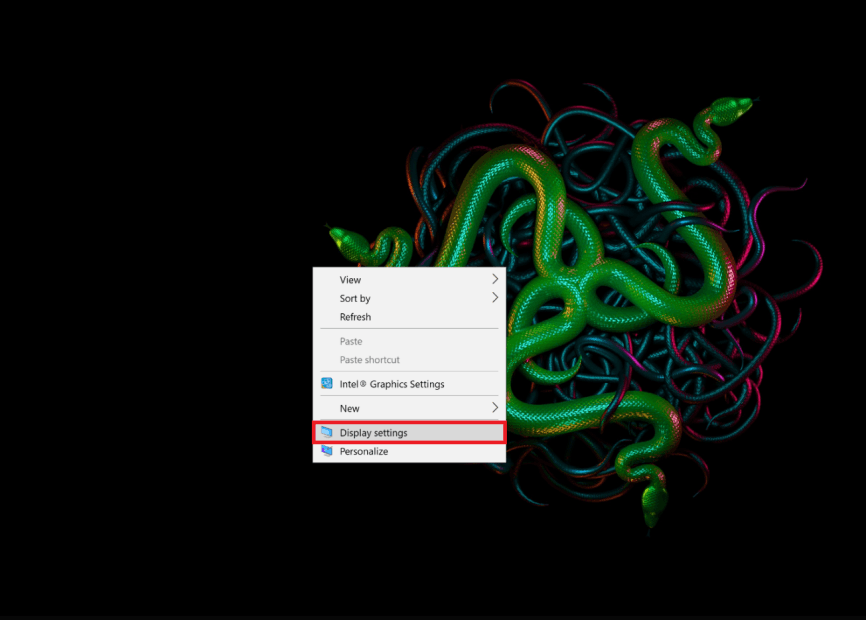
Right-click on your desktop and select “Display settings”.
-
Adjust the brightness level to your preference by using the slider.

-
Scroll down and click “Advanced display settings”.
-
Choose the specific display that you want to calibrate and click “Display adapter properties for Display 1”, if you have multiple displays installed.

-
Click “Color Management…” to open a dialog box.

-
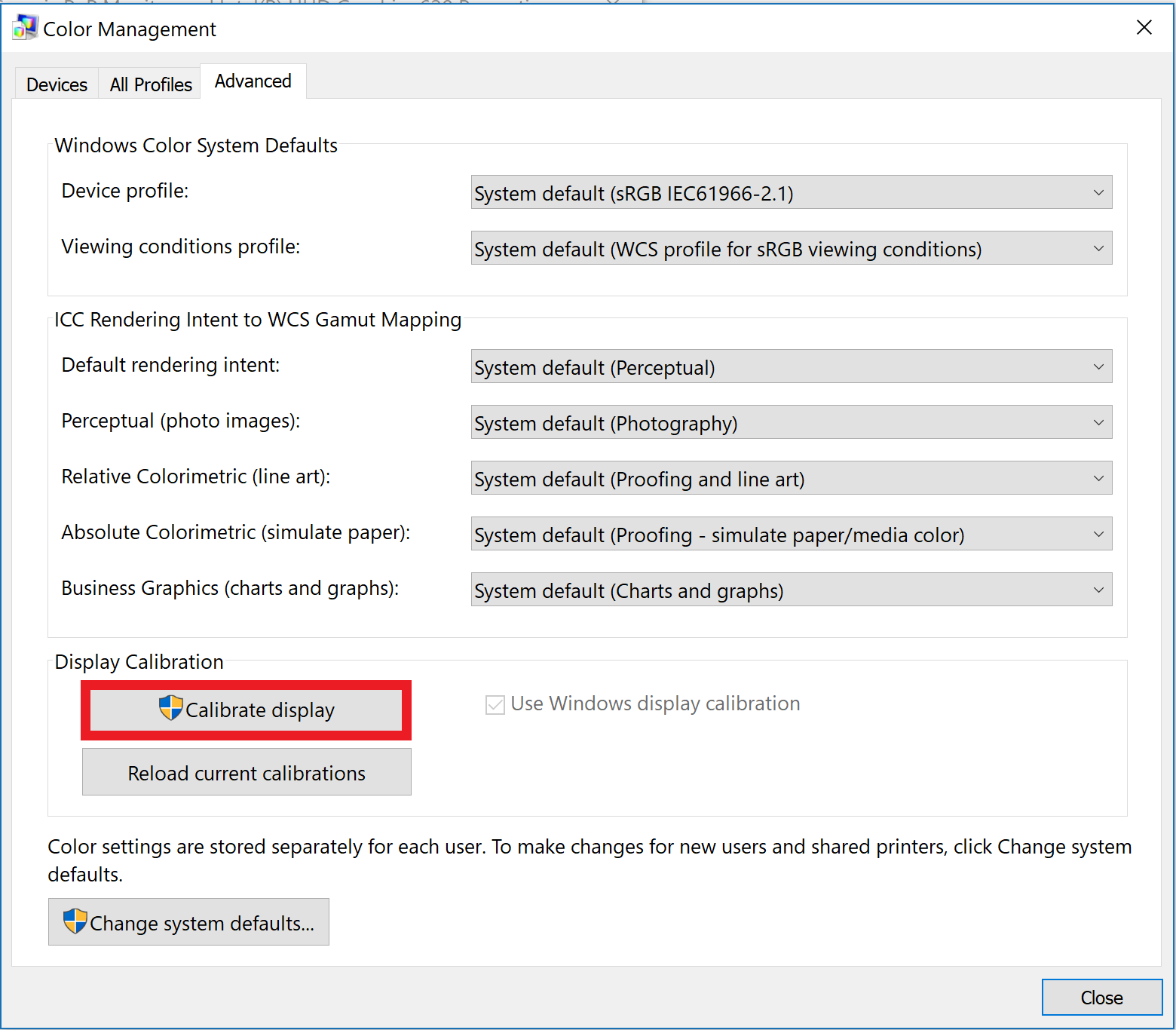
Click on “Advanced”, then click “Calibrate display”.
-
Follow the calibration process as instructed to configure the display to your preference.

