

Tips to help you get started
You can view the video below for instructions or review a copy of the video transcript.
Introducing a new breed of gaming desktops & chassis that redefines what a rig should be. The Razer Tomahawk Gaming Desktop | RZ42-0365x is designed around Intel’s Next Unit of Computing (NUC) architecture, its compact form boasts the latest tech specs, yet remains modular enough to meet the ever-raising bar of high-end PC performance

Device Layout
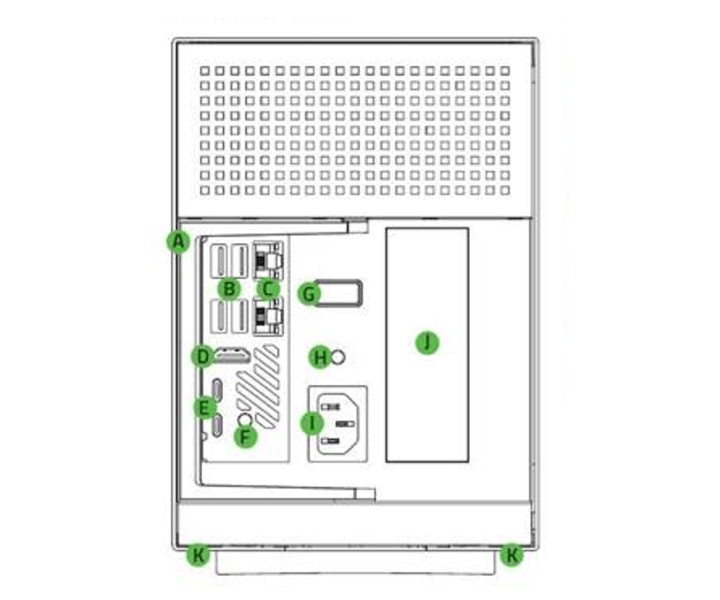
- Release lever
- USB Type-A ports (USB 3.2 Gen 2)
- Gigabit Ethernet ports
- HDMI 2.0a ports
- Thunderbolt™ 3 ports (Type-C)
- 3.5 mm Line-out / optical out port
- Power button
- 3.5 mm audio + mic combo jack
- Power port
- PCI-E slot cover
- Razer Chroma™ RGB
- Underglow Lighting
Full Technical Specifications
| Category | Specification | |
|---|---|---|
| Variation |
RZ42-03650200 |
RZ80-03650200 |
| Processor |
9th Gen Intel Core i9-9980HK |
|
| Graphics Card |
Unpopulated PCIe Slot (PCIe x16) |
NVIDIA GeForce RTX 3080 Graphics Founders Edition |
| Storage |
512 GB PCIe NVMe + 2 TB HDD (5400 RPM) |
|
| Additional Storage |
Unpopulated M.2 Slot |
|
| Memory |
16 GB DDR4 2667 MHz (Expandable up to 64 GB) |
16 GB DDR4 2666 MHz (Expandable up to 64 GB) |
| Wi-Fi |
Wi-Fi 6 (AX200) |
|
| Bluetooth |
Bluetooth 5.0 |
|
| USB Ports |
|
|
| Thunderbolt 3™ |
2x Thunderbolt 3 |
|
| Ethernet Ports |
2x RJ-45 (10, 100, 1000 Mb) |
|
| Audio Ports |
|
|
| Active Cooling |
2x 120 mm Fans |
|
| Power Supply |
750 W |
|
| Included Power Connector |
2 x "2+6" pins power connector for GPU |
|
| Dimensions (Approx.) |
|
|
| Material |
All Metal Chassis |
|
| Color |
Black |
|
| Chroma Integration |
Chroma Base |
|
| Weight (Approx.) |
16.2 lbs / 7.35 kg |
18.3 lbs / 8.3 kg |
For more information about Intel® NUC 9 Extreme Compute Element, click here.
How To
How do I power on my Razer Tomahawk Gaming Desktop?
-
Ensure that the GPU installed is supported and is inserted securely.
-
Check if all cable connectors are securely plugged in.
-
Check if the power connector is securely plugged in.
How do I get the latest software updates from Windows?
It is important to keep your Windows OS updated to ensure that you have the latest software, driver, and security updates for your system.
-
Go to Windows settings.
-
Select "Update & Security".
-
Click "Check for updates".
-
Click "Download and install" if an update is available.
-
Restart your system to complete the installation.
See the answer below for more details.
How do I create and use a system recovery stick for the Razer Tomahawk Gaming Desktop?
A system recovery stick is used to restore the Razer Tomahawk Gaming Desktop to its original state. It is often done to help fix persistent software issues you may encounter after installing an application or driver update.
See the answer below for more details.
How do I change the Razer Chroma lighting on the Razer Tomahawk Gaming Desktop?
Chroma lighting color and effects can be configured in Razer Synapse on Windows 10 systems.
You can view the video below for instructions or review a copy of the video transcript.
See the answer below for more details.
How do I upgrade the GPU on my Razer Tomahawk Gaming Desktop?
Any damages caused by upgrading or modifying the Tomahawk Gaming Desktop are not covered by Razer’s Warranty Policy. Ensure that your new GPU is supported in the product specifications before proceeding.
See the answer below for more details.
How do I upgrade the RAM of my Razer Tomahawk Gaming Desktop?
Any damages caused by upgrading or modifying the Tomahawk Gaming Desktop are not covered by Razer’s Warranty Policy. Ensure that your new RAM module is supported in the product specifications before proceeding.
See the answer below for more details.
How do I upgrade the storage capacity of my Razer Tomahawk Gaming Desktop?
Any damages caused by upgrading or modifying the Tomahawk Gaming Desktop are not covered by Razer’s Warranty Policy. Ensure that your SSD or HDD is supported in the product specifications before proceeding.
You can view the video below for instructions or review a copy of the video transcript.
See the answer below for more details.
How do I get my integrated GPU detected and displaying properly after installing a discrete GPU?
- Go to BIOS by pressing "F2" while your system is booting up.
- Select "IGFX" as the primary display under "Advanced" > "Video".
- Save your settings and restart.
See the answer below for more details.
How do I get my Razer Tomahawk Gaming Desktop to run quietly and smoothly?
Turn off the Razer Tomahawk Gaming Desktop and secure that all cables are positioned away from the fans. Rattling or ticking noise may come from fans that are obstructed from spinning.
General Information
Can I use the Razer Tomahawk Gaming Desktop without installing a graphics card?
Yes. The Razer Tomahawk Gaming Desktop comes with an integrated Intel HD Graphics 630 for display.
Can I connect my Razer Blade laptop to the Razer Tomahawk Gaming Desktop?
No. The Razer Tomahawk Gaming Desktop is a standalone PC and is not designed to be connected to a laptop like the Razer Core.
Can I connect my optical audio equipment to the Razer Tomahawk Gaming Desktop?
Yes. The Razer Tomahawk Gaming Desktop has a Mini-3.5 mm Lineout or Optical out port.
The Optical out port is a standardized optical fiber connector smaller than the standard square TOSLINK connector commonly used in larger consumer audio equipment. The plug is almost the same size and shape as the ubiquitous 3.5 mm stereo minijack. Adapters are available to connect a full-size TOSLINK plug to an Optical out port socket.
What is the main difference between Razer Core X Chroma and the Razer Tomahawk Gaming Desktop?
The Razer Tomahawk Gaming Desktop is a standalone PC that features the Next Unit of Computing (NUC) with a 9th Gen Intel Core i9-9980HK while the Razer Core X Chroma requires a laptop to work.
Is the Razer Tomahawk Gaming Desktop supported by Razer Synapse?
Yes. The Razer Gaming Desktop is supported by Razer Synapse.
Can I turn off the THS logo of Razer Tomahawk Gaming Desktop?
Yes. The THS logo can be configured via Razer Synapse.
Does the Razer Tomahawk Gaming Desktop come with a pre-installed OS?
Yes. The Razer Tomahawk Gaming Desktop is pre-installed with Windows 10 Home OS.
Can I use the quick-release handle to carry the Razer Tomahawk Gaming Desktop?
The quick-release handle is intended for opening the system only. This should not be used as a carrying handle. Instead, lift the Razer Tomahawk Gaming Desktop from the bottom of the chassis when transporting it.
| Documentation | Language |
|---|---|
| User Guide (English) | English |
| User Guide (Spanish) | español |
| User Guide (French) | français |
| User Guide (German) | Deutsche |
| User Guide (Traditional Chinese) | 繁體中文 |
| User Guide (Simplified Chinese) | 简体中文 |
| User Guide (Korean) | 한국어 |
| User Guide (Japanese) | 日本語 |
Please see our warranty policy for a complete review of our warranty policy.
You are eligible for Limited Warranty support for the following periods of time commencing upon the date of retail purchase of your Product (Warranty Period).
| Product | Warranty Period | |
|---|---|---|
| Razer Laptops | ||
| 2021 and Older Models | 1 yeara | |
| 2022 and Newer Models | 1 yeara 2-year limited battery warrantya |
|
| Razer Phone and Phone Accessories | 1 year | |
| Razer Edge Gaming Handhelds | 1 yearb | |
| Razer Mice | 2 years | |
| Razer Viper Mini Signature Edition | 3 years | |
| Razer Keyboards and Keypads | 2 yearsc | |
| Razer Huntsman Signature Edition | 5 years | |
| Razer Headsets, Earphones and Earbuds | 2 yearsc | |
| Razer Wireless Mouse and Mat Bundles | 2 yearsc | |
| Razer Mouse Mats | 1 yeard | |
| Razer Speaker Systems and Broadcaster Devices | 1 year | |
| Razer Controllers and Chargers | 1 year | |
| Razer Routers (except Singtel) | 1 year | |
| Razer Routers (Singtel) | 2 years | |
| Razer Monitors | 1 year | |
| Smart Watches and Eyewear | 2 years | |
| Razer Case Fans | 2 years | |
| Razer Liquid Cooling | 2 years | |
| Razer Katana Power Supplies | 5 years | |
| Razer Fan and RGB Controllers | 2 years | |
| Razer Cases | 1 year | |
| Razer System Accessories | 1 year | |
| Razer Laptop Cooling Pad | 2 years | |
| Razer Docks | 1 year | |
| Razer USB C Dock | 2 years | |
| Wearable Air Purifiers | 1 year | |
| Razer Gaming Accessories | 1 yeard | |
| Razer Rechargeable Batteries for Wireless Devices | 1 yeare | |
| Razer Iskur | 3 years | |
| Razer Iskur V2 | 3 years | |
| Razer Enki Line | 3 years | |
| Razer Fujin Line | Mesh Backing and Seat Pan | 1 year |
| Chair Frame, Mechanisms and Armrests | 5 years | |
| Razer Fujin Pro Headrest | 5 years | |
| Razer Fujin Headrest | Frame – 3 years Mesh – 1 year |
|
| Razer Soma Line | Mechanisms & Moving Parts | 3 years |
| Electronic Parts | 2 years | |
| Razer Chair Accessories | 1 year | |
All new Products will have the Warranty Periods listed above, subject to applicable local law. Certain "end of life", sell out or discontinued Products may have a shorter Warranty Period; this will be clearly marked at the time of purchase and the given Warranty Period will be stated at that time. Refurbished Products purchased from Razer.com will have the lesser of a 1 year warranty period or the warranty period as stated above. Refurbished products not purchased from Razer.com will have a 90 day warranty period. If you are uncertain whether your Product is eligible for Limited Warranty support, please contact our support team for clarification.
Please note that third-party products may be covered by the product manufacturer's warranty and these warranty terms are exclusively provided by the product manufacturer. Razer does not offer a warranty for third-party products. If you need product or warranty support with your third-party product, please contact the product manufacturer. Please consult the product documentation provided by the product manufacturer for details.
If you are uncertain whether your Product is eligible for Limited Warranty support, please contact our support team for clarification.
Warranty Footnotes
- [a] If you are a customer outside of the U.S. and have validly purchased a Razer Extended Warranty for your product, the Warranty Period shall be extended for another one (1) year period, to be a total of two (2) years commencing upon the date of retail purchase of your Razer Product. The Razer Extended Warranty does not apply to batteries. Aside from the change to Warranty Period, the Razer Extended Warranty does not alter any other terms and conditions of the Limited Warranty.
- [b] Replacement parts and/or services are available for a minimum of 3 years after the end of production of the product; additional charges may apply.
- [c] Products purchased prior to October 1st, 2018 maintain the original 1 year warranty (keyboards with mechanical switches maintain original 2 year warranty).
- [d] Warranty period for Razer Firefly HyperFlux is 2 years.
- [e] Products purchased prior to October 1st, 2018 maintain the original 6 month warranty.
- [f] Limited Warranty: The Razer Iskur is free from defects in workmanship, materials and construction for three years from the date of purchase. In the event that a defect is found, the manufacturer will either repair or replace the defective item, at its discretion. Exclusions and Limitations: This Limited Warranty does not cover cosmetic damage, minor cosmetic abnormalities and normal wear and tear, including without limitation scratches, dents, discoloration and tears in the head pillow, seat cushion, PU leather, Armrest and stitches of the upholstery.

