Missing Razer Synapse profiles typically result from account sync failures, corrupted local data, offline operation, or conflicts between multiple installations. Cloud synchronization status, software version alignment, and active device detection directly affect profile visibility and availability.
Follow the detailed instructions below to fix missing Razer Synapse profiles.
-
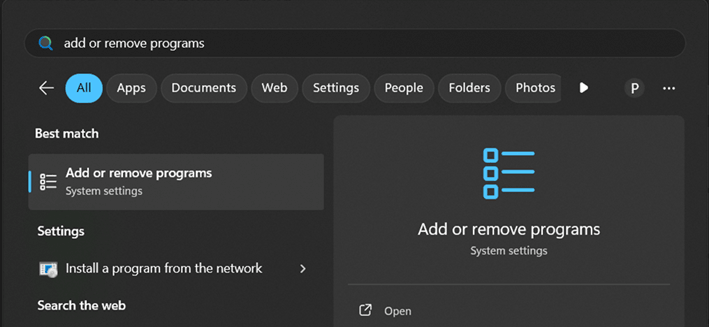
Click the “Start” menu and search for "Add or remove programs".
-
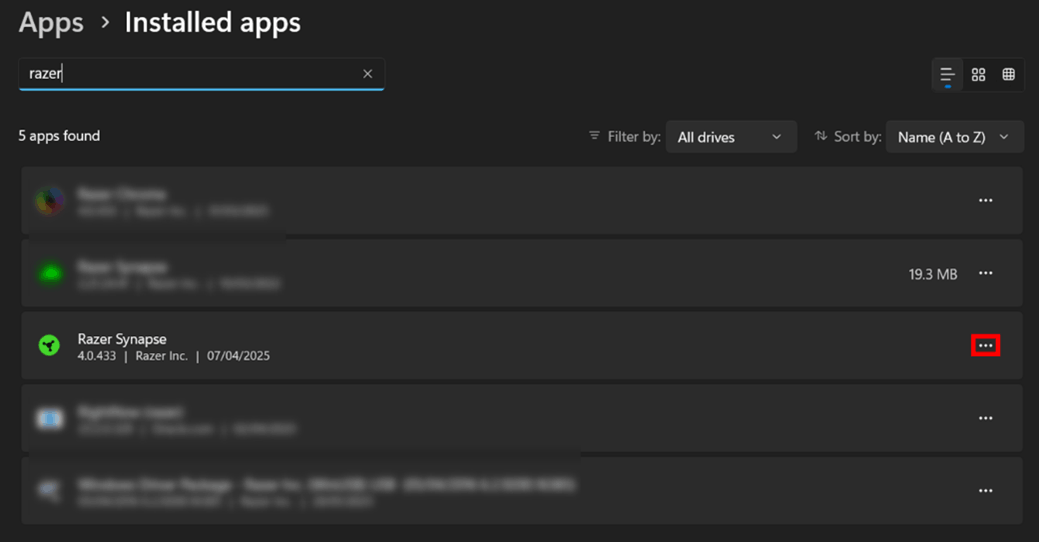
Locate Razer Synapse in the list and click the three-dot menu next to it.
-
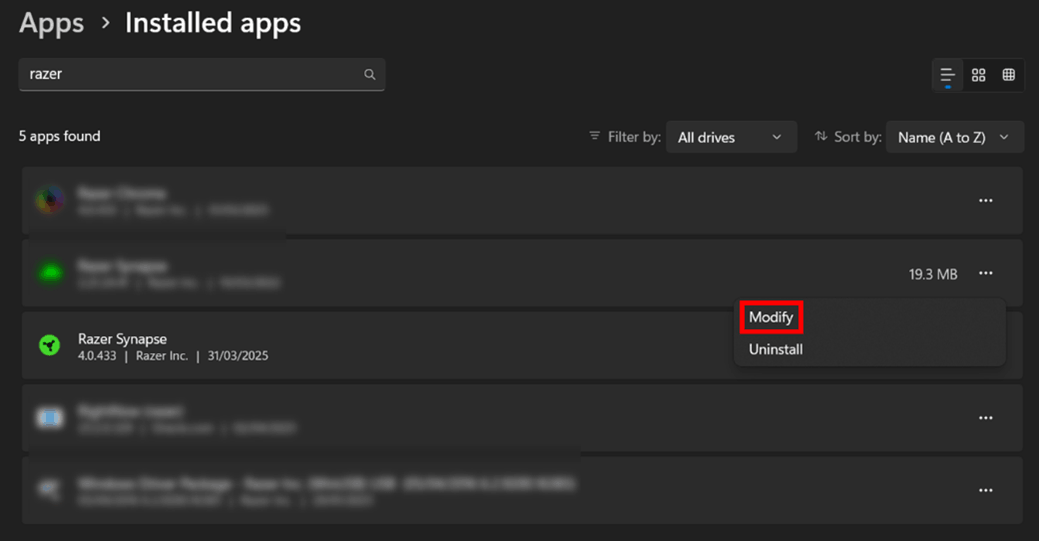
Select "Modify". Click “Yes” if prompted by User Account Control to continue.
-
Click the “REPAIR” button in the Razer Gaming Software window that opens.
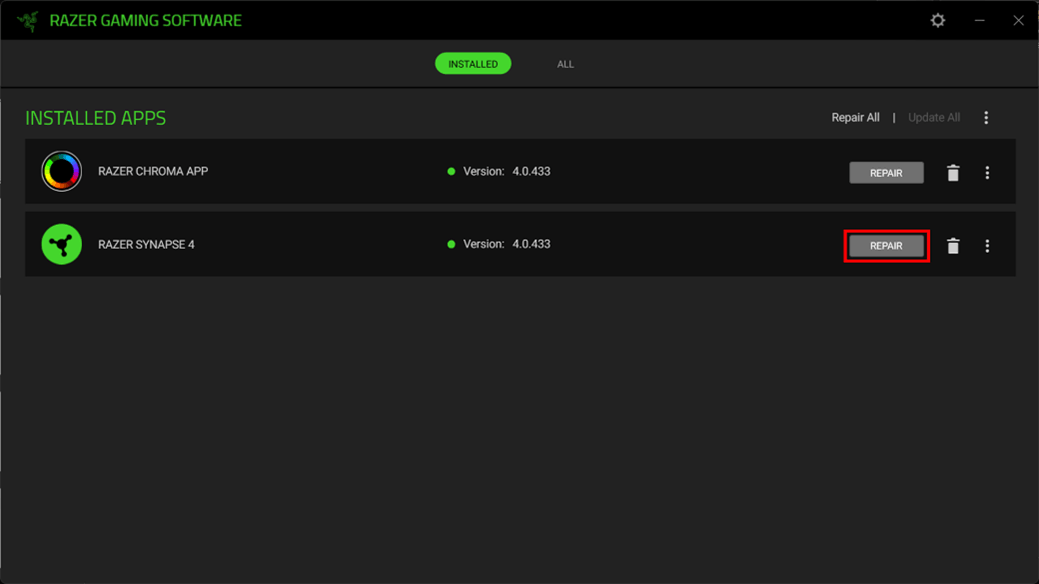
-
Wait for the repair process to finish.
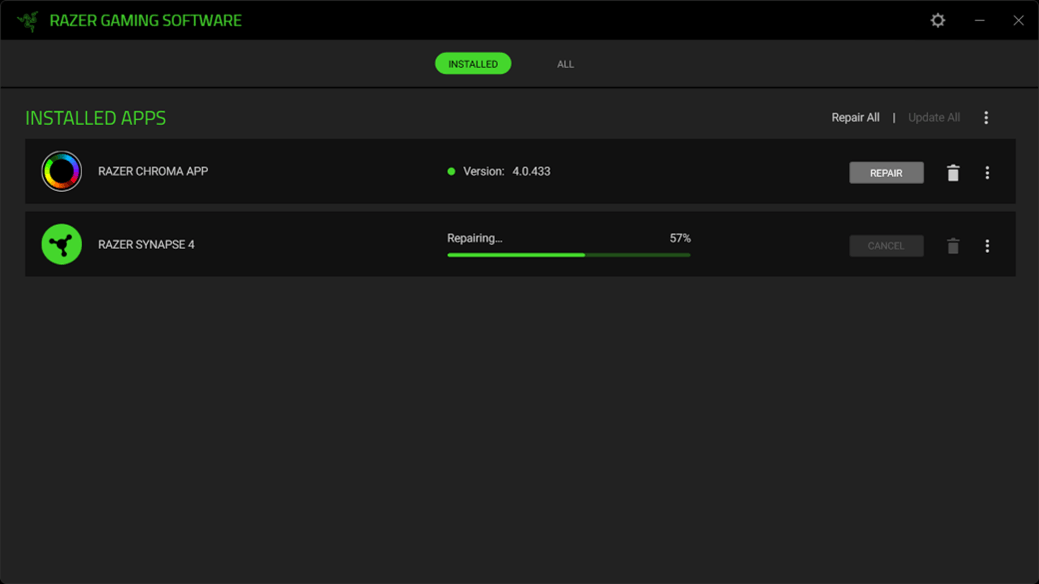
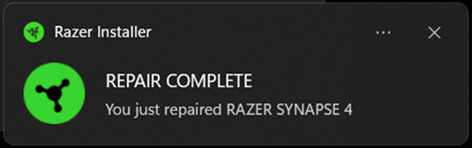
Once the process finishes, a “REPAIR COMPLETE” message will appear, and Razer Synapse will launch automatically.