
A Razer headset that has intermittent sound might be caused by dirt or debris in audio ports and on the audio jack, improperly plugged in audio jack, hub connections, operated outside the maximum wireless range, wireless interference, software issues, or faulty audio drivers.
Select headset type for instructions
3.5 mm Headsets
-
Check the audio ports and audio jack for any dirt or debris that may cause the issue.
-
Check if the audio jack is plugged in properly.
-
Disable the 7.1 Surround Sound (applicable to 7.1 Surround Sound headsets only). Click on the 7.1 Surround Sound icon in the system tray and click the slider to turn it on or off. Alternatively, open the 7.1 Surround Sound app and click on the "Turn ON" or "Turn OFF" button.
Note: If the earpiece works once the software is disabled, reinstall the software and restart the computer.
-
Reinstall the audio drivers.
- Press Windows key + S on the keyboard to open the Search bar.
- Type in “Device Manager” and hit enter.
- Expand “Audio inputs and outputs”.
- Right-click on “Speakers (Realtek High Definition Audio)” and select “Uninstall device”.

- Restart the computer to completely uninstall the drivers. The drivers are automatically installed on the computer after a restart.
-
Try the headset on a different computer to further isolate the issue. If the headset is working properly on a different device, the issue could be due to a defective computer or device audio port.
USB Type Headsets
-
For wireless headsets, ensure that the device is operated within the maximum wireless range and there are no other devices that may cause interference.
-
Ensure that the device is plugged in directly to a PC and not a USB hub.
-
Close all Razer Synapse programs.
- Right-click on the Razer Synapse icon on the system tray.
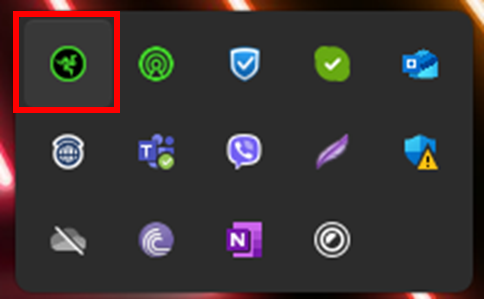
- Select "Exit All Apps".
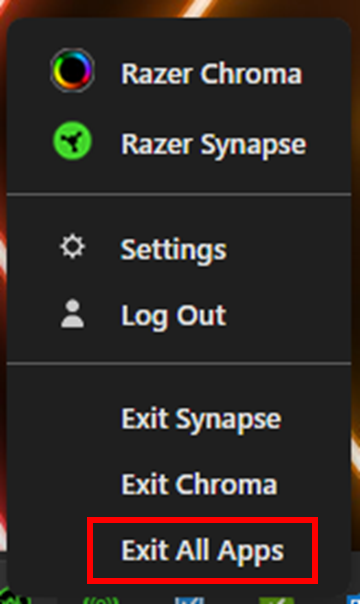
- Right-click on the Razer Synapse icon on the system tray.
-
If the headset works without Synapse, do a clean reinstall of Synapse, see How to perform a clean re-installation of Razer Synapse on Windows.
-
Uninstall headset drivers.
- Press Windows key + S on the keyboard to open the Search bar.
- Type in “Device Manager” and hit enter.
- Go to “Audio inputs and outputs”.
- Right-click on the Razer headset and select “Uninstall device”.
- Restart the computer to completely uninstall the drivers. The drivers are automatically installed on the computer after a restart.
-
For wireless headsets, re-pair the headset using the appropriate pairing utility. Visit Razer Support and search for headset pairing utility then follow through with the provided step-by-step guide.
-
Try the headset on a different computer to further isolate the issue. If the headset is working properly on a different device, the issue could be due to a defective computer or device USB port.
Bluetooth Headsets
- Your Bluetooth connection is affected by range, obstructions, and other Bluetooth devices. Try performing the following tips to help resolve the issue:
- Range – try moving closer to your device. Be sure that the Bluetooth devices are about 10m apart from each other.
- Obstructions (walls, large furniture, etc.) – try removing these obstructions and ensure that you have a clear line of sight to your Bluetooth device to help improve your Bluetooth connection.
- Another Bluetooth device – other devices may interfere with your connection which affects the performance of your Bluetooth device. Try removing these devices to help fix the issue.
- Update your Intel drivers by visiting Intel Driver Support Assistant.
Updating BT stack troubleshooting applies to the following products:
- Orochi V2 (BT mode)
- DeathAdder V2 Pro (BT mode)
- Naga Pro (BT mode)
- Pro Click (BT mode)
- Basilisk X HyperSpeed (BT mode)
- Atheris (BT mode)
- Orochi 2015 (BT mode)
- BlackWidow V3 Pro (BT mode)
- Pro Type (BT mode)
- Turret [old model] (BT mode)
- Anzu
- Hammerhead True Wireless Pro
- Hammerhead True Wireless
- Kaira Pro for Xbox (BT mode)
- Kraken BT
- Opus
- Nommo Pro (BT mode)
- Hammerhead BT
- Leviathan Mini
- Leviathan
- Adaro Wireless
- Raiju Ultimate (BT mode)
- Raiju TE (BT mode)
- If the issue persist, reestablish your Bluetooth connection. Remove the Bluetooth headset from your device and reconnect it.

