
Here are steps on how to troubleshoot a headset that has a static, buzzing, or crackling sound.
Select headset type
3.5mm Headsets
- Check the audio ports and audio jack for any dirt or debris.
- Confirm that the audio jack is plugged in properly.
- Verify that the 7.1 Surround Sound or THX Spatial software is properly installed on the PC.
- Disable the 7.1 Surround Sound (applicable to 7.1 Surround Sound headsets only) or THX Spatial.
- Click on the app icon in the system tray and click the slider to turn it on or off.
- Alternatively, open the 7.1 Surround Sound or THX Spatial app, then click the slider to enable or disable. Green means enabled, and grey means disabled.
Note: If the earpiece works once the software is disabled, reinstall the software and restart the computer.
- Reinstall the audio drivers.
- Press Windows key + S on the keyboard to open the Search bar.
- Type in “Device Manager” and hit enter.
- Expand “Audio inputs and outputs”.
- Right-click on “Speakers (Realtek High Definition Audio)” and select “Uninstall device”.
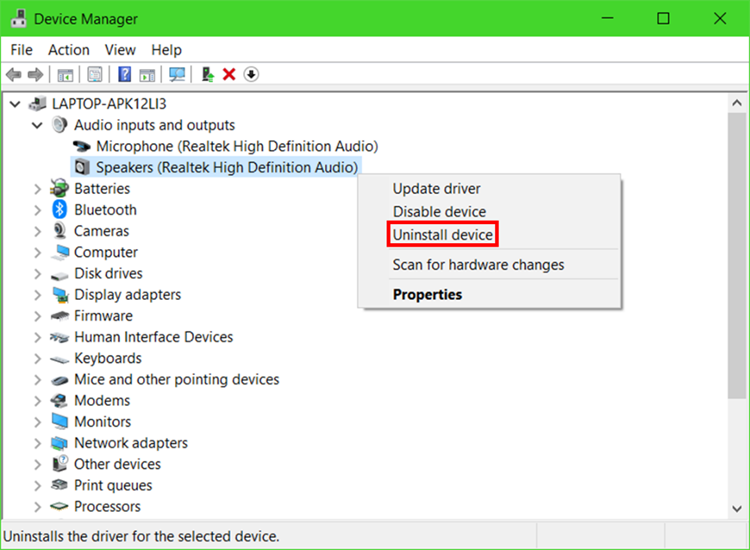
- Restart the computer to completely uninstall the drivers. The drivers are automatically installed on the computer after a restart.
USB Type Headsets
- Wired USB headsets: Ensure the device is plugged in directly to a PC and not to a USB hub.
- Wireless USB headsets: Ensure the device is not subject to wireless interference. Turn off or disable any other wireless devices or move away from them to avoid interference.
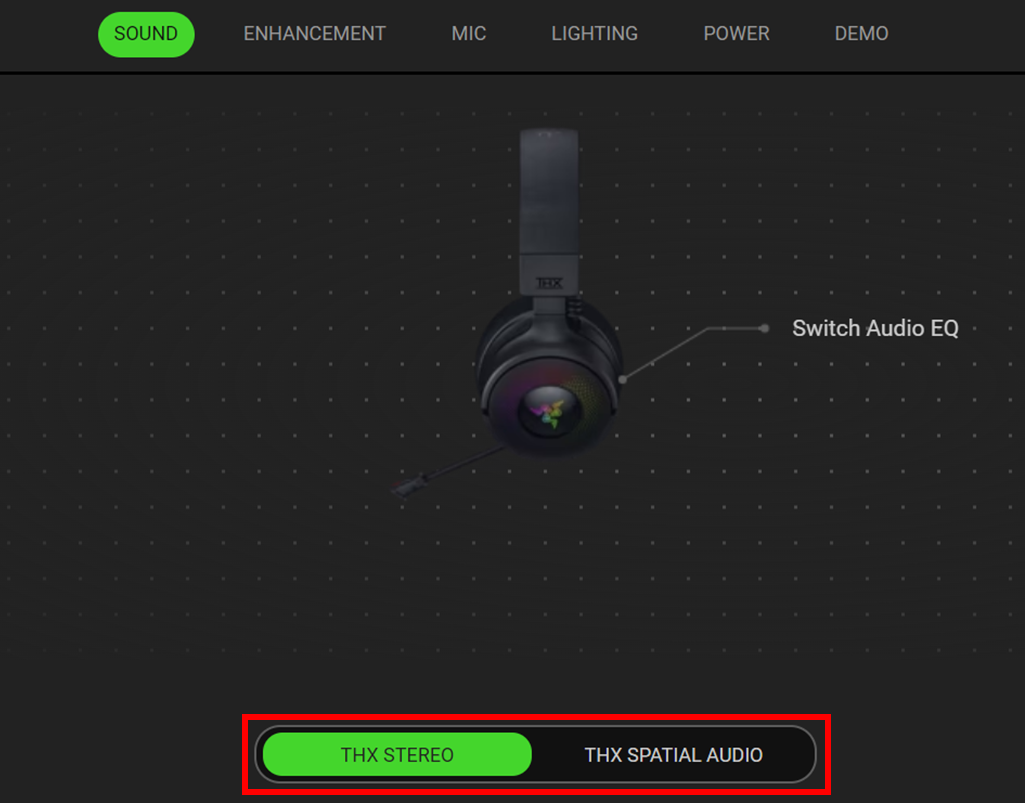
- Disable THX Spatial in Razer Synapse.
- Open Razer Synapse and select the device from the “DASHBOARD”, then navigate to the “SOUND” tab.
- Disable THX Spatial Audio by toggling to “THX STEREO”.
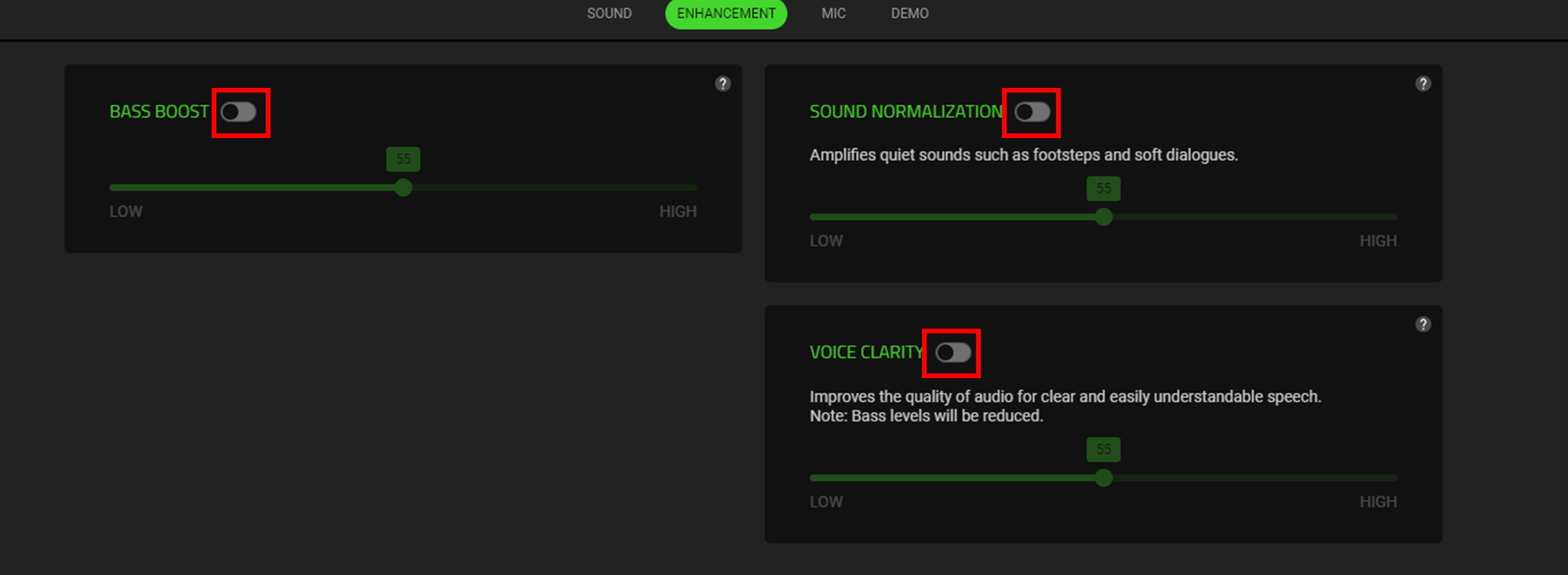
- Disable Audio Enhancements.
- Open Razer Synapse and select the device from the “DASHBOARD”, then navigate to the “ENHANCEMENT” tab.
- Disable all enhancements or adjust the levels according to preference.
- Disable Razer Synapse.
- Right-click the Razer Synapse icon found in the system tray.
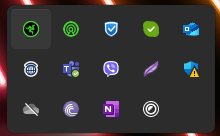
- Select "Exit Synapse".
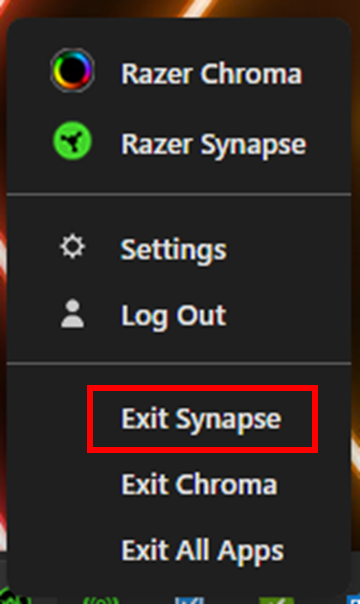
- Right-click the Razer Synapse icon found in the system tray.
- If the headset works without Razer Synapse, perform a clean reinstall. See the answer below for more details.
- Uninstall headset drivers.
- Press Windows key + S on the keyboard to open the Search bar.
- Type in “Device Manager” and hit Enter.
- Go to “Audio inputs and outputs”.
- Right-click on the Razer headset and select “Uninstall device”.
- Restart the computer to uninstall the drivers completely. The drivers are automatically installed after a restart.
- Test the headset on a different computer to further isolate the issue. If the headset is working properly on a different device, the issue could be due to a defective computer or device USB port.

