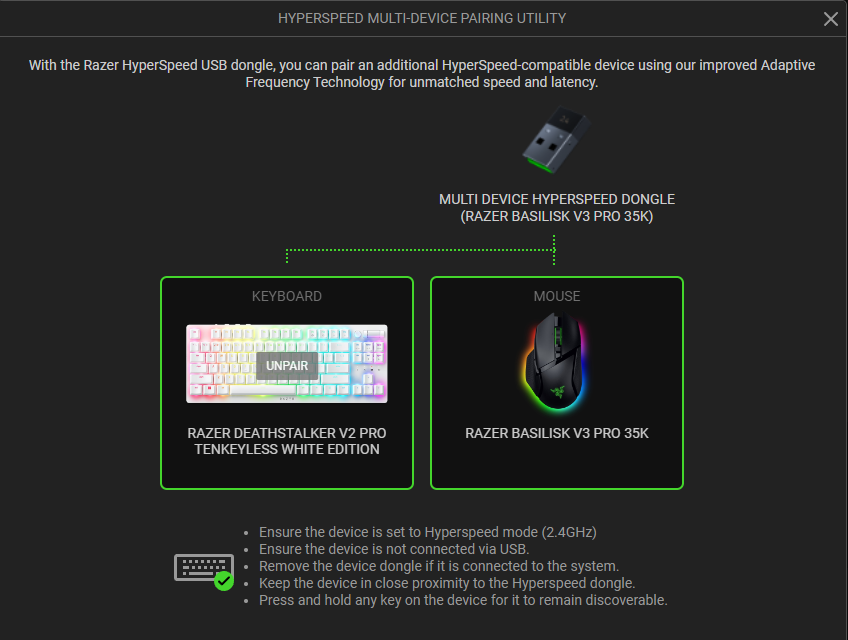
Below is the list of Razer devices that support multi-device pairing.
* The bundled HyperPolling Wireless dongle supports single-device connectivity only and does not support multi-device pairing.
Important:
-
Ensure the device is not connected via USB cable.
-
Remove the additional device’s USB dongle if it’s connected to the system.
-
Keep the device close to the Hyperspeed dongle.
Step-by-step process on how to add a device to a multi-device dongle
You can view the video below for instructions.
Note: The pairing for your second device is at the 45-second mark of the video.
-
Launch Razer Synapse 4.
-
Go to your device’s profile.
Note: If your device is not on the latest firmware, you will be prompted for an update.
-
Update your device to the latest firmware.
-
Visit Razer Support to check for firmware updates.
-
Download and install them on your device.
-
-
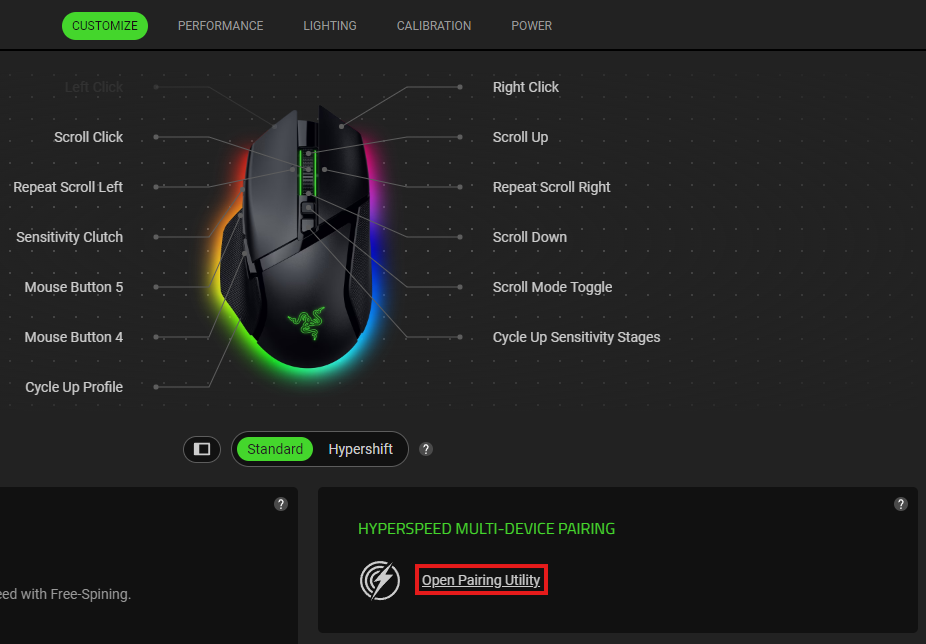
Click on “Open Pairing Utility”.
-
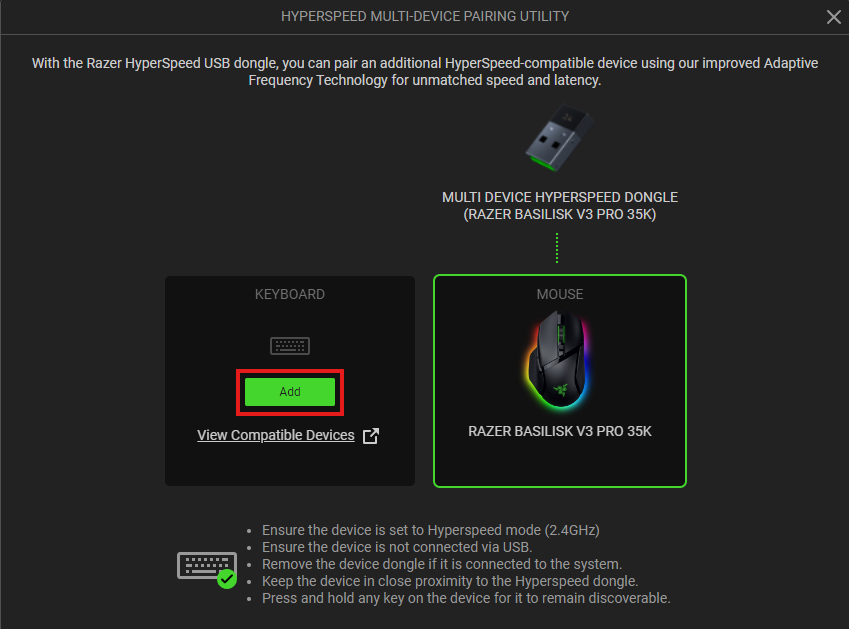
Click the "ADD" button to start scanning for a device.
-
Set the compatible device switch to Hyperspeed (2.4G) mode.
-
Press and hold any key on the device you want to pair to keep it discoverable.
-
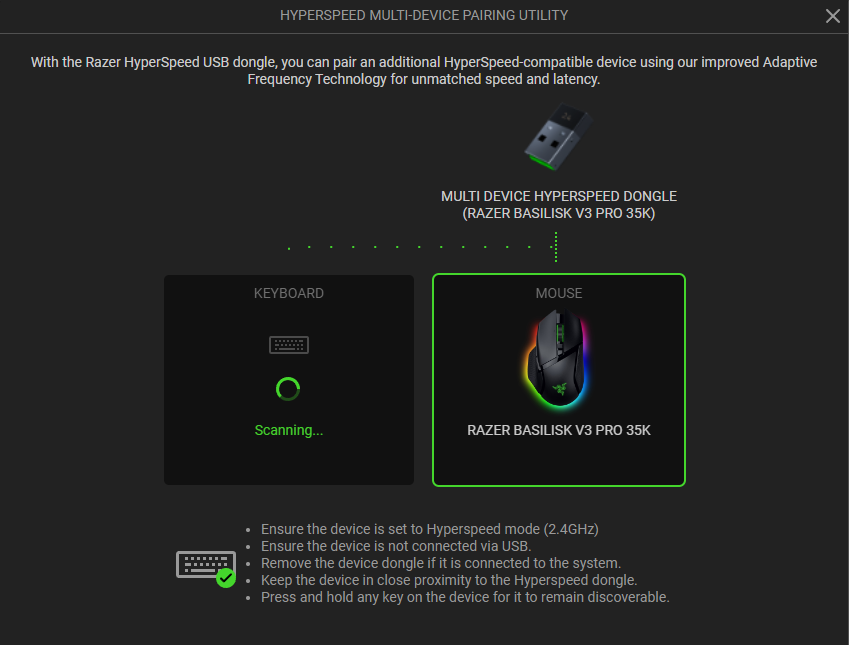
Wait while scanning is in progress.
-
-
Device will automatically be paired.