
Removing any installed updates is extremely not recommended as it may remove performance and security improvements, and bug fixes for the previous patch. However, if there is a need for you to remove an update, you can do so.
Select Windows version
Windows 10
Step-by-step guide to uninstall updates:
-
Click the Start button or press Windows key, then select "Settings" > "Update & Security" > "Windows Update" > "View update history".

-
Click "Uninstall updates".

-
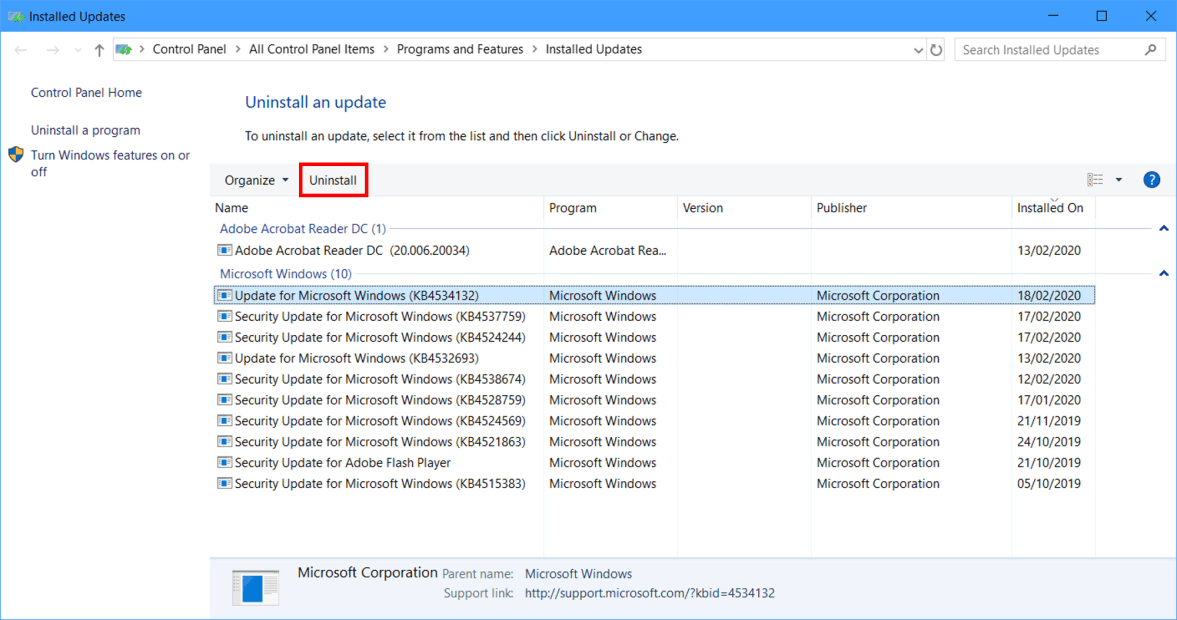
Select the update you want to uninstall and click "Uninstall".
-
Click "Yes" to confirm.

Windows 11
Step-by-step guide to uninstall updates:
-
Click the Start button or press Windows key, then select "Settings" > "Windows Update".
-
Under Windows Update, select "Update history".

-
Click "Uninstall updates".

-
Select the update you want to uninstall and click "Uninstall".
-
Click "Yes" to confirm.

